Understanding Profiles
Employees can have one or more profiles, but only one profile per profile type. The PeopleSoft application delivers the profile type PERSON to create person profiles, but you can create other profile types according to your organizational requirements. For further information about creating profile types see PeopleSoft Human Resources Manage Profiles: Creating Profile Group Types and Profile Groups.
Employees and managers use the Profile Details page to view and update person profiles.
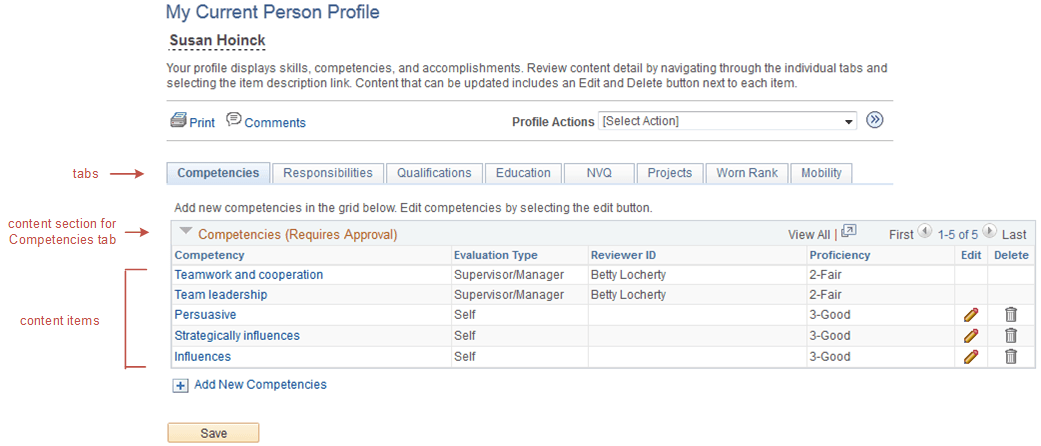
This is an example of a person profile using the classic user interface.
This is an example of a person profile using the fluid user interface.
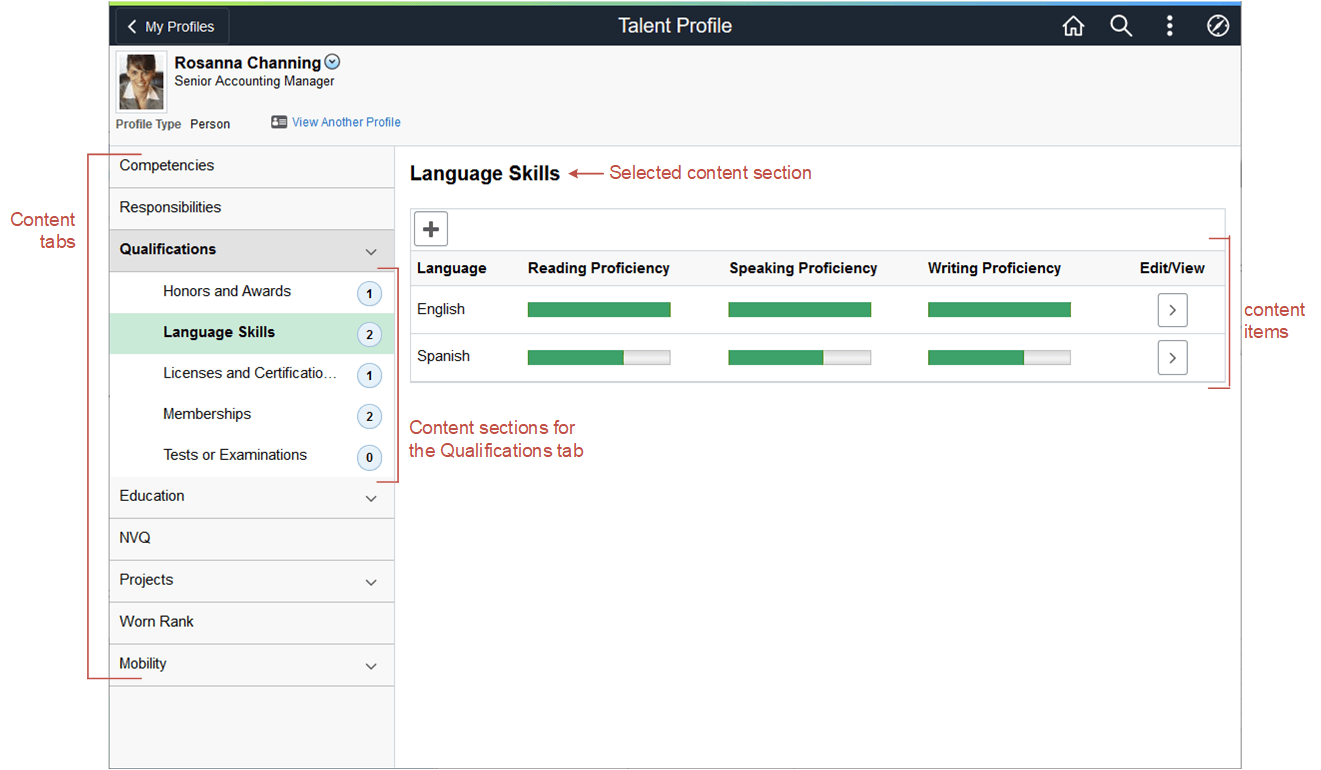
Profile content is divided into tabs which appear as tabs on the page. Under the navigation tabs, the page lists the content sections of the tab. When the employee or manager selects a different tab, the system updates the page to show the content sections for that tab. The content sections that employees and managers can view and update is determined by the security settings for the content sections in the profile type definition. This means that the profile content can vary according to the role accessing the profile.
Employees and managers add items to the person profile from the content catalog that you set up in Manage Profiles.
Note:
(Classic) When using the classic pages, they can also copy items from job profiles that are related to the employee's job, by selecting Copy From Job Profile in the Profile Actions field and clicking the Go icon. The system searches for job profiles that match the employee's job data. There could be more than one profile related to the employee's job data. For example, if you have set up profiles for job codes and positions and the person has a position selected in job data, the system lists these profiles and the employee or manager selects the profile that they want to use.
The profile pages list items within the content sections of the page. If changes have been made to the profile but not yet approved, The pages indicates that there are items that are either new and awaiting submission for approval, pending approval, or denied. In classic mode, the employee or manager click a link to view a list of the items with that approval status. In fluid mode, the Status field appears, indicating which items have that approval status.
Content requiring approval whose items are added, updated, or deleted from a profile are assigned a saved status in the classic pages when the employee or manager saves and submits the information for approval.
For changes that don't require approval, the items are automatically set to approved when the employee or manager saves and the profile page is updated with the changes.
WARNING:
(Classic) After those items requiring approval are submitted using the classic page, the content section on the profile page is refreshed to show approved items only. This means that the changes that were saved are no longer visible because these items do not have an approved status. However, a link appears to indicate that there are items pending approval.
(Fluid) After those items requiring approval are submitted using the fluid pages, the content section on the profile page is refreshed to show the Pending Approval status for the item.