The No Approval, With Employee Review (No Apvl with Review) Process - 4-Step
This diagram illustrates the 4-step No Approval, With Employee Review process flow:
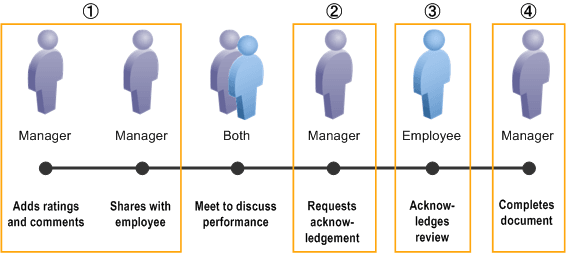
This table describes the flow of the process, lists the availability of action buttons that appear in the manager and employee evaluations for the process, and the change of statuses during the process.
| Action | Available Action Button | Document Status |
|---|---|---|
|
1. Manager adds ratings and comments to the document. When finished, manager clicks the Share with Employee button to share it with the employee. Manager confirms the action. |
Share with Employee |
(original) Evaluation in Progress (changed to) Shared with Employee |
|
2. Manager and employee meet to discuss the document. Next, manager clicks the Request Acknowledgement button to ask the employee to acknowledge that they have discussed the evaluation. Manager confirms the action. |
Request Acknowledgement |
(changed to) Pending Acknowledgement |
|
3. Then, one of these two things happens:
Employee (or manager) confirms the action. System, if applicable, records the individual’s eSignature. See Also Manager and Employee Signatures for the eSignature Section |
(for employee) Acknowledge (for manager) Override Acknowledgement |
(changed to) Acknowledged |
|
4. Manager clicks the Complete button to finish the review. Manager confirms the action. System sets the document status to Completed. It also, if applicable, records the manager's eSignature. See Also Manager and Employee Signatures for the eSignature Section |
Complete |
(changed to) Completed |