Example: Average Setup with Retroactive Processing
To set up a salary average with retroactive processing:
-
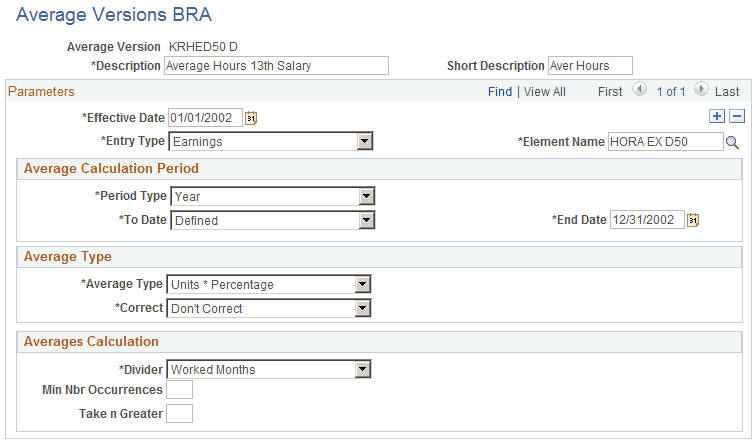
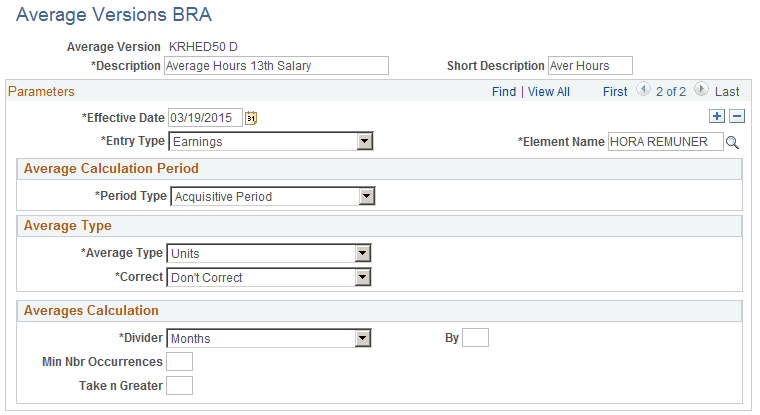
Specify elements that need retroactive processing on the Average Version BRA Page . In this example, enter setup for the HORA EX D50 and HORA REMUNER elements for the KRHED50 D average version.
This example illustrates the salary average setup (HORA EX D50) with retro processing on the Average Versions BRA page.
This example illustrates the salary average setup (HORA REMUNER) with retro processing on the Average Versions BRA page.
-
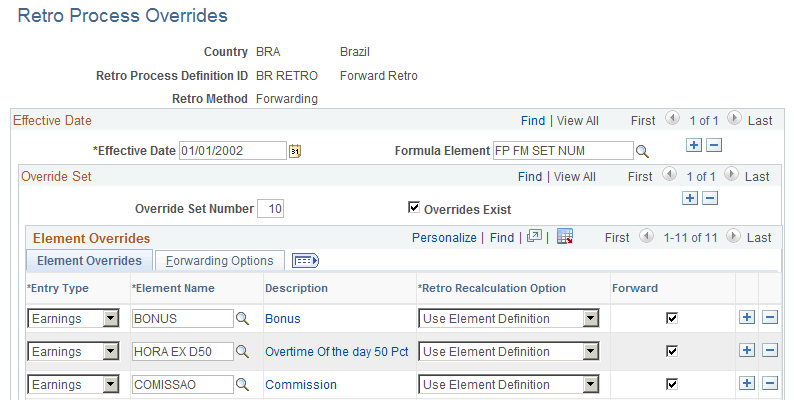
Insert HORA EX D50 as earning for the BR RETRO retro process definition on the PeopleSoft Global Payroll: Retro Process Overrides Page. Make sure the Forward option is selected.
This example illustrates the addition of the HORA EX D50 element to the Retro Process Overrides page.
-
Insert a positive input for the HORA EX D50 element on the PeopleSoft Global Payroll: One Time (Positive Input) Page for a month (for example, October).
In this example, enter 16 as the unit number (hour) in the Earnings and Deductions: Main Components section.
-
Run the regular payroll for that month. Review the results.
Note:
Access the Calendar Group Results page to verify that the unit value of 16 (entered as positive input) is processed.
After the results are verified and they look good, finalize the payroll.
-
Now, modify the positive input that was previously entered to generate the corresponding retro.
This time, change the unit (hours) for HORA EX D50 from 16 (previously entered) to 10 on the PeopleSoft Global Payroll: One Time (Positive Input) Page .
-
Review the retro trigger that exists for that month.
Verify that the retro trigger has been added as a row for the employee on the PeopleSoft Global Payroll: Retro Page.
-
Run the payroll for the next month and verify the results.
Suppose that the retro is for the month of October, you need to run the regular payroll for November.
After running the payroll, access the Calendar Group Results page to verify that -6 hours of unit adjustment for HORA EX D50 is processed and has been forwarded to same HORA EX D50 element.
After the results are verified and they all look good, finalize the payroll.
-
Run the payroll for the following month and verify the results.
Suppose that the retro is for the month of October, you need to run the regular payroll for December in this step.
After running the payroll, access the Calendar Group Results page to verify that the MED HED50 13 element has taken into account retro processing for HORAS EX D50 and the amount has been paid.
Here is the summary of the calculation:
October Incidence: 16 hours
November incidence that belongs to October: -6 hours
Calculation With Retroactive Processing
(October hours * Hourly RT * PCT) + (Retro October hours * Hourly RT * PCT) = Result
(16 * 63.636363 * 150%) + (-6 * 63.636363 * 150%) /12 = 79.54545