Manage Pos Input via Batch BRA Page
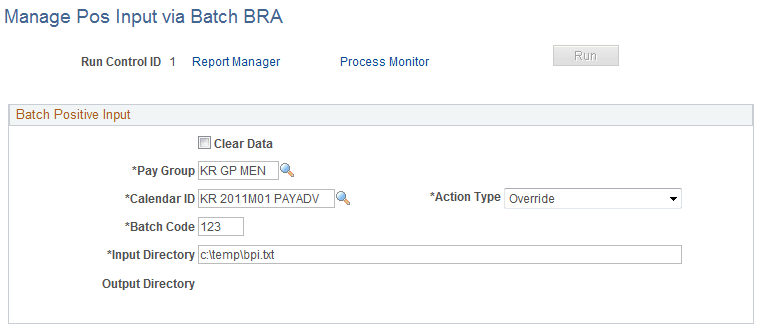
Use the Manage Pos Input via Batch BRA (manage positive input via batch BRA) page (GPBR_PI_BATCH) to create batch positive input.
Navigation:
This example illustrates the fields and controls on the Manage Pos Input via Batch BRA page.
WARNING:
This process provides the ability to add, modify or remove a large amount of data in your system. Exercise caution when you manipulate data using this batch process.
| Field or Control | Description |
|---|---|
|
Clear Data |
Select this check box to delete data that was previously loaded using the selected pay group, calendar ID, and batch code. Important: You may use this option to delete data that was loaded by mistake. However, do not select this option unless you are certain that the data specified needs to be removed from the system. |
|
Pay Group |
Select the pay group for the batch process. |
|
Calendar ID |
Select the calendar ID (not finalized) for the batch process. Available values are refined by the specified pay group. The system validates the calendar ID, and disables the Run button if the selected calendar ID is finalized. |
|
Action Type |
Select the action to be performed. Choose from the following: Add Do Not Process Override Resolve To Zero This field appears if the Clear Data field is not selected. |
|
Batch Code |
Enter the code that is used to identify the set of data to be loaded for this batch run. Enter this value for the batch process when the Clear Data option is not selected. When the batch process is executed, it updates the batch code by appending the word BATCH. For example, if you entered 123 as the batch code, the new batch code becomes BATCH123 after the process is completed. Should you need to delete the data loaded in batch code 123 in the future, look up the batch from the prompt using the new batch code (BATCH123). |
|
Input Directory |
Specify the full location of the flat file containing the batch positive input (flat file directory), including the name of the flat file. This field appears if the Clear Data field is not selected. |
|
Output Directory |
Displays the name of the log file for the batch run. The naming convention of the log file is OUTPUT_<batch code>.txt, and it is generated automatically to store any errors found during the batch process. The log file is available for review on the View Log/Trace page (PMN_CDM_INDEX) of the corresponding process detail. This field appears if the Clear Data field is not selected. |
Flat File Layout for Batch Positive Input
When you create flat files for the batch positive input process, reproduce the following file definition:
| Field | Initial Position | Length |
|---|---|---|
|
EMPID |
1 |
11 |
|
EMPL_RCD |
12 |
3 |
|
PIN_NM |
15 |
18 |
|
GP_UNIT |
33 |
20 |
|
GP_AMT |
53 |
20 |
|
GP_RATE |
73 |
20 |
|
GP_PCT |
93 |
11 |
|
PC_BASE |
104 |
20 |
|
DEPTID |
124 |
10 |
|
JOBCODE |
134 |
6 |
Here is an example:
| Field | Example |
|---|---|
|
EMPID |
GR0045 |
|
EMPL_RCD |
0 |
|
PIN_NM |
COMISIONES |
|
GP_UNIT |
12.58 |
|
GP_AMT |
11.36 |
|
GP_RATE |
10 |
|
GP_PCT |
1.3 |
|
PC_BASE |
25.36 |
|
DEPTID |
KR000 |
|
JOBCODE |
KR001 |
Note:
This flat file definition applies to both earnings and deductions that you load using batch positive input.
Related Topics