Absence Events Analysis Pagelet
Use the Absence Events Analysis pagelet to analyze absence entries by status, absence type, absence take, and absence reason.
This example illustrates the fields and controls on the Absence Events Analysis pagelet.
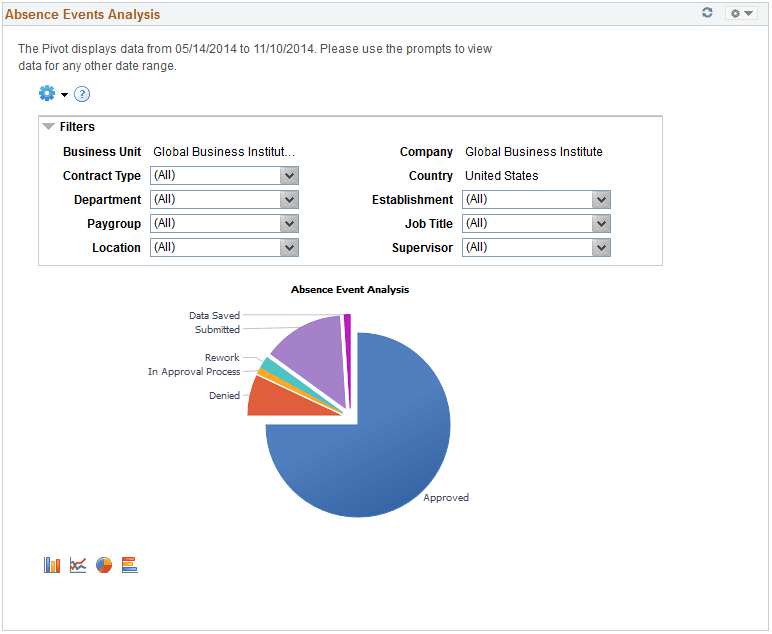
By default, this pivot grid displays a pie chart of the absences for the administrator’s company for the specified date range by approval status.
Note:
When a manager accesses this pivot grid through the Manager Dashboard or through the PeopleSoft Fluid User Interface, it displays a bar chart of the absences by approval status for the employees who report to the manager.
Examples of what administrators can use this pivot grid to determine are:
-
The number of absences pending approval, and the employees with which they are associated.
-
The number of absence requests entered for a given pay period.
-
The types of absence requests that employees and direct reports are entering.
-
Which employees reported absences with partial hours or partial days.
-
The counts of absence entry composition by entry source.
Related Actions
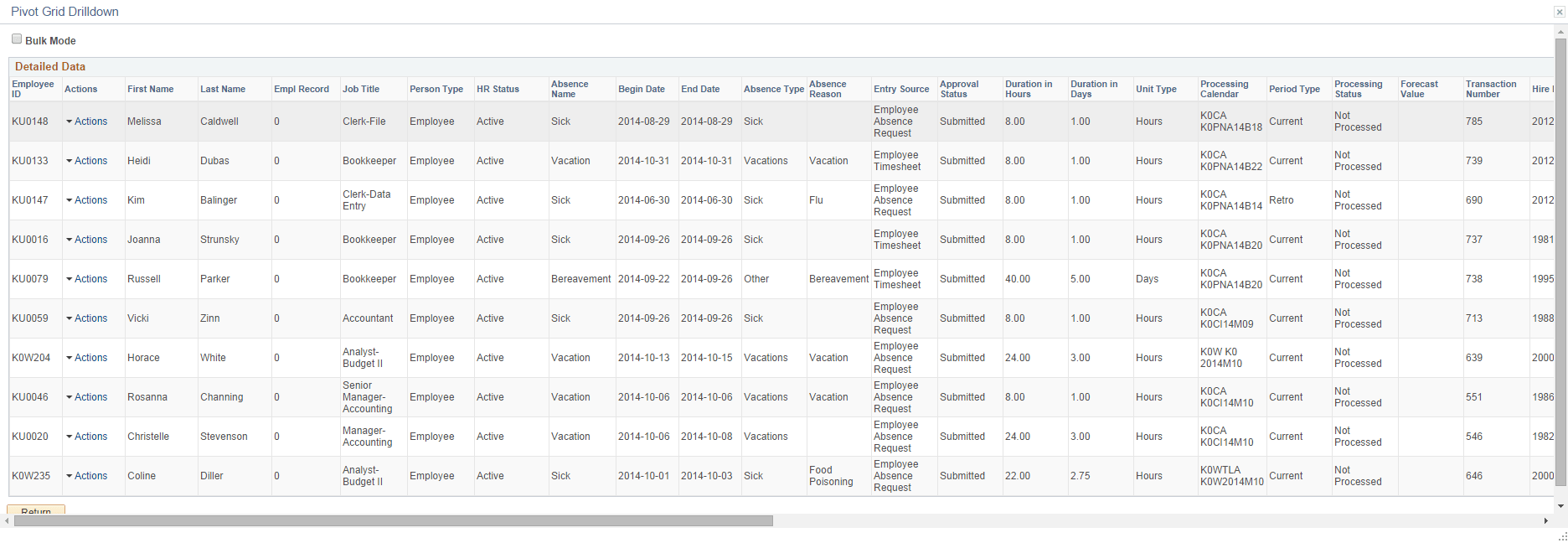
You can click an area of the chart and select Detailed View to view the absence event data using the Pivot Grid Drilldown page.
This example illustrates the fields and controls on the Pivot Grid Drilldown page.
| Field or Control | Description |
|---|---|
|
Actions |
Click to access the available related actions for the absence request. Valid values are:
|