Global Payroll WorkCenter Page
Use the Global Payroll WorkCenter page (HWC_RSLT_FL) to access frequently used administrative work items for Global Payroll.
Navigation:
Click the Global Payroll WorkCenter tile on the Workforce Administrator home page.
This example illustrates the fields and controls on the Global Payroll WorkCenter page.
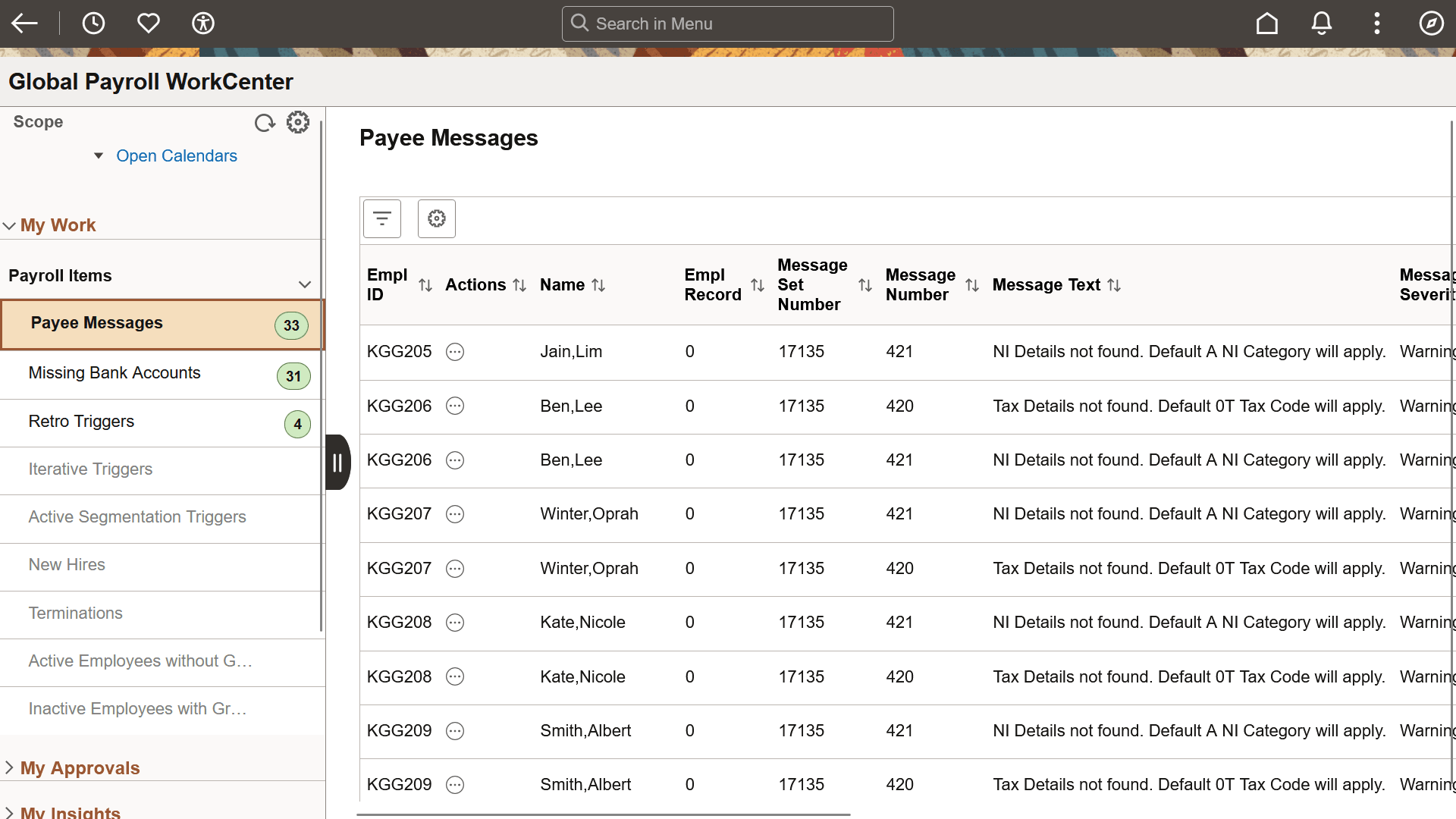
PeopleSoft delivers a Fluid WorkCenter for Global Payroll. The WorkCenter is preconfigured with work items, links, queries and reports, providing administrators access to real-time information and analytical sources based on their role-based security, and the ability to perform Payroll business process tasks from one central area.
Users can personalize display options and add links to their own WorkCenter for maximum efficiency. For more information, see Application Fundamentals: Setting Up and Personalizing PeopleSoft Fluid WorkCenters.
The WorkCenter page is divided into two areas: the navigation panel on the left and the transaction panel on the right.
Left Panel
The navigational panel on the left contains group boxes with links to specific transactions, menu components and other content. These group boxes are:
-
My Work. This group box contains a collapsible section, Payroll Items. For more information, see Understanding the My Work Group Box.
-
My Approvals: For more information, see Understanding the My Approvals Group Box.
-
My Insights: For more information, see Understanding the My Insights Group Box
-
Links. For more information, see Understanding the Links Group Box.
-
Queries. For more information, see Understanding the Queries Group Box.
-
Reports/Processes. For more information, see Understanding the Reports/Processes Group Box.
| Field or Control | Description |
|---|---|
|
Scope |
Scope determines the data to be displayed in the WorkCenter. Available Options are:
Note: If you have configured any additional scope, it will also be listed here. For more information on how to configure a new scope, see Application Fundamentals: Configure Scope Page. |
|
|
Click to refresh the content area to display either the first page that appears when you first access the WorkCenter, or the starting page if it is specified in your personalization. |
|
|
Click the icon to view the following options:
|


Right Panel
The transaction panel on the right is where the selected transaction result or component (work item) is displayed.
By default, the Payee Messages page appears when you first access the WorkCenter. You can change this default setting on the Application Fundamentals: Personalize Page (Fluid).
You can also filter and personalize the output based on your requirements. For more information, see Application Fundamentals: Refine Filter Criteria Page and Application Fundamentals: Personalized Output Page.
You can download grid data to .xls file.