Department Trees
When you use training budget components, such as demand profiles or department demands that reference department information, you can use a department security tree.
You can enter a parent department on the tree and automatically include any child departments in departmental views, profile templates, and training demand definitions, using two tree buttons.
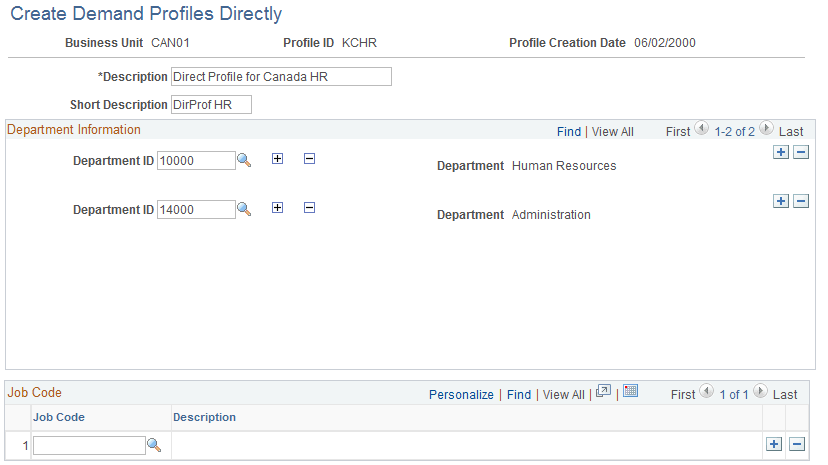
This example shows the Create Demand Profile Directly page where you can access the department tree as you select departments for a demand profile:
| Term | Definition |
|---|---|
|
|
Click the Expand button to add related departments that are specified in the department tree to the list on the page. Then you can add several departments to the list in one step. |
|
|
Click the Collapse button to delete related departments from the list. The system deletes only the departments that you added by clicking the Expand button. Departments that you added manually remain in the list, even if they are related departments. |


Instead of using the Expand and Collapse buttons, you can enter departments manually by inserting a department row.
For example, when you establish the number of employees that need training for a course, and you want to specify a demand for your own department only, enter only your department number and the number of people who are to be trained. To train people in every department for which you are responsible, enter the department ID for the parent department and click the Expand button. The system creates a new data row for each department that is below the parent department, according to the department security tree.
The following diagram illustrates an expanded department tree for a geographically-organized sales organization:
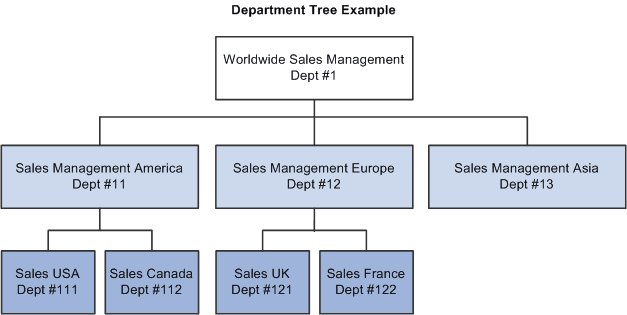
If you don't want to train employees in Sales Management America, Dept #11, remove that department from the department list by clicking the Collapse button for that department row. The system deletes any departments that report to the selected department. In the example, if you click the Collapse button for Dept #11, the system removes Dept #111 and Dept #112.