Attachments Page
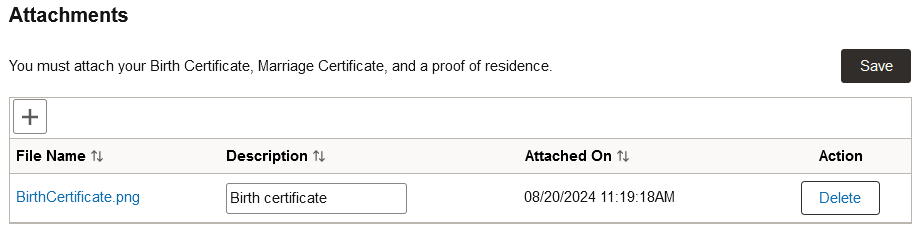
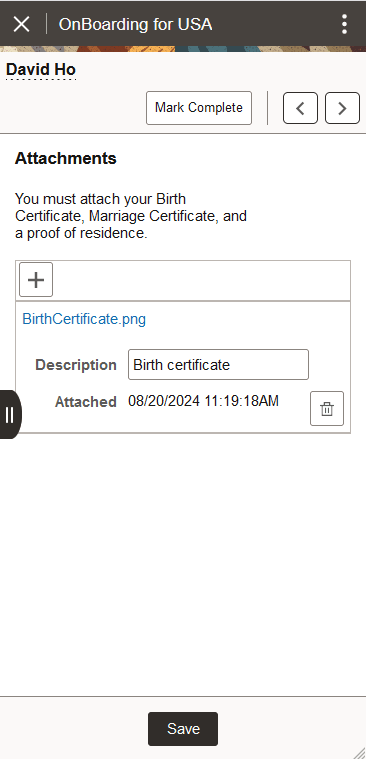
Use the Attachments page (HR_OBD_ATT_UPLD_FL) to upload copies of additional documents, such as certificates or identification information.
Note:
This page is delivered as part of the Standard PreBoarding, Standard OnBoarding, Standard Multi-Participant OnBoarding, OnBoarding for CAN, and OnBoarding for USA templates.
Navigation:
Select the step from the activity guide navigation or use the navigation buttons.
This example illustrates the Attachments page for the tablet.
This example illustrates the Attachments page for the smartphone.
| Field or Control | Description |
|---|---|
|
Add Attachment or |
Select this button to open the File Attachment page and upload a file. After you have selected and uploaded the file, click Done to return to this page. The uploaded file will appear as an active link in the File Name field. The page will display the date and time the file was uploaded. When you add a file, the data is automatically saved for this page. |
|
Description |
Enter up to 50 characters as a description for the file. You will need to select the Save button to save this data. |
|
Delete or |
Select this button to remove the file from the page. The system will ask for confirmation that you want to delete this file. Select Yes to delete the file. This will automatically save the page with your deletion of the file. |
|
Save |
Select this button to save the description you have added or for the file. Administrators will access the uploaded files on the Employee Documents Page. |
 Add button
