Understanding the The Org Chart Viewer Component Structure
The Org Chart Viewer component has three primary org view types, which display as folder tabs across the top of the component: Company Directory, Direct-Line Reports, and matrix report pages. Each of these top-level folder tabs are made up of two sub-pages (tabs) that correspond to the parent folder tab.
This example illustrates the tab organization of the Org Chart Viewer component. You can find definitions for the types of org view type tabs later on this page.
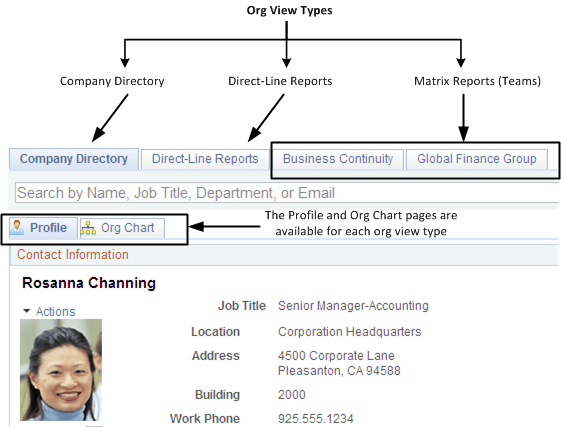
This table explains the different org view types:
| Org View Type | Usage |
|---|---|
|
Company Directory |
Includes the organization’s hierarchical structure. Use the Company Directory page of the Org Chart Viewer (first tab) to access this org view type information. This page is available to all employees and managers. |
|
Direct-Line Reports |
Includes employees that report up to the user. Use the Direct-Line Reports page of the Org Chart Viewer (typically the second tab, if available) to access this org view type information. This page displays content for managers with direct reports. This tab may not be available to a person without direct reports. |
|
Matrix Reports <matrix team name> |
Represents a reporting chain or hierarchy that is not a traditional direct-line reporting relationship and is sometimes referred to as dotted-line reporting or teams. Use the subsequent tabs that may display in the Org Chart Viewer component (typically the third and later tabs when all org view types are available) to access this org view type information. Each tab name reflects a matrix team name. A matrix team tab appears at the top of the Org Chart Viewer component for each matrix team with which a user is associated. If a user is not associated with any teams, matrix reports tabs will not display at the top of the Org Chart Viewer component. |
Note:
Access to the Org Chart Viewer component must be granted to users in order to access these pages. The roles are Org Viewer User - Employee and Org Viewer User - Manager.
For information on granting security access, see the product documentation for PeopleTools: Security Administration.
This example illustrates the Org Chart Viewer component where the user has access to all the different folder tabs.
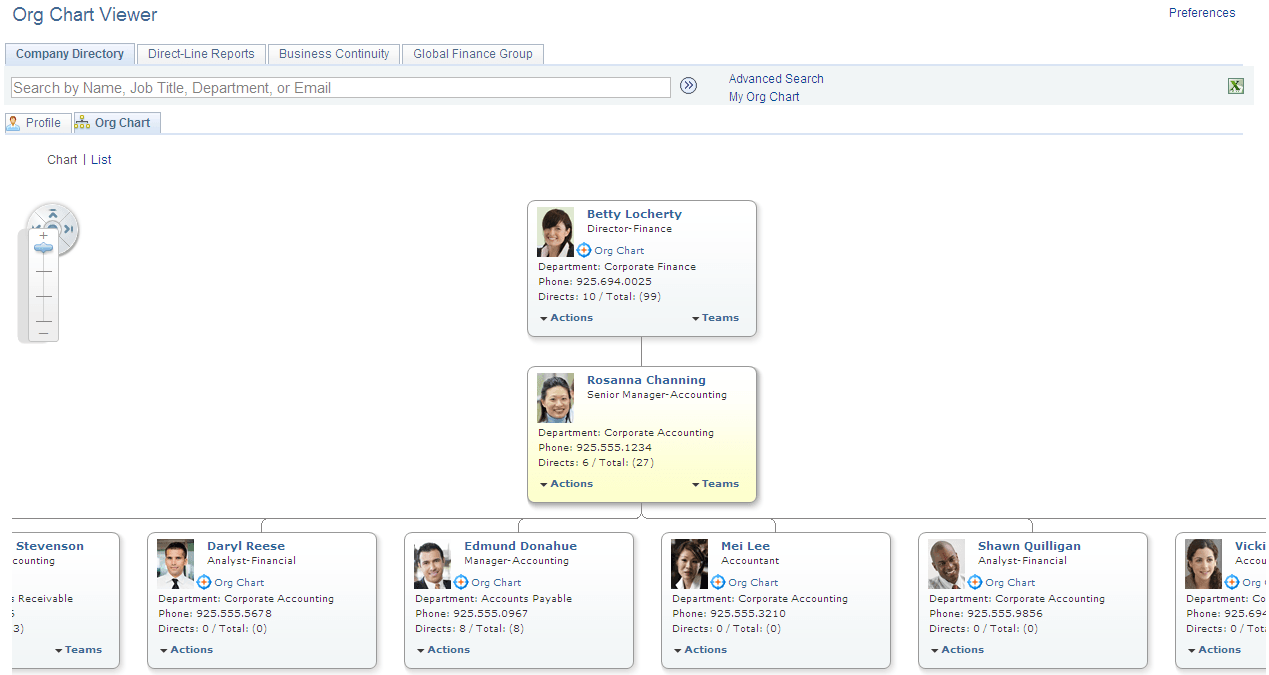
Within each org view type folder tab of the Org Chart Viewer there are also two page tab views:
| Pages within Each Org View Type | Usage |
|---|---|
|
Org Chart |
Displays a person within a three-tiered graphical representation of the reporting structure. The hierarchies rendered by the organization chart can be built manually, using access types, or trees. The chart focuses on a person and where he or she fits within the reporting structure. |
|
Profile |
Displays information about the focus person. The page shows up to five group boxes of information: two company related group boxes on the left side and three personalized group boxes on the right. The Profile page provides additional information about a person, such as his or her job details; links to other people with whom he or she is associated, such as direct reports, peers, and the manager; as well as personalized sections, which enable the employee to enter additional contact details, personal links, and free from text. |