Adding and Viewing Details in Succession Trees
Once you've created succession plans with candidate lists, you can view career plans and related employee data for succession candidates. Use this information to make decisions about particular candidates, to re-rank candidates in succession plans, or to remove candidates from the candidate list.
See PeopleTools 8.52: PeopleSoft Tree Manager
Viewing Details in Succession Trees
Use the Detail feature of Tree Manager to view and update career plans for succession candidates and to view and update several other pages containing pertinent employee data, such as compensation history, skills, languages, and prior work experience.
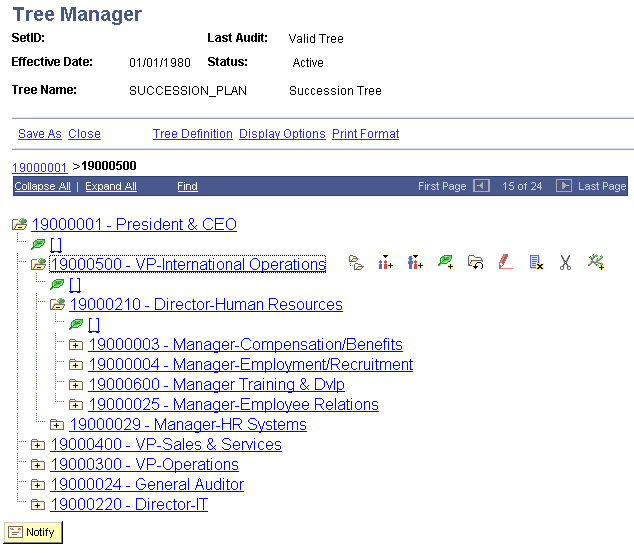
This diagram illustrates a succession tree:
This example illustrates the fields and controls on the Illustration of a succession tree. You can find definitions for the fields and controls later on this page.
Adding Details in Succession Trees
To add details to the succession tree, click the Insert Detail button. When you double-click the button, a list of candidates in the succession plan for that position appears. Select the candidate for whom to view career plans or related employee data.
Note:
Before you can view career plans and other employee data, create succession plans for key positions and include succession candidates in them. These pages are available in Tree Manager only for succession candidates.
To add a detail to succession tree:
-
In Tree Manager, open the succession tree and select the key position for which you want to add a detail.
-
Click Insert Detail.
-
Select the Dynamic Flag check box on the Detail Value Range page and click Add.
The detail is placed on the tree in what appears to be a lower level in the plan. For example, a detail for Position 1 in the CEO level appears under the EVP level.
To hide the details in a succession tree:
-
Click Display Options.
-
Deselect the Display Node Description check box on the Configure User Options page.
When you highlight a detail and click Edit Data, the system displays a list of candidates in the succession plan for the key position. The candidates are sorted first by succession plan date, then by ranking, and then by readiness. If a candidate is in more than one succession plan, they appear in this list only for the most current succession plan. Click the Update button on the line for the candidate for which you want to view additional information. The first page in the group, Career Plan, appears. If you prefer to access other pages from within Tree Manager, you can change the link between Tree Manager and the pages.
Note:
You can specify which page you'll see when you select to see details on a tree object, by selecting a page on the Details menu.