Using History
When you use a custom statement to define groups, the statement can evaluate the eligibility requirements over time and build a timeline of eligible and ineligible periods. This is a very powerful feature, and is key to evaluating plan eligibility and group membership.
To activate this feature, select the History check box underneath all effective-dated variables.
Note:
You should always use the History check box for aliases to effective-dated fields. You cannot use it with fields that are not effective-dated because there is no history to reference.
For example, suppose you are setting up a group for full-time employees.
The group function looks at the employee data over time and creates a timeline. For example, Julius Jones worked part-time for three months after his daughter was born and therefore has the following work history:
This timeline shows a seven-year period where an employee started out working full-time, changed to part-time, then changed back to full-time.
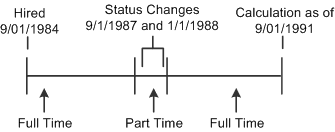
If you do not select the History check box, there is only one work history segment. In Julius' case, the custom statement would only look at the current information and thus would indicate that he had always been part of the full-time group.
If Julius left the company while he was working part-time, and you do not select the History check box, there is a single result showing that Julius has never been part of the full-time group. This happens because his status at the time of the calculation is part-time. The fact that the he was previously in the group is disregarded.