Preview Schedule Assignment Report
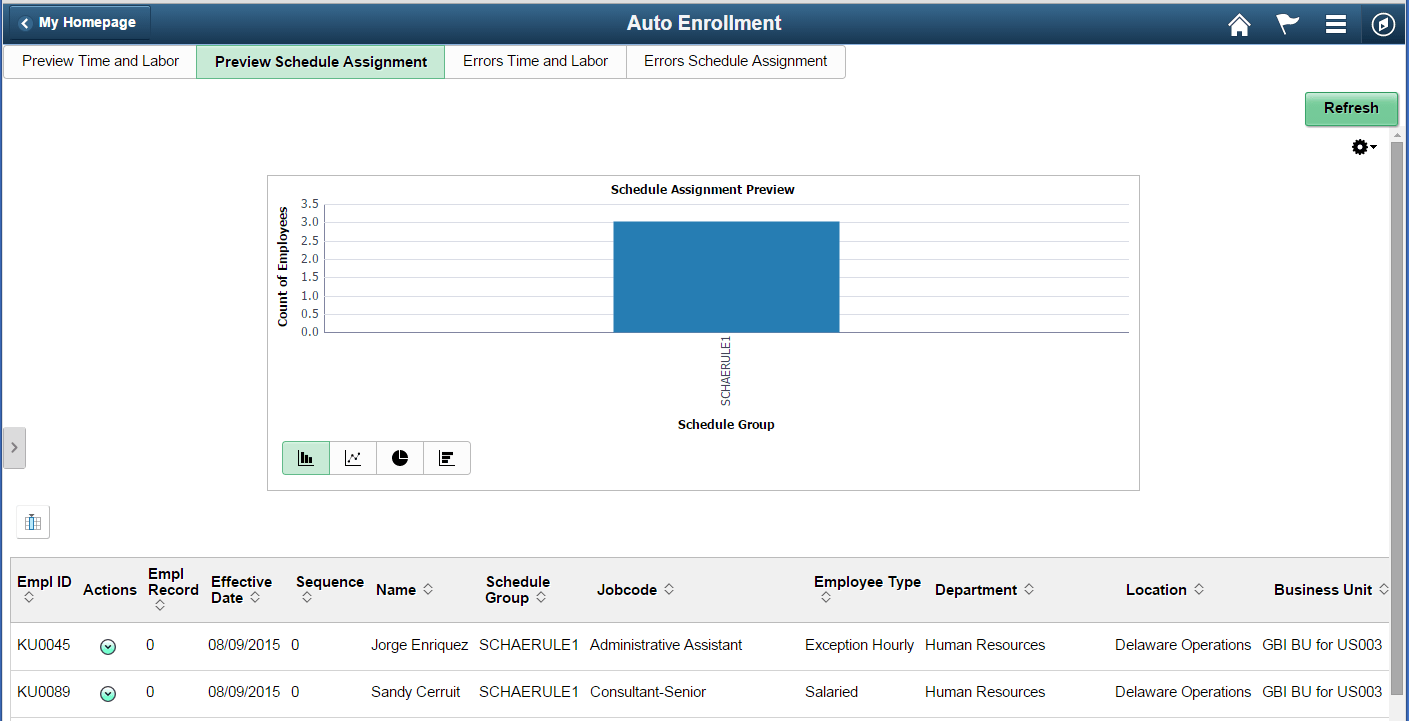
The Pivot grid report displays the schedule assignment in a bar chart. Enrollment Groups are listed on the x-axis and the count of number of employees matching different Enrollment Group criteria are represented on the y-axis. The Pivot grid report shows all employee details in a grid located below the chart.
Navigation:
Tap the Preview Schedule Assignment tab on the Auto Enrollment page.
This example illustrates the fields and controls on the Preview Schedule Assignment page.
| Field or Control | Description |
|---|---|
|
|
Perform the action of Posting, Mark for Processing or Rejecting enrollments at an employee level (one transaction at a time). The user can view the Schedule Group and Notify the recipients using different delivery methods. |

Select anywhere on the chart to drill down the data. By default, you can deliver the drill down options Position, Union Code, Employee Type and Job code.
The Details grid shows the field values - Employee ID, Employee Record, Effective date, Sequence, Name, Employee Type, Department, Location, Jobcode, Union Code, Position, Business Unit, Company, Supervisor ID, Run Control ID, Process Status and Enrollment Group for which the employee has become eligible.
At any point of time, you have access to configure various Pivot grid report options and can add any additional Job data fields to the details grid, drill down options or the filter criteria by modifying the underlying PS Query.