1.11.2 Updating Installation Indicators
Oracle recommends that you update the PeopleSoft Global Payroll Country Extension indicators on the Installation page on both your HRSYS and HRDMO databases, so that only the Country Extensions that you have licensed are enabled.
-
Enter Installation Table in the keyword input field of the Global Search bar. As you type, the suggestions are updated to reflect the search term or terms you have entered.
-
Select Installation Table from the search suggestions.
Note:
To navigate to the page using the Navbar button, select Set Up HCM, Install, Installation Table.
-
On the Products page, select the Installed GP Countries link (at the bottom) to view a list of countries.
-
Clear the check boxes for all of the Country Extensions that you have not licensed (so that the only check boxes selected are for those Country Extensions that you have licensed).
Note:
This is important because these indicators are used later in this task to identify if additional updates should be made (they are conditional based according to the Country Extensions that you licensed).
-
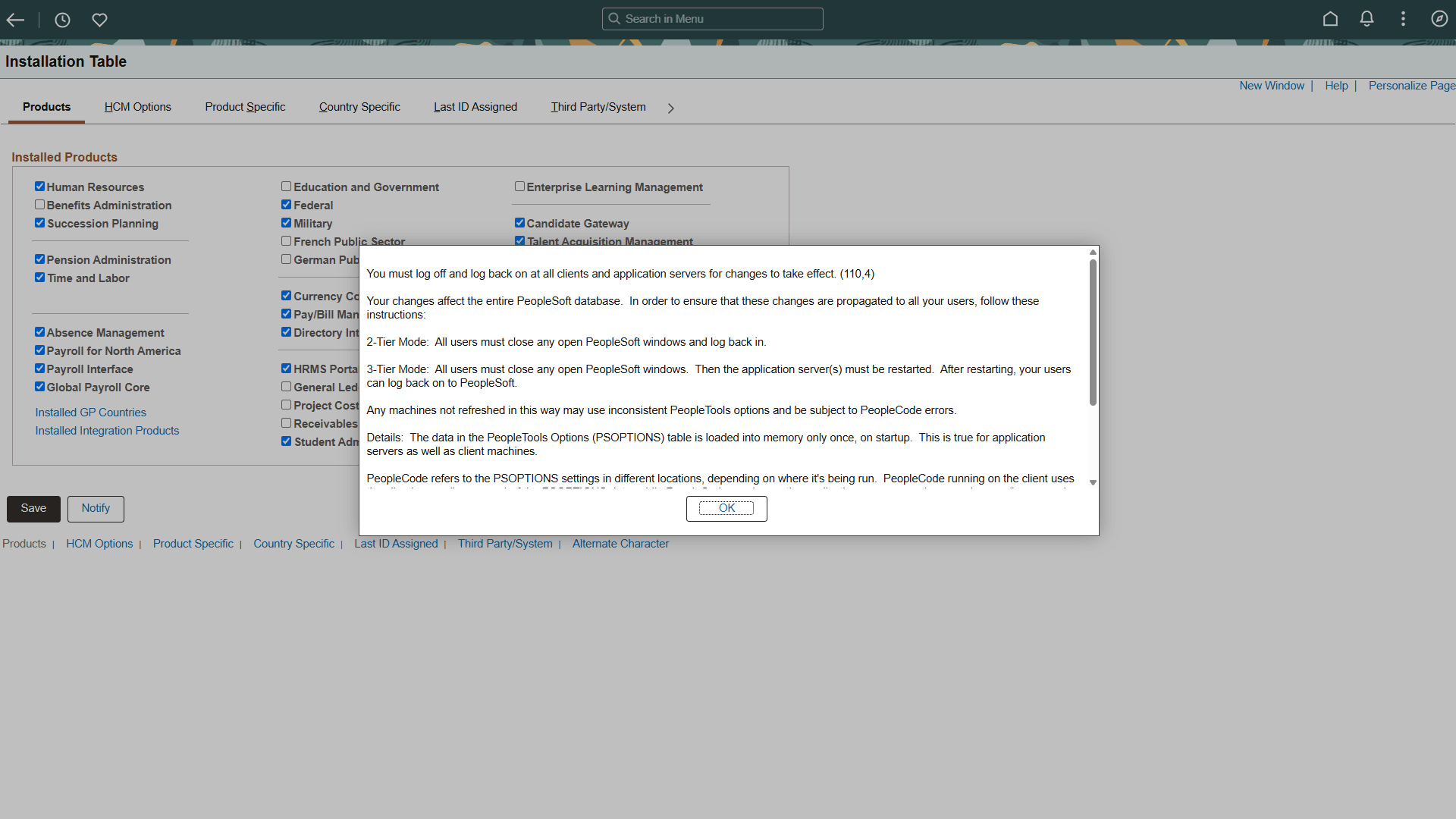
If any changes are necessary to the Installation Table, this informational message appears “You must log off and log back on at all clients and application servers for changes to take effect,” as shown in the following example:
Figure 1-8 Informational Message
-
Log off all clients, shut down and restart all application servers, and then log back on to PeopleSoft HCM for this change to take effect.