1.9.1 Verifying Installation Settings for PeopleSoft Absence Management
If you have licensed PeopleSoft Global Payroll Core or PeopleSoft Absence Management, you need a Microsoft Windows Process Scheduler to run the Packager Utilities.
If you use PeopleSoft Absence Management, you should verify that Global Payroll Core is enabled on the Installation Table. This also applies when you are using PeopleSoft Absence Management as a stand–alone product, or in combination with PeopleSoft Payroll for North America or Payroll Interface.
Note:
If your application contains COBOL programs, you must purchase a COBOL compiler. Refer to the section in this document titled “Reviewing COBOL Requirements for PeopleSoft HCM” for a list of the products that require COBOL and the supported COBOL compilers.
See Preparing for the Installation.
This step must be run against the SYS database and the DMO database.
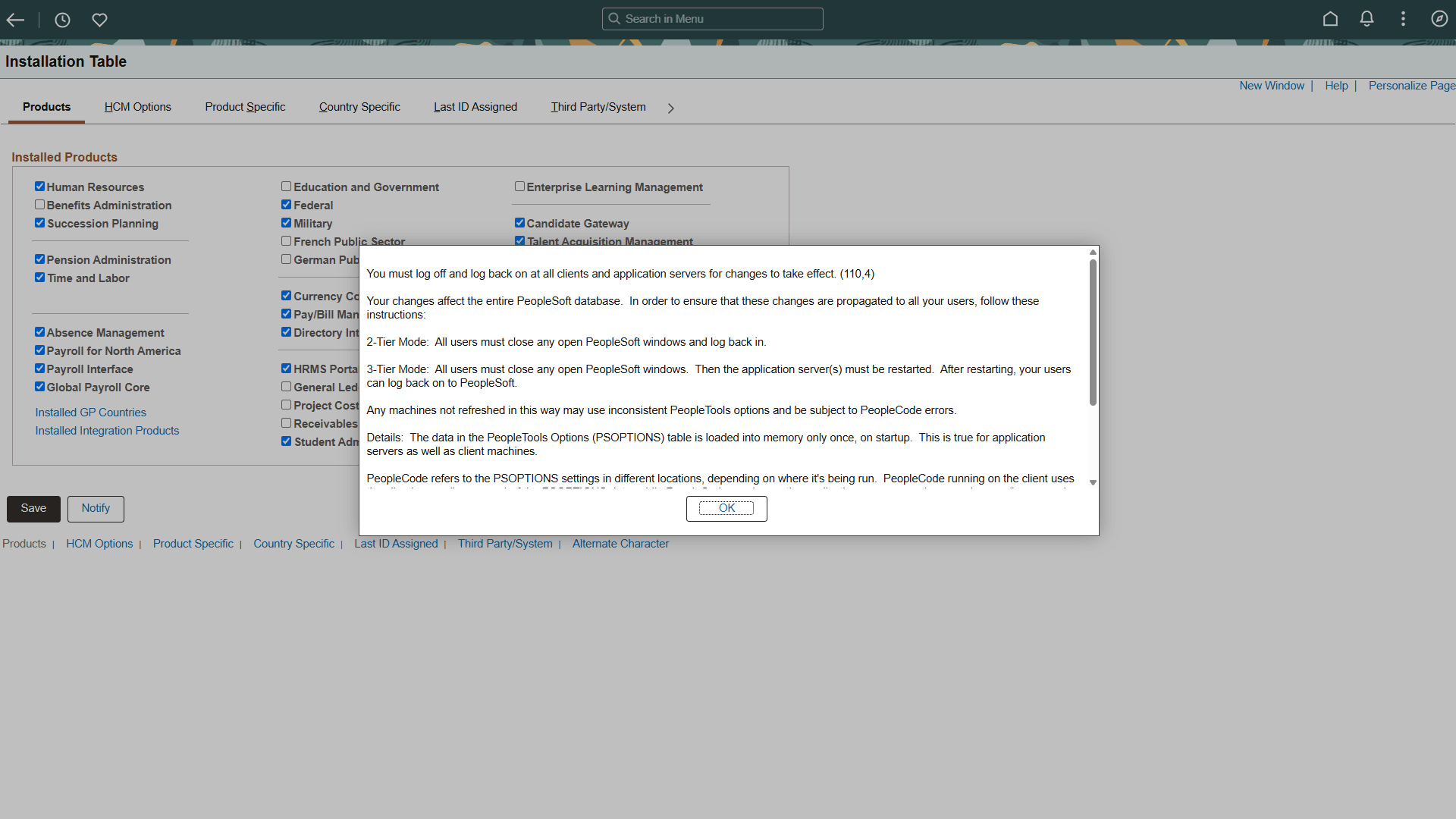
If it was necessary to make any changes to the Installation Table, the informational message “You must log off and log back on at all clients and application servers for changes to take effect” appears, as shown in the following example:
-
Enter Installation Table in the keyword input field of the Global Search bar. As you type, the suggestions are updated to reflect the search term or terms you have entered.
-
Select Installation Table from the search suggestions.
Note:
To navigate to the page using the Navbar button, select Set Up HCM, Install, Installation Table.
-
On the Products page, verify that the Global Payroll Core check box is selected.
-
If any changes are performed to the Installation Table, the following informational message appears after saving the page:
Figure 1-7 Informational Message
Log off all clients, shut down and restart all application servers, and then log back on to PeopleSoft HCM for your changes to take effect.