E.5 Copying Navigation Collections to Registries
To access Navigation Collections in a delivered PeopleSoft portal registry from the PeopleSoft Interaction Hub created site, you must copy the Navigation Collection definitions to the new site.
To copy Navigation Collections to a different portal registry:
-
From your browser, sign on to the PeopleSoft Portal Solutions database.
Note:
To access portal registries other than the default EMPLOYEE Portal, adjust the browser address to the desired registry name.
For example, replace /EMPLOYEE/ with /CUSTOMER/ or /SUPPLIER/.
-
Select PeopleTools, Portal, Structure and Content.
-
In the Structure and Content page, click the Portal Objects link.
-
In the Portal Objects Structure and Content page, click the Navigation Collections link.
-
Repeat the following for each Navigation Collection that you want to access as a Navigation page from the PeopleSoft Interaction Hub.
-
In the Navigation Collections Structure and Content page, click the Edit link next to the Navigation Collection folder label.
-
In the Folder Administration page on the navigation collection, click Copy Object.
-
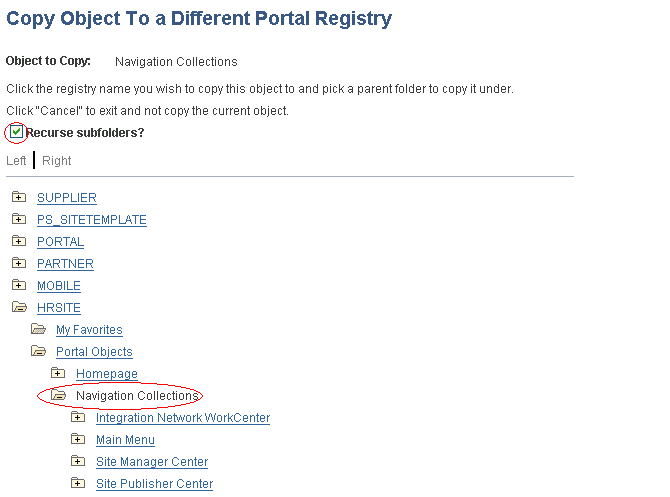
In the Copy Object to a Different Portal Registry page, select the Recurse subfolders check box.
-
Click the tree folder icons to <My New Site> (for example, HRSITE.), and then select Portal Objects, Navigation Collections. Click the Navigation Collections folder link in the tree list, as illustrated in the example below.
Figure E-1 Copy Object page
-
In the Copy Confirmation page, click Yes – Copy.
-
In the Save Confirmation page, click OK.
-
In the Copy Object to a Different Portal Registry page, click the Navigation Collections link to return to the Structure and Content page. Click the Cancel button to continue on the popup message.
-
-
Repeat step 5 for any additional Navigation Collections definitions.