Maintain Component Mapping Page
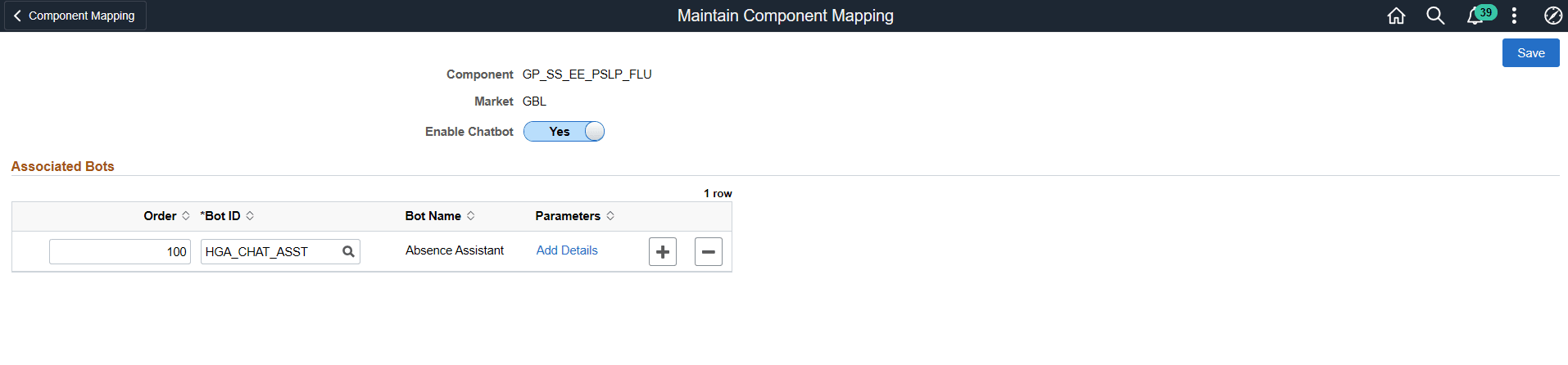
Use the Maintain Component Mapping page (EOCB_COMP_ASSOC_FL) to associate Bot IDs to a component.
This example illustrates the Maintain Component Mapping page
| Field or Control | Description |
|---|---|
|
Component |
Choose the component in which the bot needs to be enabled. |
|
Market |
Choose the market. |
|
Enable Chatbot |
Select Yes to enable a chatbot on the component. After you save the component mapping, the event mapping configuration is automatically created for all the Content References that point to the selected component. Note: This toggle is disabled when you implement the Global Chatbot feature. Global chatbots manage associated bots and override settings using the Global Chatbot Configuration - Override Settings Page. |
|
Order |
Specify the chatbot preference order for the user if multiple bots are associated with a component. |
|
Bot ID |
Choose the Bot ID of the bot to be associated for the component. |
|
Bot Name |
Name of the bot is displayed based on the selected Bot ID. |
|
Parameters |
Click the Add Details link to open the Add Chatbot Parameters modal. |
This example illustrates the Add Chatbot Parameters Modal
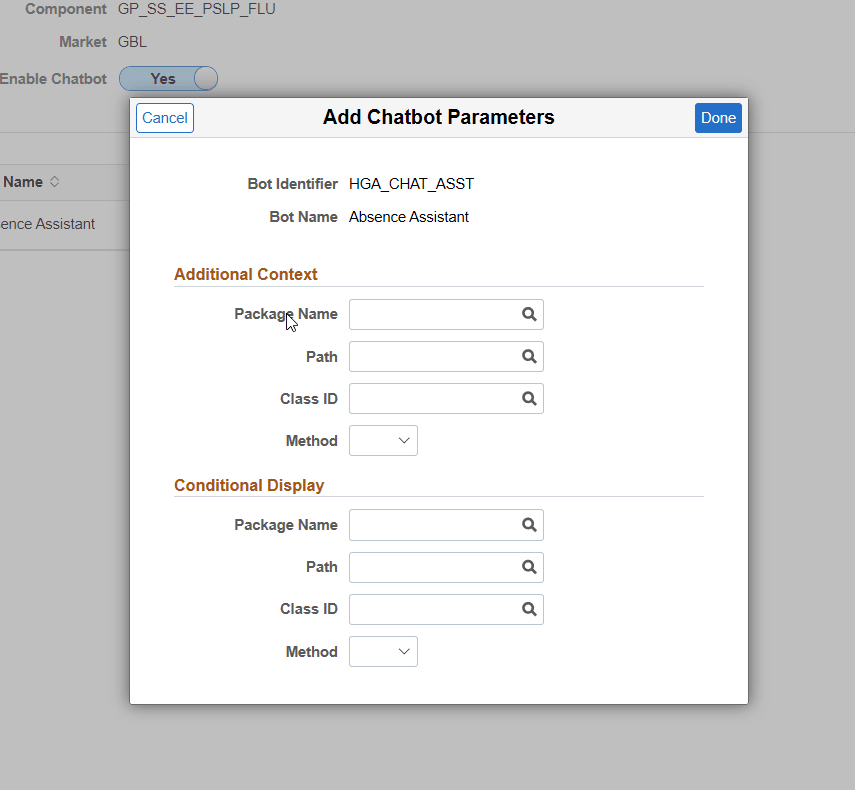
As an admin user or application developer, you can create application package and corresponding application class for a specific chatbot. It gives you more control in managing the chat widget in a component. Based on your business requirements, you can configure the context data to be passed and also whether to conditionally hide or display the widget.
Additional Context
Here, you can specify the application package, class and method you have created for passing additional context details.
| Field or Control | Description |
|---|---|
|
Package Name |
Select the application package. |
|
Path |
Select the required path. |
|
Class ID |
Select the application class ID. |
|
Method |
Select the application class method. The value returned after execution of this application class are passed as contextual parameters when the chat client is launched. The contextual parameters can then be retrieved within the Skill Dialog flow from user profile variable - ps_context_pram. |
Conditional Display
Even if the chatbot widget is enabled, as an application developer, you can conditionally hide or display the widget based on your business requirements.
| Field or Control | Description |
|---|---|
|
Package Name |
Select the application package you have created with conditions. |
|
Path |
Select the required path. |
|
Class ID |
Select the application class ID. |
|
Method |
Select the application class method. The boolean value returned after execution of this app class controls the visibility of the chat widget. |
Note:
This feature applies to the HCM pillar only.
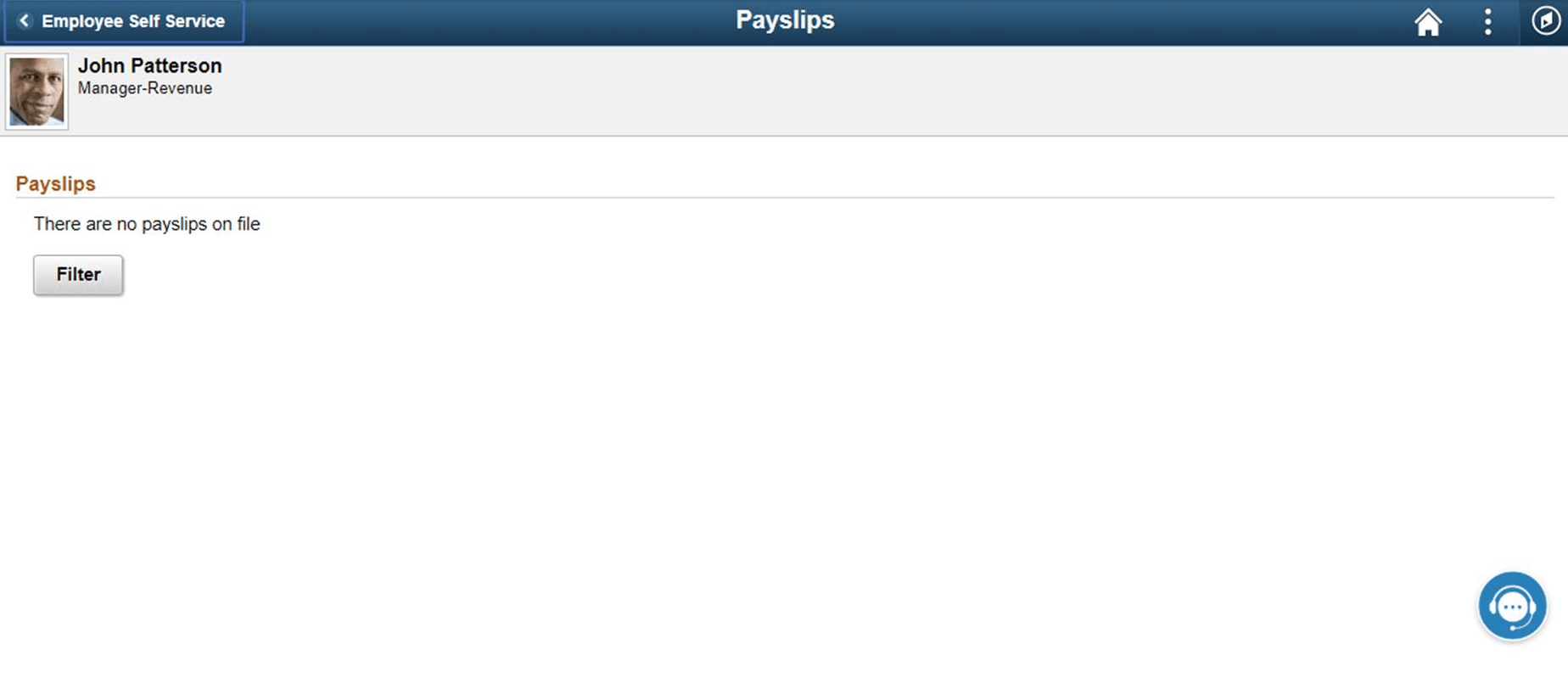
Once you save, the chatbot widget becomes available at the bottom right corner of the application page.
This example illustrates the Chatbot widget on the application page