Assigning Keyboard Shortcuts
Use keyboard shortcuts to improve usability for users who use a keyboard rather than a mouse. PeopleSoft applications use two kinds of keyboard shortcuts: hot keys and access keys.
This section discusses how to:
-
Assign access keys to page tabs.
-
Assign access keys to grid tabs.
Assigning Access Keys to Page Tabs
To assign access keys to page tabs:
-
Open the component definition in PeopleSoft Application Designer.
-
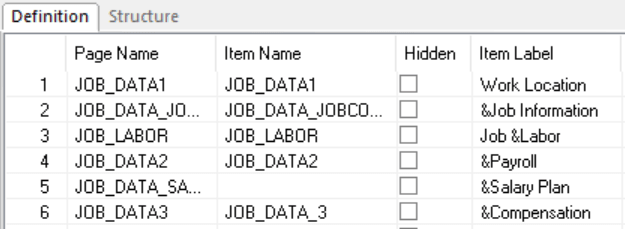
Enter an ampersand (&) in the text of the item label for the page preceding the letter that you want to assign as the access key.
The access key letter is underlined on the page tab at runtime. For example:
This example illustrates using ampersands to assign access keys.
Note:
Make sure that the access key that you assign does not conflict with any other access keys that are assigned in the component.
At runtime, a user can navigate between pages by pressing the Alt key plus the letter that is underlined, followed by the Enter key.
This example shows underlined access keys that the user sees at runtime.

Assigning Access Keys to Grid Tabs
To assign access keys to grid tabs:
-
Open the grid tab separator properties in PeopleSoft Application Designer.
-
On the Label tab, enter an ampersand (&) in the label text preceding the letter that you want to assign as the access key.
The access key letter is underlined on the grid tab at runtime.
Note:
Make sure that the access key that you assign does not conflict with any other access keys that are assigned on the page.
At runtime, a user can navigate between grid tabs by pressing the Alt key plus the letter that is underlined, followed by the Enter key.