Using the Keyboard with the NavBar
The NavBar (navigation bar) is a control that provides quick access to tiles, folders, and pages in your PeopleSoft system. The NavBar contains tiles on the left that, when clicked, display a list of associated items on the right. The list items can be folders, links, or other objects. Users can use the list of items to access a page.
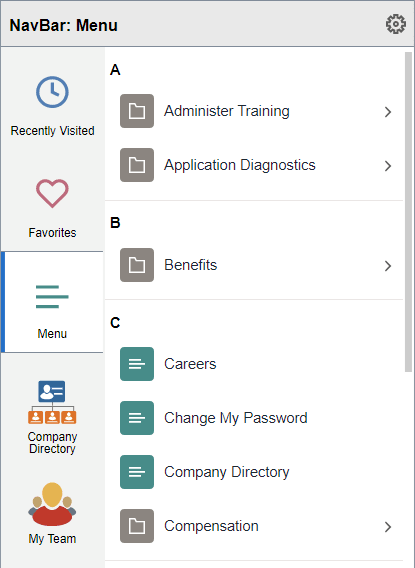
This example illustrates the appearance of the three sections of the NavBar: the NavBar header, the tile list on the left, and the content area on the right.
You can use the following keyboard shortcuts within the NavBar:
| Key or Key Combination | Result |
|---|---|
|
Tab |
Moves focus forward through the three sections of the NavBar: the NavBar header, the tile list on the left, and the content area on the right. Note: When the NavBar is first opened, the content area on the right is not displayed. |
|
Shift + Tab |
Moves focus backward through the three sections of the NavBar: the NavBar header, the tile list on the left, and the content area on the right. Note: When the NavBar is first opened, the content area on the right is not displayed. |
|
Down Arrow |
When focus is on either the tile list or the content area, moves focus to the next item. |
|
Up Arrow |
When focus is on either the tile list or the content area, moves focus to the previous item. |
|
Enter |
|
|
Right Arrow |
|
|
Left Arrow |
|