Using the Causes and Effects Tool
To use the Causes and Effects Tool option:
-
Select to access PeopleSoft Application Designer.
-
After signing in to the PeopleSoft Application Designer, open an analytic model definition.
-
Select to browse through the cube collections and data cubes of your analytic model to view the causes, effects, and inputs of data cubes.
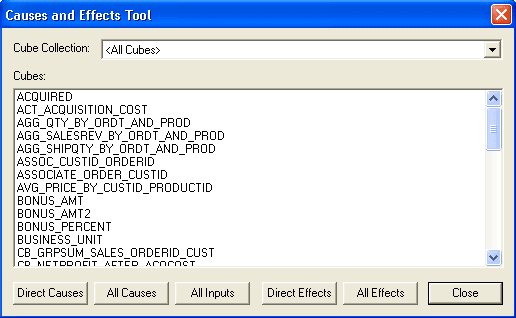
This is an example of the Causes and Effects Tool dialog box.
| Field or Control | Description |
|---|---|
|
Cube Collection |
Select the cube collection to display a list of its data cubes. Note: You can also select <All Cubes> to display a list of all data cubes in the analytic model. |
|
Cubes |
Displays the names of the data cubes in the selected cube collection or the analytic model. Select a data cube to view its causes, inputs, or effects. To select several data cubes, hold down the Ctrl key and select the data cubes. |
Note:
You can also audit individual data cubes by selecting the data cube, and then selecting and the desired audit option from the menu bar.