Change Control Locking
Change Control locking is keyed by PeopleSoft user IDs. When a definition is locked, it cannot be modified by anyone other than the user ID who locked it, and it can be unlocked only by that same user or by a Change Control administrator.
A locked definition is identified by:
-
A small padlock icon above the definition in the project workspace (development view) of PeopleSoft Application Designer.
-
The user ID of the person who locked the definition, which appears next to the name of the definition.
Your user ID does not appear for definitions that you locked.
For example, the following icons seen in the project workspace display two locked and one unlocked record definitions:
The following icons shown in the below project workspace image display two locked and one unlocked record definitions
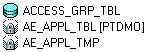
The top record is unlocked; the middle record is locked by another user ID (PTDMO), and the bottom record (with no ID displayed) is locked by you, the current user.
Note:
Standard Change Control locking is supported only for definitions that you can modify with PeopleSoft Application Designer. Other PeopleSoft definitions can be added to a project for upgrading, but they cannot be locked by developers. If you are a Change Control administrator, you can lock all upgradable database definitions, both PeopleSoft Application Designer development definitions and other types. However, for non-PeopleSoft Application Designer definitions, this action prevents unauthorized upgrading only, not unauthorized development.
Locking Projects
With Change Control, projects are treated like all other PeopleSoft Application Designer definitions: you must lock them before you can modify them. However, locking a project does not lock the definitions in the project, and modifying a definition in a project does not modify the project itself.
A project definition includes a name and a list of definitions. When you lock a project definition, other users cannot add or remove definitions from the project, and they cannot rename or delete the project. However, locking does not restrict access to the definitions that are named in the project definition. Likewise, modifying a definition has no affect on the definition of any project to which the definition might belong.
Note:
PeopleSoft Application Designer provides an option to load the last open project on startup. If this option is enabled on your machine and Change Control locking is activated, you might receive an open in read-only mode? message at startup if you had not locked the project before or if someone else has the project locked. In either case, you can open the project in read-only mode. Remember, locking does not restrict your access to definitions in the project.
Locking Compared to Version Control
Change control locking is not the same as version control. With a version control system, you check out a copy of a definition and make your changes to the copy. After you check in the changed version, you can always undo your changes. This is not the case with change control locking.
Locking a definition prevents other users from modifying it. However, any changes that you save are written directly to the database, overlaying or replacing the existing definition. You cannot restore a previous version of a definition.
Locking and Upgrades
When preparing to upgrade a database, all development must cease in the source database to assure that the Compare process works with a static environment. It also assures that changes are not made to any definitions between the time that you set the upgrade defaults and the time that you copy the definitions.
You can freeze all development by using the Change Control Administrator dialog box to lock all database definitions. When the upgrade is done, use the same dialog box to unlock all definitions. However, be aware that this action permanently removes all previous lock settings from all definitions. Developers have no way of resetting their locks except by manually relocking. When you lock definitions in this way, it is not reflected in the Locked Objects dialog box or in the project workspace. If a developer has unsaved changes when you lock all definitions, the developer cannot save those changes.
For all of these reasons, you must inform developers that you plan to lock all definitions and you must give them time to save their changes, perhaps even to view the Locked Definitions dialog box and print the screen.
Locking definitions with the Change Control Administrator dialog box does not actually mark every definition as locked. Instead, it adds a single row at the top of the locking table. The presence of this row indicates to the system that full database locking is in effect, and it stores the user ID of the administrator who enabled the locking.
Full database locking also plays a role in the target database during the upgrade copy process. During a copy, the system always checks the locking status of the target database definitions to see if they are locked and by whom. If they were locked by a user ID other than the one performing the copy, then those definitions are not modified.
In major upgrades, checking the locking status of each definition before copying severely affects performance. To prevent this, use the Change Control Administrator dialog box to lock all target database definitions before copying. During the copy process, if the entire target database is locked, the system verifies that the user ID performing the copy process is the same user ID that locked the database. If these conditions are true, the system assumes that it was locked for the purpose of the upgrade and that it can safely copy all definitions without checking each one individually.
Note:
When you copy a project, the system does not check the locking status of the definitions in the source database. However, you should keep your definitions locked until the copy is complete.