Changing Page Use Information
Access the Page Properties dialog box and select the Use tab.
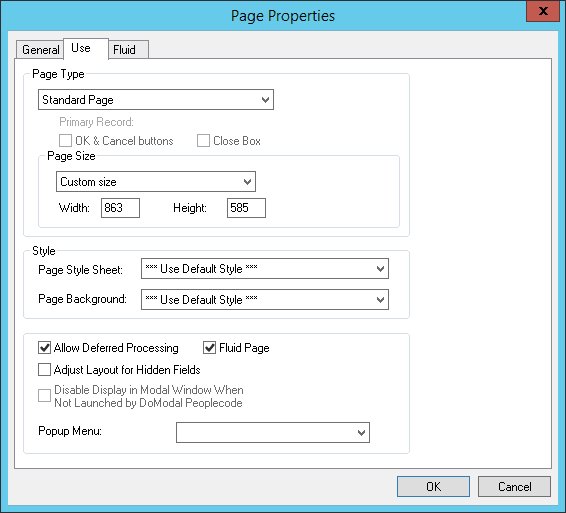
This example illustrates the fields and controls on the Page Properties dialog box: Use tab. You can find definitions for the fields and controls later on this page.
| Field or Control | Description |
|---|---|
|
Page Type |
Select Standard page, Subpage, Secondary page, or Popup page from the drop-down list box. See Understanding Secondary Pages. See Using Pop-up Pages. |
Page Size
To accommodate different types of workstation monitors, you can adjust the page size.
| Field or Control | Description |
|---|---|
|
800×600 page inside portal |
This value is the standard option for viewing pages in the portal, providing room for the universal navigation header and the menu. It provides a default page size of 570×330 in PeopleSoft Application Designer. |
|
800×600 page without portal |
You should develop most pages using this option. It is the standard option for viewing pages, providing room for the navigation header and the menu. This option provides a default page size of 760×330 in PeopleSoft Application Designer. |
|
1024×768 page inside portal |
Selecting this option provides an optimal display for users with a 1024×768 resolution, showing the full transaction page and the menu. Users with an 800×600 display will see the full transaction page without the menu when the menu is enabled. This option provides a default page size of 760×498 in PeopleSoft Application Designer. |
|
1024×768 page without portal |
For the power user, this is a high-resolution option. It provides a default page size of 984×498 in PeopleSoft Application Designer. |
|
240×Var portal home page comp. (240×variable portal home page component) |
Use this setting only for creating pagelets for the portal. This size is most usable because it can be viewed in both the narrow area and the wide area of the portal. The system sets the width to 240, but you set the height. |
|
490×Var portal home page comp. (490×variable portal home page component) |
Use this setting only for creating pagelets for the portal. Pagelets that use this setting can appear only in the wide area of the portal. The system sets the width to 490, but you set the height. |
|
640×480 Windows screen |
This option is a desupported feature used only for Windows client users. This option is designed for VGA resolution. The pages are actually less than 640×480 pixels in size in PeopleSoft Application Designer because they provide space for various windows items, such as the window title, menu bar, and toolbar. |
|
800×600 Windows screen |
This option is a desupported feature used only for Windows client users. This option is designed for Super VGA resolution. These pages provide space for the window title, menu bar, toolbar, folder tabs, and status line, as well as space at the bottom for the toolbar. |
|
Custom size |
Select to set a specific page size other than those listed previously. Set the width and height manually. |
Style
| Field or Control | Description |
|---|---|
|
Page Style Sheet |
Select a different style sheet for a specific page to override the style sheet that is selected for the application. If you do not select a different page style sheet (keeping ***Use Default Style***), the system uses the style sheet that is specified on the PeopleTools Options page. |
|
Page Background |
Select a different page background style class to override the background style of the page style sheet specified above. If you keep the ***Use Default Style*** setting, the system uses the default background of the page style sheet. |
Note:
The style options that you select in the design time environment might look different at the runtime rendering of the page. For example, font and page control sizing metrics are different in the design time Windows environment and the runtime browser environment. As such, when developing pages, do not rely entirely on the rendering of the page in PeopleSoft Application Designer to gauge layout considerations, such as font size and the placement of controls. You should view all pages in the runtime browser environment and adjust them accordingly.
Additional Settings
| Field or Control | Description |
|---|---|
|
Allow Deferred Processing |
Deselect if you want the page and all of its fields to follow standard processing. Deferred processing is the default. |
|
Fluid Page |
Select this option only if creating a page for a fluid application. This setting is required for fluid pages only. For more information on creating fluid pages, see Fluid User Interface Developer’s Guide: Creating Fluid Pages. |
|
Adjust Layout for Hidden Fields |
Select to set the page to resize automatically when hidden fields are present. |
|
Disable Display in Modal Window When Not Launched by DoModal PeopleCode |
Applies only to secondary pages. Select to enable the modal window only when launched by DoModal PeopleCode. |
|
Pop-Up Menu |
|
|
Free Form StyleSheet |
Select a free form style sheet containing styles used by this page. |