Configuring Drop Zones
Use the Configure Drop Zones pages to search for, select, and configure components containing configurable drop zones.
Navigation:
This example illustrates the fields and controls on the Configure Drop Zones search page. You can find definitions for the fields and controls later on this page.
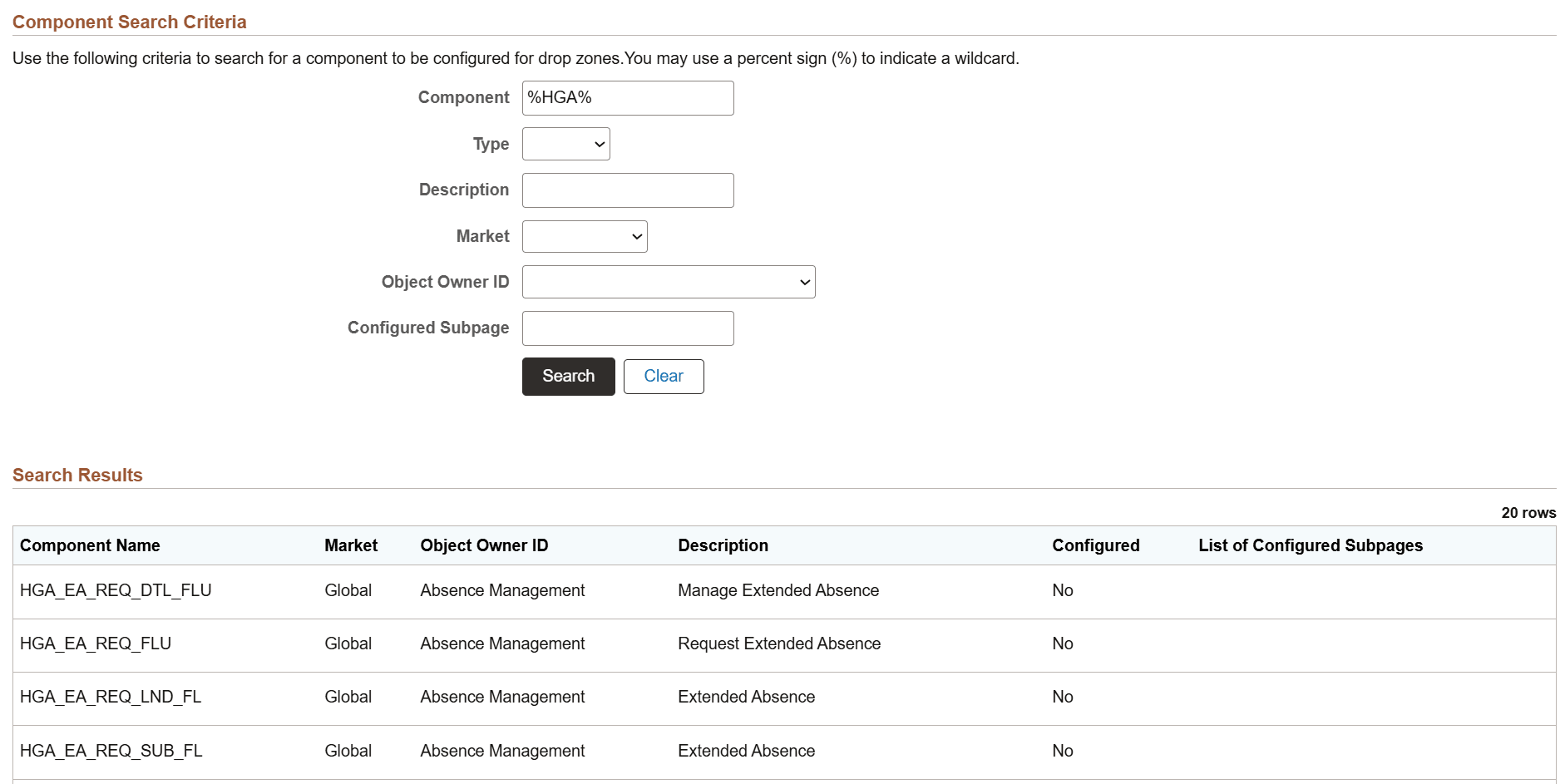
You must enter one or more search criteria to perform a search using this page. You may use % as a wildcard.
| Field or Control | Description |
|---|---|
|
Component |
Enter a definition name for the component as search criteria. |
|
Type |
Select either Fluid or Classic to limit search results to either fluid or classic components. |
|
Description |
Enter the description as defined on the General tab of the Component Properties dialog box as search criteria. |
|
Market |
Select the market for the component from the drop-down list. |
|
Object Owner ID |
Select the object owner ID for the component from the drop-down list. |
|
Configured Subpage |
Enter the definition name for an already configured subpage as search criteria. |
Note:
Search results include the first 100 components matching the search criteria. If the component you are searching for is not listed in first 100, add more filters to narrow down the search results.In the search results, click a row to configure the available drop zones for that component.
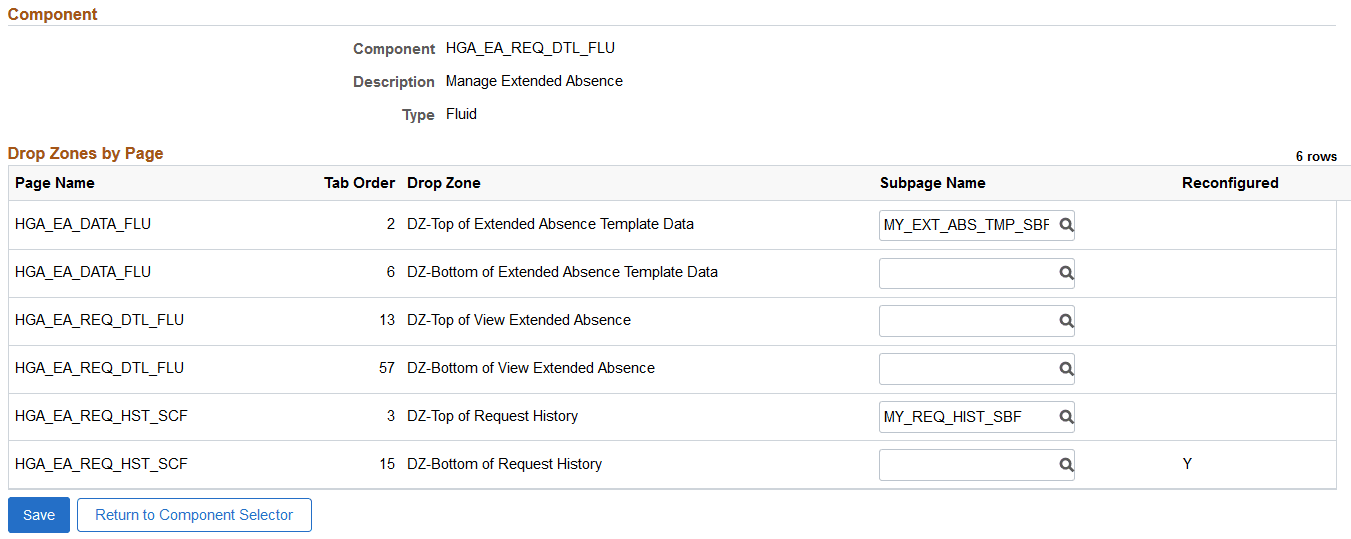
This example illustrates the fields and controls on the Configure Drop Zones configuration page. You can find definitions for the fields and controls later on this page.
| Field or Control | Description |
|---|---|
|
Page Name |
Displays the name of the main page that contains a drop zone or that contains a subpage with a drop zone, or it displays the name of a secondary page that contains a drop zone. Note: Subpage names are not displayed in the grid; only the name of the main page that contains the subpage or nested subpage is displayed. Note: If you are attempting to configure a secondary page and that page does not appear on the list for this component, then the link to this secondary page is missing—that is, there is no secondary page control on the main page or subpage that launches the secondary page. Since modifying the main page or subpage yourself would be considered a customization, contact support to determine whether a bug should be logged. |
|
Tab Order |
Displays the tab order number for the drop zone from the Order tab of the page definition (page or subpage) where the drop zone group box is physically defined. |
|
Drop Zone |
Displays the label for the drop zone, which is derived from these values in descending order of precedence:
Important: If the label of a field other than the drop zone group box is displayed, then the PT_ERCSUBPAGE_STUB subpage is positioned incorrectly on the page definition. In particular, check the Order tab. Since modifying the main page or subpage yourself would be considered a customization, contact support to determine whether a bug should be logged. |
|
Used By Related Content |
(Fluid only) Indicates that this drop zone has been configured for fluid embedded related content. Reconfiguring it with a subpage overrides the embedded related content configuration. |
|
Subpage Name |
Select a subpage to associate with the drop zone. Note: Because fluid drop zones can be associated with fluid subpages only and classic drop zones can be associated with classic subpages only, the search results are filtered to show valid subpages only, and not all subpages. To remove a subpage configuration, clear the Subpage Name field and save your changes. |
|
Reconfigured |
Indicates that an existing subpage configuration has been changed. Note: This indicator is displayed only after you save your changes. It is not displayed if you return to reconfigure drop zones for this component. |
|
Add to Project |
Click the Add to Project button to access the Add To Project page to insert one or more drop zone configurations for this component into an ADS project. See Lifecycle Management Guide: Adding Data Set Instances from Object Designer Pages for more information. |