Configuring Indexes
For performance tuning, you might want to change the order of your index keys. PeopleSoft Application Designer provides direct control over all of the indexes created by PeopleTools. You can inspect, add, or change all defined indexes or delete custom indexes for any record in the system through the Change Record Indexes dialog box.
Standard indexes are based on the key, duplicate order key, or alternate search key only. However, with the Change Record Indexes dialog box, you can modify those indexes and create additional indexes, which might be required if you do custom processing. Any of the indexes that you entered can be maintained for all database platforms or for a list of specific platforms. All indexes and keys created by PeopleTools are stored in PeopleSoft system tables.
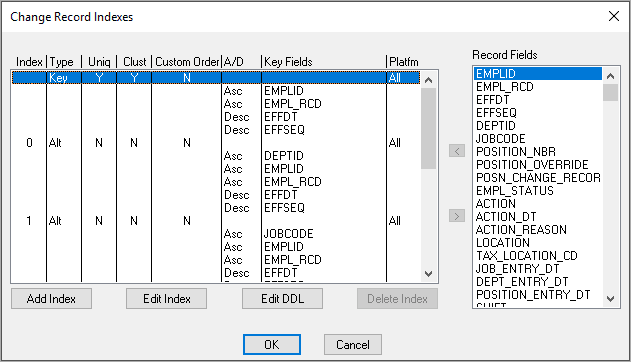
This example illustrates the fields and controls on the Change Record Indexes dialog box.
To edit the index key order:
-
Open the record definition for which you want to make the custom index.
-
Select to access the Change Record Indexes dialog box.
The Custom Order column indicates whether the index keys were configured. The default selection is N, indicating that no index keys were configured.
-
Double-click N or Y in the Custom Order column for the index that you want to alter, or click Edit Index.
-
Select the Custom Key Order check box.
-
Click OK.
The Custom Order entry changes from N to Y.
-
Drag and drop the field that you want to move into the appropriate order.
After configuring the key order, to reset the key order of the index to the original order as defined in the record definition, deselect the Custom Order entry (Y to N), and click OK. The order of the key fields reset to the original position in the Change Record Indexes dialog box.
-
Check the key order in the Use Display mode of your record definition.
The Num (number) column represents the original order of the keys in your record, and the Ordr (order) column reflects the key order in the index.
-
Create the indexes:
-
Select
-
Select Create Indexes in the Build Options group box.
Make sure that you select the appropriate build settings.
-
-
Run the Build process to either generate a script or run the SQL online.
-
Confirm the construction of the new index with your native SQL command processor.
Note:
Users might also configure indexes for parent records that contain one or more subrecords without key fields, such as the ADDRESS_SBR subrecord . However, if the subrecords contain key fields, then index key order changes are restricted. The Custom Key Order option is deactivated and cannot be changed from N to Y. Change the index key order for the parent before inserting the subrecord.