Inserting Configurable Drop Zones
Important:
This task is described for informational purposes only. Drop zones are delivered by PeopleSoft application teams. Therefore, this step is typically not performed by you. While you could add drop zones to your own custom application pages, there really is no reason to do so. Moreover, if you were to add drop zones to pages delivered by Oracle, those changes would be considered customizations.
Guidelines for Creating Configurable Drop Zones
Note:
The following guidelines are valid for conventional components only. For “derived components”—that is, components with a derived record structure—you must carefully evaluate the derived record and key structure and database fetch, save, and commit mechanisms since these will not necessarily rely on the built-in processing of the PeopleTools component processor. Depending on the component’s architecture, adding a drop zone may or may not work and must be tested thoroughly.
Adhere to the following guidelines when inserting configurable drop zones:
-
Insert the group box type that is appropriate to the page type (fluid pages versus classic pages).
-
Insert the PT_ERCSUBPAGE_STUB subpage stub into the group box . (This subpage stub is identified on the PeopleTools Options page.)
-
Do not insert any other page controls within the group box.
-
If you add a drop zone on a secondary page, then you must also insert a secondary page control on the main page or subpage that launches the secondary page.
-
If you add a drop zone on a subpage or a secondary page rather than on the main page, then you must ensure that each drop zone that will be displayed along with the main page at runtime can be uniquely identified. The PeopleSoft system uses the combination of
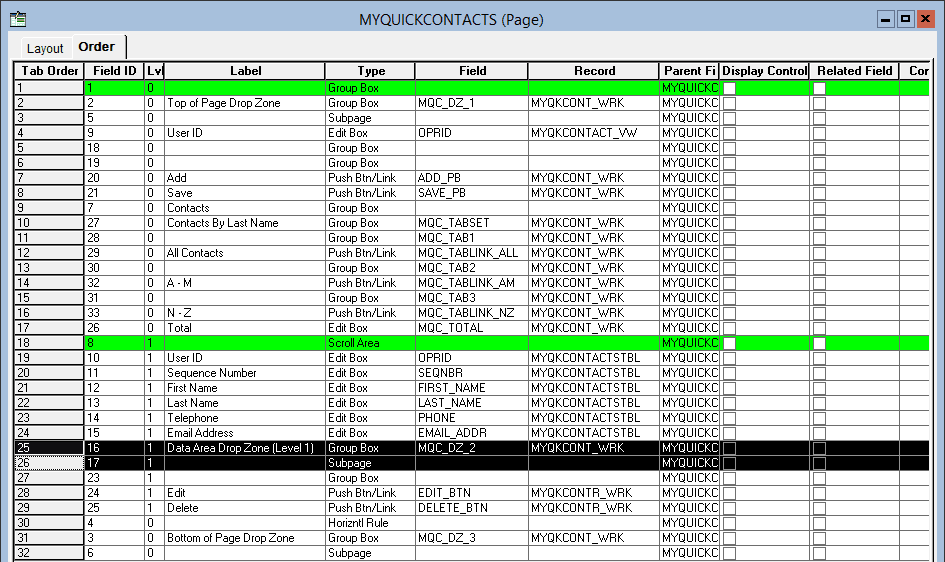
occurs_lvl.RECORD_NAME.FIELD_NAME.Field_IDto identify each group box as a page record field. By associating each group box to a unique record field, you will ensure that each can be uniquely identified.The information that uniquely identifies page field can be found on the page definitions Order tab. In the following example, Top of Page Drop Zone is uniquely identified as
0.MYQKCONT_WRK.MQC_DZ_1.2.
Important:
Because the PeopleSoft system uses the combination of
occurs_lvl.RECORD_NAME.FIELD_NAME.Field_IDto identify each drop zone, you cannot make any updates that would change any of the elements of this unique identifier such as moving the drop zone to a different occurs level, changing the associated record field, or deleting the drop zone. Any such change will orphan and break existing configurations based on that drop zone. If you need to make any such updates, delete any existing configurations first so that they are not orphaned. Make the required changes. Then, re-establish the configuration.
Inserting a Group Box as a Drop Zone
To insert a group box as a drop zone:
-
Insert the group box on your page in the general position you would like to display the content from the custom subpage.
Note:
On classic pages, similar to inserting other page controls, ensure that there is a minimum of a 5 pixel vertical gap between the drop zone group box and other page controls.
-
Double-click the group box to open the Group Box Properties dialog box.
-
Then, configure the group box depending on the page type:
-
For fluid pages, on the Fluid tab, set the Group Box Type to Related Content.
-
For classic pages, on the Use tab, select these check boxes: Drop Zone Group Box and Hide all Fields when Group Box Hidden.
-
-
(Optional) Apply styling, if needed, to this group box that will only be rendered if a subpage is configured for this drop zone.
-
Select the Label tab and enter a descriptive label to identify this group box as a drop zone. Enter a label that describes the position, purpose, or both for this drop zone. The label is not rendered at runtime, but it will help at design and configuration time by:
-
Differentiating this drop zone from any others on this page as well as any associated subpages or secondary pages.
-
Providing a label on the drop zone during page preview in Application Designer.
-
Providing a label for the drop zone during the drop zone configuration task, which displays all available drop zones from the component.
-
-
Associate a record field to this drop zone to ensure that it has a unique page field identifier.
-
Insert the PeopleTools-defined PT_ERCSUBPAGE_STUB subpage stub into the related content group box:
-
On fluid pages, the upper left corner of the subpage must be located within the group box. On classic pages, the entire subpage must be located inside the boundaries of the group box.
In this example, the PT_ERCSUBPAGE_STUB subpage is located within the drop zone group box in a manner that satisfies both fluid and classic requirements on placement.

-
The subpage must be listed immediately after the group box on the Order tab for the page definition.
In this example, the PT_ERCSUBPAGE_STUB subpage immediately follows the Data Area Drop Zone (Level 1) group box on the Order tab.
Important:
If you insert multiple drop zones on the same page, always inspect and fix the order of group boxes and subpages on the Order tab.
-
-
For classic pages only, open the Page Properties dialog box. On the Use tab, select the Adjust Layout for Hidden Fields check box.
-
Save your changes.
-
(Optional) Use the page preview in Application Designer to preview the page with drop zones.
Special Considerations for Drop Zones on Fluid Pages
Note that adding a related content group box on a fluid page creates a “drop zone.” These fluid drop zones can be configured for two purposes:
-
Embedded related content only.
Note:
The absence of the PT_ERCSUBPAGE_STUB subpage means that such a group box can be configured for embedded related content only.
Embedded related content was introduced in PeopleTools 8.55. While the procedure for creating and configuring embedded related content has not changed, the group box itself is now also referred to as a drop zone. See Fluid User Interface Developer’s Guide: Working with Embedded Related Content.
-
Dynamically injected custom subpages or embedded related content.
A related content group box created for dynamically injected custom subpages could be configured for embedded related content instead. However, both uses cannot coexist simultaneously. If a drop zone already configured with embedded related content is reconfigured with a custom subpage, then the embedded related content configuration is overridden. If a drop zone is already configured with a custom subpage, it will not be available for configuration with embedded related content.