Inserting Segments and Fields
Open the file layout definition based on the ABS_HIST record:
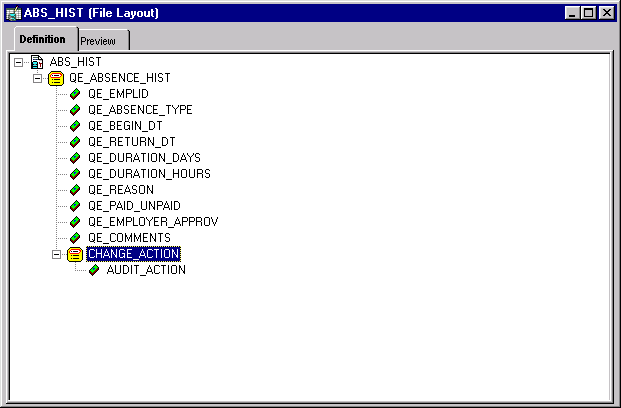
This example illustrates the fields and controls on the File layout with new segment and field added. You can find definitions for the fields and controls later on this page.
Note:
You will insert a segment that is a sibling, that is, it has the same level as the QE_ABSENCE_HIST record.
To insert a segment and then a field into that segment:
-
Select Insert Segment from the pop-up menu or select to insert a segment.
The Insert New Segment dialog box appears. This dialog box is identical to the File Layout Segment Properties dialog box.
-
On the Insert New Segment dialog box:
-
Enter the file record name, file record ID, and ID start position.
-
Click the OK button to insert the segment.
Note:
If you provide a Record File ID when adding a segment to a file layout that is either CSV or FIXED, the system prefixes this Record File Id to every row of data that is written.
-
-
Insert a file field.
-
Select Insert FileField from the pop-up menu.
The Insert New Field dialog box appears. It is identical to the File Layout Field Properties dialog box.
-
Enter a field name, start position, and field length, and then click the OK button.
Note:
The start position is not automatically set when you add a file field to the file record. For this example, the AUDIT_ACTION field requires a start position of 5.
-
-
Select File, Save, or click the save icon in the toolbar to save your changes to the file layout.
Now that you have created and saved a file layout, you must use PeopleCode to access the data. File layouts rely solely on PeopleCode as the engine behind the actual data access and movement.
Related Topics