Level-Based Controls
You determine your page design based on the type of data that you plan to access and maintain. In some cases, a page references a single record definition; in others, you may want to reference multiple records. To accommodate a variety of page designs, PeopleSoft Application Designer uses level-based controls. The three level-based controls are:
-
Grids
-
Scroll areas
-
Scroll bars
You specify the level of these controls by setting the occurs levels on the Record tab of the page field properties dialog box for the level-based control that you are configuring. Level-based controls have four levels:
-
Level 0
This level directly corresponds to the high-level key information of the underlying record. Level 0 fields are usually physically located at the top of the page, set to be display-only, and display the data that the user entered on the initial search page.
-
Levels 1−3
These levels correspond to lower level key information that is subordinate to the Level 0 key values. Level 1 is subordinate to Level 0; Level 2 is subordinate to and nested within Level 1; and Level 3 is subordinate to and nested within Level 2.
Note:
You can nest level-based controls up to three levels.
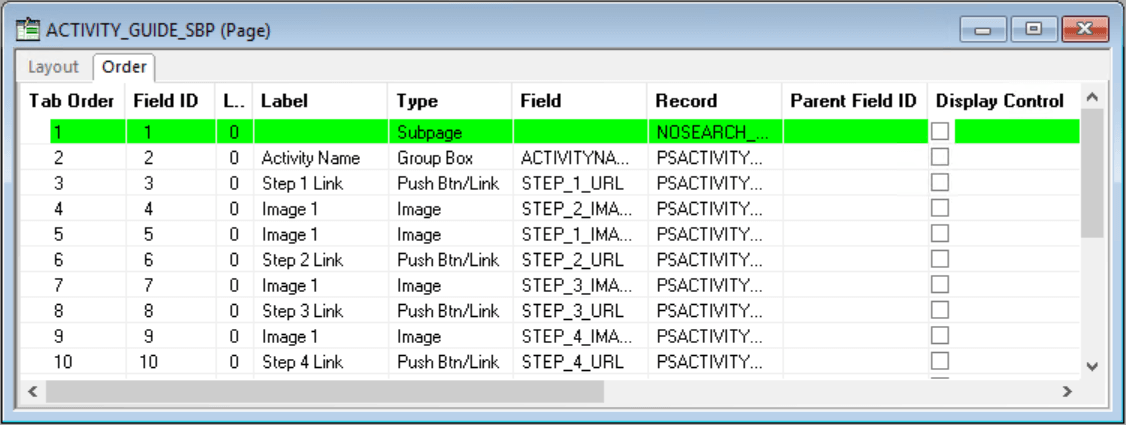
The first occurs level on a page is Level 0. In general, this level is reserved for the primary key fields that are used to search for data. A page might not contain any level-based controls; in such a case, all fields are set to Level 0. This case is particularly true for secondary pages or subpages that contain few data entry fields, as shown in the following example. The third column, Lvl (Level), that appears in the grid on the Order tab indicates that all fields on the page are at Level 0:
This example illustrates the fields and controls on the Example of page definition Order tab. You can find definitions for the fields and controls later on this page.
When you add a level-based control, a scroll area or a grid, to your page, the default occurs level for that control is set to 1 in the properties dialog box. If you place a field in or below that scroll area, it is also set to Level 1 on the Order tab, even if it is another level-based control. If necessary, you can use the Set to Level 0 feature of the horizontal rule control to restart the occurs level on a page.
Note:
You can have any number of level-based controls at the same level.
Nested Level-Based Controls
Nesting controls involve two or more level-based controls on a page, such as two scroll areas, when the second scroll area has an occurs level of 2. You nest controls when the new data that you want to add is a repeating set of data for each entry in your first level-based control. In doing so, you create a hierarchical, or parent and child, relationship between the controls and the processing of the record definitions. The Level 2 control is the child of and is subordinate to the Level 1 control.
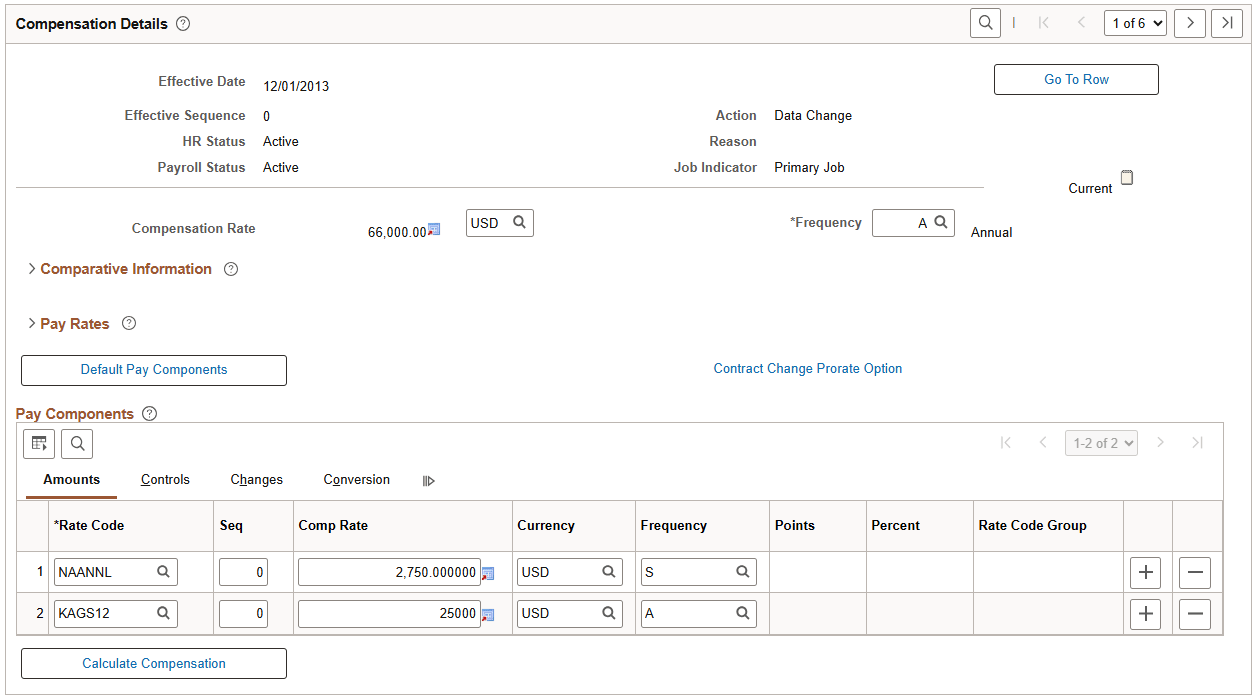
For example, on the Compensation page, the Level 2 grid is nested in the Level 1 scroll area. On the Amounts tab of the grid, each compensation action in the Level 1 scroll area has two rate codes:
This example illustrates the fields and controls on the Example of Compensation page with nested grid in scroll area. You can find definitions for the fields and controls later on this page.
This example of the Additional Pay 1 page shows three levels of data, two of which are nesting scroll areas in the Earnings scroll area:
This example illustrates the fields and controls on the Example of Additional Pay 1 page with nested scroll areas. You can find definitions for the fields and controls later on this page.
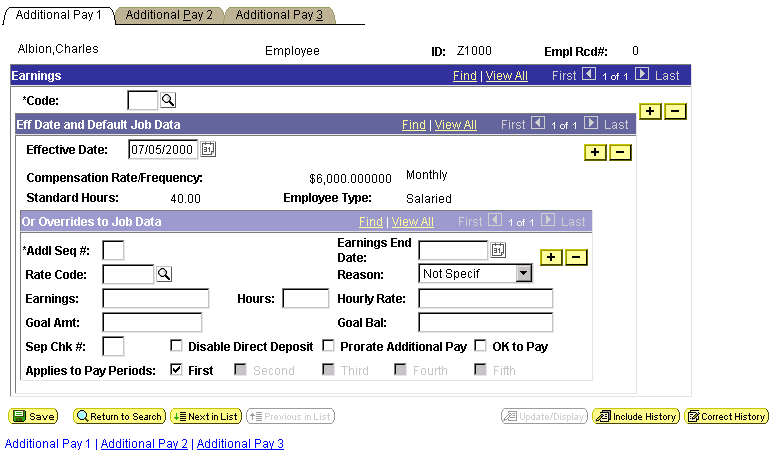
In this case, we want to maintain information about the compensation history for a single employee and, for each change or override in compensation status, enter details about that change. The first scroll area, Earnings, associates the earning code with the second, subordinate scroll area, Eff Date (effective date) and Default Job Data, which enables the user to enter the effective date for the status change. The third scroll area, Or Overrides to Job Data, which is subordinate to the second, enables the user to enter the overrides to the default job data that appears in the second scroll area.
For each of the three scroll areas, you can have several rows of data. While you do not see actual scroll bars on your page, the navigation buttons and links in the navigation bars for each scroll area enable you to navigate or scroll through the rows.
Nested Grids in Scrolls
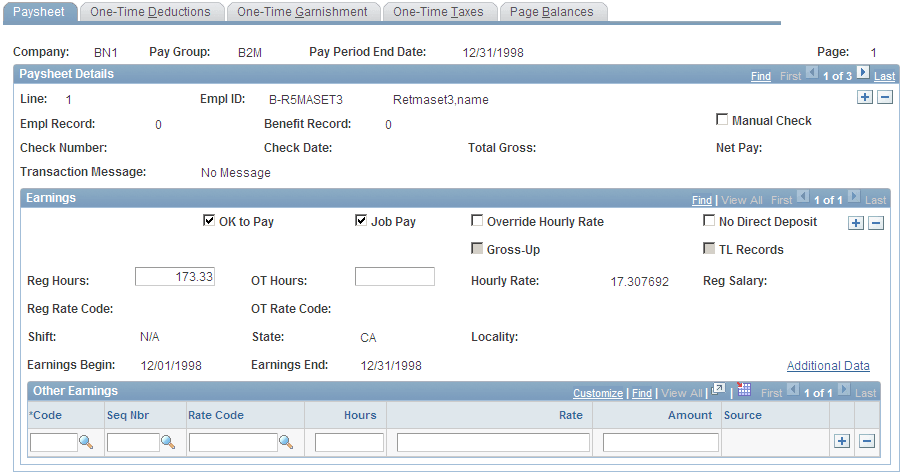
As shown previously, you can nest a grid in a scroll or scroll area. The following example shows the Other Earnings grid at Level 3, which is nested in the Earnings scroll area at Level 2, which is nested in the Paysheet Details scroll area at Level 1. A nested grid serves the same function as a nested scroll area. It can offer a more compact way of viewing many fields of data, particularly if you use a tabbed grid.
Note:
You can nest a grid in a scroll area, but you cannot nest a scroll area in a grid or a grid in another grid.
This example illustrates the fields and controls on the Example of Paysheet page with three levels of nesting.
Levels and Runtime Processing
Levels play an important role in runtime processing. The component processor relies on the level at which you place a field on a page to determine how to process any PeopleCode attached to the field in the record definition.
Effective Dates and Level-Based Controls
The EFFDT (effective date) field must be the only key field that is controlled by level-based controls that you create to help users maintain multiple occurrences of data that is keyed by effective date. Otherwise, the effective date processing for update actions does not function correctly.