Long Edit Box Character Limit Counter
Long edit boxes do not limit the number of characters that a user can enter in the browser, regardless of any limits defined in the underlying record field. As such, characters entered by the user that exceed the field length of the field definition may be truncated. For example, if you enter 012345678901234 into a long edit box associated with a field with a field length of 10, the input would be truncated and saved to the database as 0123456789.
To help users avoid this situation, you can select Enable Long Edit Counter on the Long Edit Box Properties, Use tab.
The following example shows the Enable Long Edit Counter option on the Long Edit Box Properties dialog box.
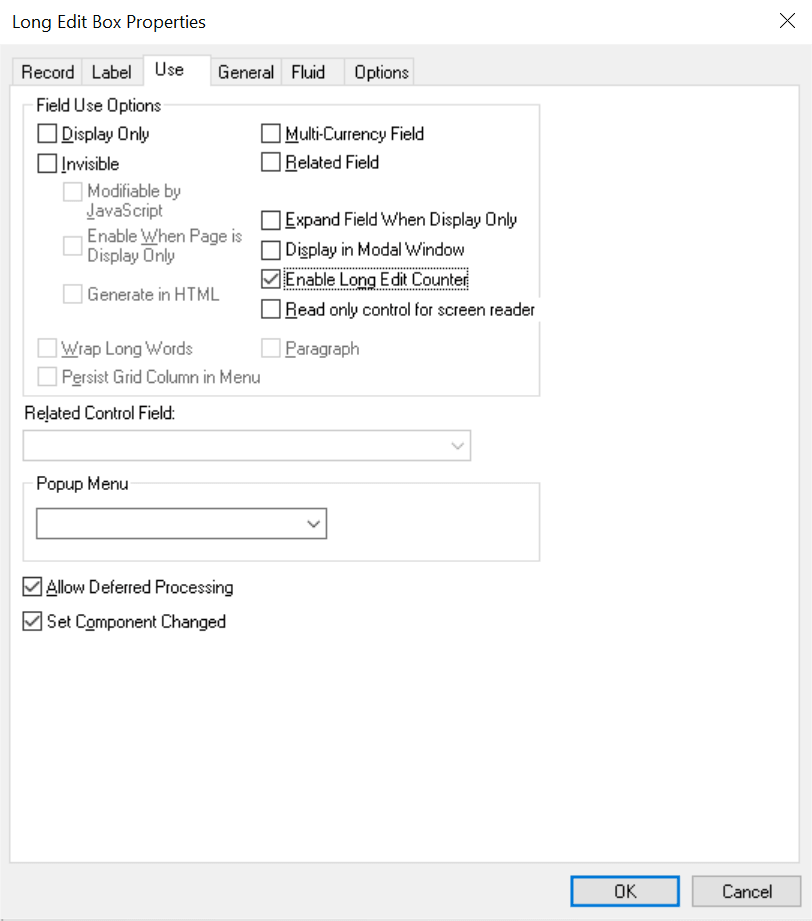
With this option on, a counter appears below the long edit box on the page, notifying the user how many characters can be entered before reaching the field limit (N characters remaining).
The following example shows the character limit counter alerting the user of the amount of characters that can still be accepted by the field.

The following example shows the character limit counter alerting the user that the character limit has been exceeded, with the character value becoming negative (-).

Note:
The system treats carriage returns (ASCII=13) and line feeds (ASCII=10) the same as any other character. If there is no character limit on the field, the counter does not appear. For long edit boxes within grids, the counter becomes visible only after displaying the long edit box in a modal window (that is, performing a long edit zoom). The character limit counter is not applicable for use with fields enabled for the rich text editor. If a field is enabled for rich text editor, the system does not display the character limit counter.
Character Counter on Fluid Pages
Similar to classic pages, when the character counter is enabled on a fluid page, it is displayed beneath the bottom right corner of the long edit box. If you want the character counter to be displayed beneath the bottom left corner, apply the psc_counter-left style in the Application-Specific Styles: Style Classes field on the Fluid tab. Oracle recommends that you do not use a psc_control-width*pct style to control the width of the long edit box itself because you will then need to develop and apply custom styling to get the character counter aligned with the long edit box.
Note:
Because the Display in Modal Window option is not supported in fluid applications, the character limit counter cannot be displayed for long edit boxes in fluid grids.