Multiple Occurrences of Data
On some pages, you may want a few of the field controls to display multiple rows or occurrences of data. To do this, you can add a level-based control: a scroll area, a grid, or a scroll bar. Users can then add, edit, delete, find, and scroll through multiple occurrences of data in a page control or group of controls using action buttons, links, or the browser scroll bar, depending on how you set the occurs count. Using a scroll area or a grid, rather than a scroll bar, is the preferred page design to show multiple occurrences of data.
For example, this Checklist Table page contains the Assignment Checklist Item grid with an occurs count of 5. The Checklist Item scroll area in which it is nested must have an occurs count of 1 since we can see only one row of data in the scroll area:
This example illustrates the fields and controls on the Person Checklist page with a grid of occurs count 7 nested in a scroll area of occurs count 1. You can find definitions for the fields and controls later on this page.
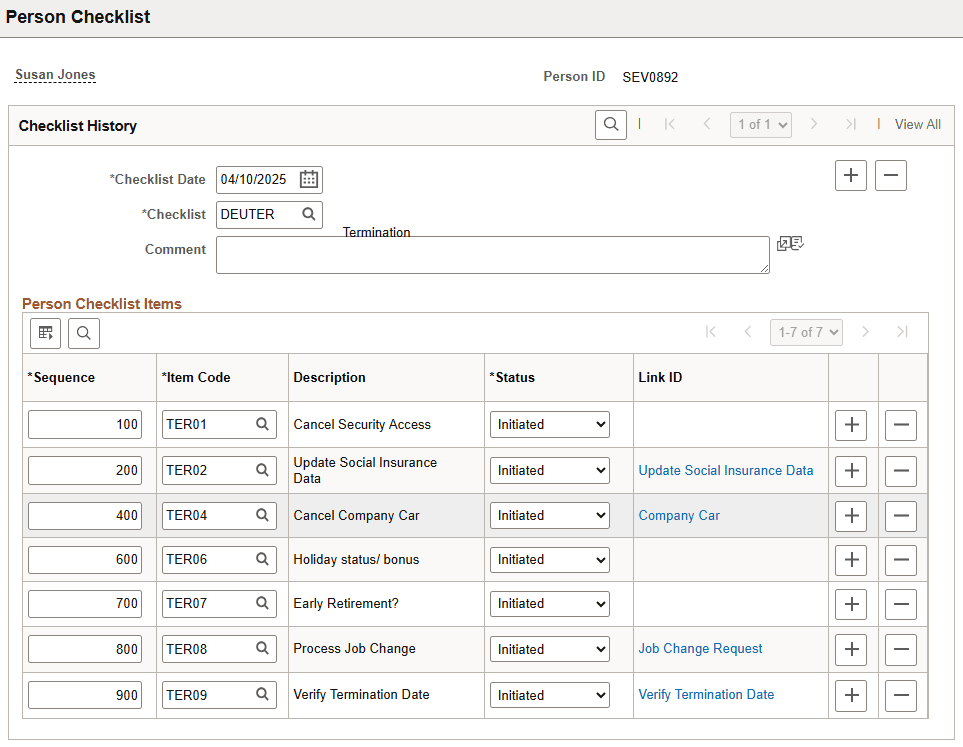
To see the next set of five rows in the Assignment Checklist Item grid, a user can click the right arrow button. To see all rows of data at once, in either the grid or scroll area, the user can select the View All link in the navigation bar.
In PeopleSoft Application Designer, you set the occurs count for a level-based control on the General tab in the properties dialog box. You can set the occurs count to any number. You also have the option of selecting Unlimited Occurs Count so that the user sees all rows of data. If the page has more options than can be viewed in the window at runtime, the browser displays a scroll bar enabling the user to scroll to the bottom of the page.
Note:
When an occurs count is set to a number other than 1, the grid displays the specified number of rows. However, when it is set to 1, the grid displays as many rows as possible within the given space allocated for the grid control at design time.