Opening Definitions
Use the definition workspace to access or create definitions.
To open a definition:
-
Select or click the corresponding toolbar button.
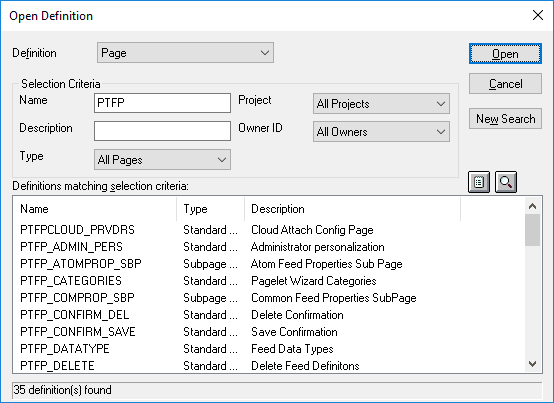
The Open Definition dialog box appears.
This example illustrates the fields and controls on the Open Definition dialog box.
-
Select the type of definition that you want to open from the Definition drop-down list box.
-
Provide selection criteria.
Enter a definition name or description (or the beginning characters of either). Other selection criteria options might be available, depending on the definition type.
-
Click Open, or press ENTER, to display definitions matching the selection criteria that you entered.
To clear the current selection criteria and start over, click New Search. To change how the system displays the search list, perform one of these actions:
-
Click the List button to see only the names of the definitions.
-
Click the Details button to see the names and descriptions of the definitions. This is the default.
-
-
Select a definition to open.
-
Double-click the definition that you want to open in the definition workspace, or highlight the definition and click Open.
You can also use the shift-click selection technique to select more than one definition to open in a single action, or you can right-click to view a pop-up menu, where you can open, print, rename, or delete the selected definition.
Note:
The print menu is disabled when you right-click any of the following definitions: activity, approval rule set, business process, component interface, component, and project.
Note:
When the definition is open and able to be modified, "Ready" appears in the lower left-hand corner of the workspace.