Positioning Page Control Labels
PeopleSoft Application Designer enables you to change the relative position of most page controls and their labels. This section discusses how to:
-
Move page control labels.
-
Prevent translation buffer overlap.
Moving Page Control Labels
To move page control labels, use one of these methods:
-
Select multiple labels and either click one of the Align Label (position) buttons in the toolbar or select (position).
PeopleSoft Application Designer aligns the selected labels based on the last label that you select. Alignment is based on the first letter, last letter, or middle letter of the labels; the translation buffer is ignored.
-
Select the label and drag it to the new position on the page.
-
Select the label and use a directional arrow key on the keyboard to move the label one grid unit in the indicated direction.
-
Access the control properties dialog box, select the Label tab, and then select an option in the Position group box (the Location group box for radio button and check box controls). The Custom option is informational only; it does not move the label. All other options move the label to the selected position when you click the OK button.
-
Click the Left label position button in the toolbar to move the label to the default left position of the page control.
Note:
Select the control itself when you want to move both the control and its label and retain their relative positioning.
Preventing Translation Buffer Overlap
Often, when you translate your own field labels, the label in the new language requires more space than the English label. When you create or modify pages, you need to accommodate this requirement by leaving additional space between the label and the field control. This space is called the translation buffer. If you do not account for the translation buffer during page design, labels and controls can overlap, which can interfere with readability after the translation.
PeopleSoft Application Designer automatically calculates the translation buffer size as 30 percent of the current label length + the length of 2 upper case'Ns. The calculation uses the number of characters, but it ignores the individual character itself. The combined character length and translation buffer length is limited to 60 characters for static text labels, 30 characters for RFT_LONG labels, and 15 for RFT_SHORT labels.
Based on the calculation, a page control label appears with dashed lines that surround and extend beyond the label, visually indicating the appropriate translation buffer. PeopleSoft Application Designer appropriately moves and adjusts the translation buffer indicators whether you align your labels to the left, right, or center. For most page controls, the translation buffer indicators envelope only the label. However, the translation buffer indicators for push buttons and links enclose the entire control because these labels are embedded in the controls themselves. By default, PeopleSoft Application Designer resizes push buttons and links automatically to accommodate the combined length of the label and the translation buffer.
Note:
Group box, grid, and scroll area controls do not display translation buffer indicators.
When you save a page, PeopleSoft Application Designer warns you if the page control label translation buffer overlaps a control. When you dismiss the warning dialog box, PeopleSoft Application Designer brings focus to the problematic page control. If more than one label is inappropriately positioned, the first one receives the focus. When your page contains no translation buffer overlaps, the page saves without warning.
Note:
Translation buffer indicators appear even if you do not translate your labels. Translation buffer overlap, however, is inconsequential to English language pages.
Example: Translation Buffer Indicators
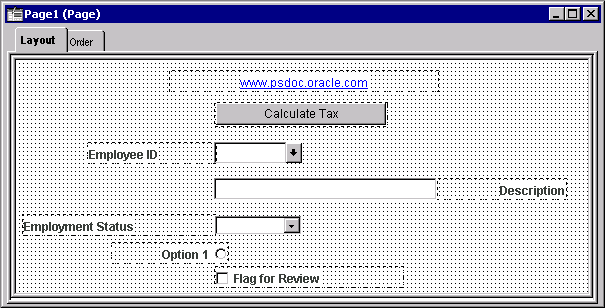
In this example, you see the translation buffer indicators for seven page controls. The link and the push button demonstrate center label alignment. The Employee ID , Employment Status, and Flag for Review labels demonstrate left alignment. The Description and Option 1 labels demonstrate right alignment:
This example illustrates the fields and controls on the Translation buffers indicators on several page control types showing different label alignment settings.
Example: Translation Buffer Overlap
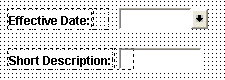
In this example, the Effective Date label maintains the translation buffer, but the Short Description label does not maintain the translation buffer and overlaps the associated edit box page control:
This example illustrates the fields and controls on the Field labels demonstrating proper label positioning (Effective Date) and translation buffer overlap (Short Description). You can find definitions for the fields and controls later on this page.