Previewing Input Data
In PeopleSoft Application Designer, select
This example illustrates the fields and controls on the File layout preview. You can find definitions for the fields and controls later on this page.
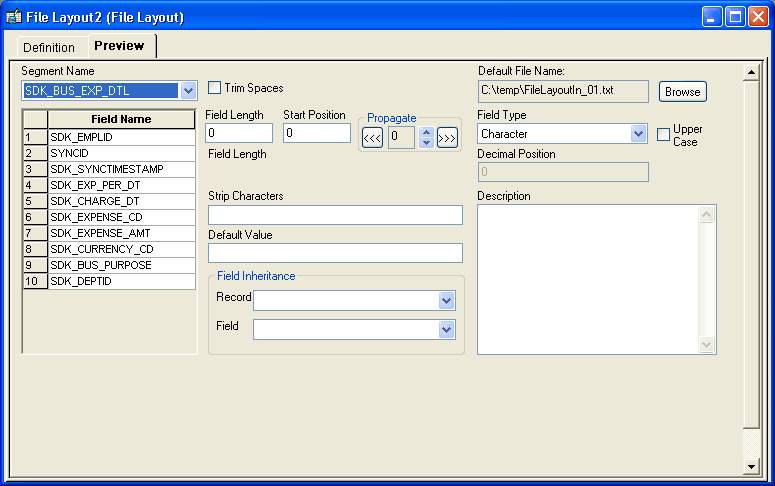
The Preview tab displays no information initially.
Note:
With an XML file, you cannot preview the data, although you can generate and run an import program.
To preview input data:
-
Click Browse and select the import file.
The name of the import file appears in the Default File Name text box.
-
Select a file layout segment from the Segment Name drop-down list box.
The file layout fields corresponding to the selected segment appear in the list below the segment name. This list comes from the file layout definition, and it does not depend on your selecting a valid import file.
-
Click the Refresh button on the toolbar to refresh the preview data.
At the bottom of the window, the first five rows of the selected segment in the selected import file are available for preview in the grid.
You can also select While this menu item is selected, the file layout refreshes the preview automatically; when it is cleared, you need to click the Refresh Preview Data button to see the effects of changes you make to the property settings or data.
Note:
Preview file data is available only for FIXED and CSV file layouts. The preview data appears only if you selected an import file, if the file format matches the format specified for the file layout definition, and if it contains a file record ID that matches the file record ID of the selected segment.
-
Select one of the fields in the Field Name list box.
The properties of the field that you select appear in the appropriate display fields. These properties are actually the file layout field properties of the field; you can change all field property settings from this view.
Note:
Only the field properties that are appropriate to the file layout format that you specified in the File Layout Definition Properties dialog box are visible in this view. For example, the Start Position and Field Length fields are available only for a FIXED format file layout.
Examining the Input Data for Errors
The following table shows examples of input data errors:
| Symptom | Possible Reason | Solution |
|---|---|---|
|
The preview grid does not appear. |
The input file format does not match the file layout format that you specified in the File Layout Definition Properties dialog box. A CSV file does not use the definition qualifier you specified in the File Layout Definition Properties dialog box. |
Change the file layout format to match the input file format. Change the definition qualifier to match the one used in the input file. |
|
Only the first column of the preview grid is populated. |
A CSV file does not use the definition delimiter you specified in the File Layout Definition Properties dialog box. |
Change the definition delimiter to match the one used in the input file. |
|
The preview grid appears for some records but not for others. |
The record IDs of the file for the missing records do not match the file record IDs specified in the File Layout Segment Properties dialog box. |
Specify file record IDs that match the input file records. |
|
Data for a field appears truncated in the preview grid. |
With a FIXED file, the field length that you specified in the File Layout Field Properties dialog box is too short to accommodate the field data. |
Increase the field length to accommodate the input data. |
|
A field appears to start in the middle of the data. |
With a FIXED file, the start position that you specified in the File Layout Field Properties dialog box is too great to include the start of the field data. |
Decrease the start position and adjust the field length to match the input data start position and length. |