Setting Static Image Properties
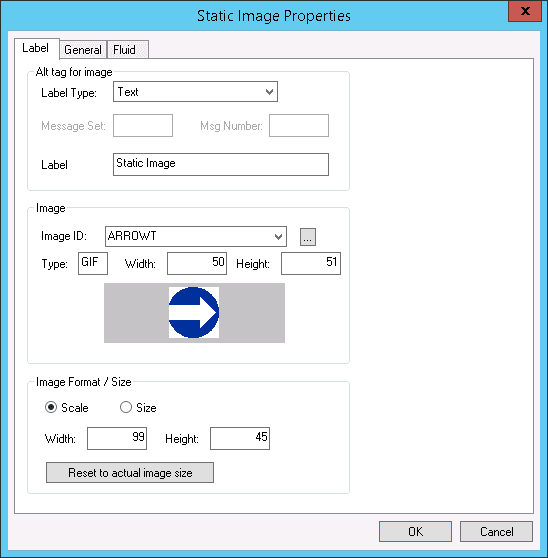
This example shows the options available on the Static Image Properties dialog box. Descriptions of the options follow.
For more information on images, see Understanding Image Definitions.
Alt tag for image
| Field or Control | Description |
|---|---|
|
Label Type |
None: Select for no image label. Text: Select to add an image label manually. Message Catalog: Select if the label for the image is stored in the message catalog. The label does not appear on your page at runtime. Use it to track your images in your scroll order list box and on page definition reports. |
|
Message Set |
If your label value is stored in the message catalog, specify the message set. |
|
Msg Number |
If your label value is stored in the message catalog, specify the message number. |
|
Label |
If you have selected a Label Type as Text, enter the image label. |
Image
| Field or Control | Description |
|---|---|
|
Image ID |
Select the image name from the drop-down list. |
|
Type |
Displays the image type, such as GIF, JPG, and so on. |
|
Width/Height |
Displays the dimensions of the graphic in pixels. |
|
Preview |
A preview of the image appears in the preview box below the controls in the Image group box. Note: Not all image types can be previewed in Application Designer during design time. For example, these image types cannot be previewed: PNG, ICO, and SVG. |
Image Format / Size
| Field or Control | Description |
|---|---|
|
Scale |
Select to scale the image to the size of the frame that you set using the control selection handles or by the width and height that you enter. The scaling occurs when you view the page in a browser. |
|
Size |
Select to display the image as is, regardless of the control size on the page. |
|
Width/Height |
Use to specify custom dimensions for an image. |
|
Reset to actual image size |
If you have scaled or adjusted the image dimensions, click to reset the image to the actual size of the image. |
Note:
You can define your own static images, such as your company logo, by creating a new image definition. After you create the image definition, you can then add your logo to a page using a static image control.