Setting Use Properties
Access the Component Properties dialog box and select the Use tab.
This example illustrates the fields and controls on the Component Properties dialog box: Use tab. You can find definitions for the fields and controls later on this page.
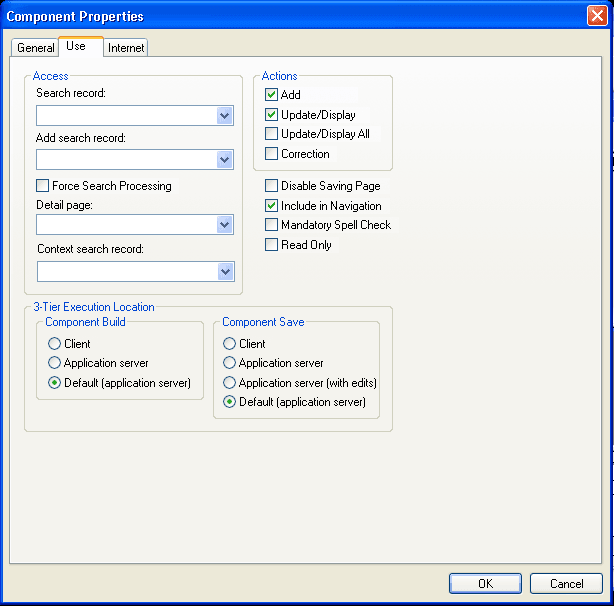
Access
| Field or Control | Description |
|---|---|
|
Search record |
Specify the search record for this component. |
|
Add search record |
Specify if you want a different search record specifically for add actions. For example, if you selected the auto-numbering option for employee IDs (EMPLID), do not include EMPLID in the search record. Likewise, you might want to create special security views for add actions that limit the rows that users can add based on specific search criteria. The system default is the standard search record if you do not specify an add search record. |
|
Force Search Processing |
Select to always run search logic (SearchInit PeopleCode) for this component. The default is deselected. Note: If you select this option, all persistent search functionality for the component is disabled, regardless of system settings. Important: Persistent search, the drop-down menu, and other forms of classic navigation are no longer supported. The default navigational interface for PeopleSoft applications in the current release is based on the fluid banner, which can be used for both classic and fluid applications. |
|
Detail page |
No longer used in PeopleSoft applications. This option appears for upgrade purposes only. |
|
Context search record |
Specify the record that defines the service parameters that you must map for PeopleSoft component URL-related content services or content reference service types. The system uses the context search record only when no key fields are defined for the primary search record and only in a related content configuration. Portal Technology: Understanding the PeopleSoft Related Content Framework |
Note:
To see a subset of search records, type a few characters first. The drop-down list box is populated with a list of all record definitions with names that begin with those characters, thus reducing access time and enabling you to find specific records faster.
Actions
| Field or Control | Description |
|---|---|
|
Add |
Select to add a new high-level key, such as a new employee ID or customer. Except in the case of effective dating, use Add to insert a new current row or to update future rows. |
|
Update/Display |
Select to update existing rows only. |
|
Update/Display All |
Select to update current and future rows in an effective-dated record. Use only with effective-dated records. Do not use these actions unless the main record that is associated with the page definitions is effective dated. This information is translated to include history at runtime. |
|
Correction |
Select to update any rows (history, current, and future) in an effective-dated record. Use only with effective-dated records. This information is translated to correct history at runtime. |
|
Disable Saving Page |
Select when you want
to hide the Save button in the toolbar and disable the Alt+1 (Save) hot key. Selecting this option prevents users from being
prompted to save when exiting a page. However, it does not prevent
using PeopleCode to save a page with the |
|
Include in Navigation |
Select to include the component in the menu navigation at runtime. The default is selected. If you do not want the component included, deselect the check box. |
|
Mandatory Spell Check |
Select to ensure that spell check is run on all eligible spell check enabled fields in the component when a user saves the page. A field is eligible if it has been changed (or its ReEdit flag has been set) and it has not already been manually spell checked since it was last changed. Note: Spell check at the component level is not currently supported in fluid applications. |
|
Read Only |
Select to have the component run against the standby database, which is used in systems where Oracle Golden Gate or Oracle Active Data Guard have been configured. For more information, see Data Management: Configuring Read-Only Components. |
Note:
If you must add a new high-level key, such as a new employee number or customer, select both Add and Update/Display. If you are adding information to an existing high-level key, such as adding education data for an employee, select only Update/Display. You are not adding a new employee ID; it already exists on the database.
Three-Tier Execution Location
This section applies only to Windows client applications.
To partition application processing between the client and the application server, you must define units that, as a whole, run in one location or the other. We call these units processing groups. Processing groups can encompass one or more PeopleCode events.
| Field or Control | Description |
|---|---|
|
Component Build |
Specify where you want all processing to occur after the key list of a page is selected and before the user can interact with the page. Processing includes building component buffers and running many types of PeopleCode. |
|
Component Save |
Specify where you want all processing to occur after the user saves the component and SaveEdit PeopleCode validations have succeeded. Processing includes SavePreChange, Workflow, SavePostChange PeopleCode, and updates to the database. |