Specifying Fonts
Access the class dialog box and select the Font tab.
This example illustrates the fields and controls on the PSLONGEDITBOX (Class) dialog box: Font tab. You can find definitions for the fields and controls later on this page.
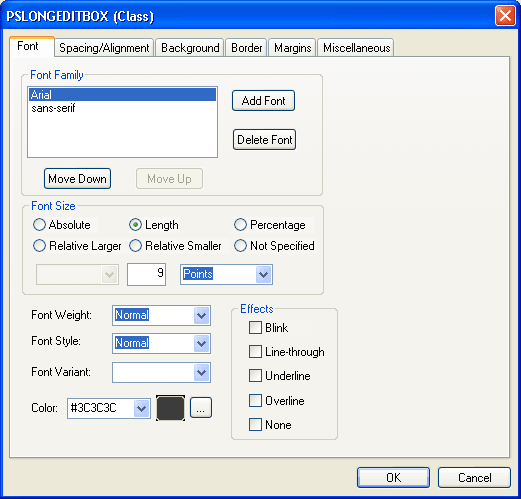
Font Family
Specify the font in which you want the text to appear. You can specify more than one font so that if the browser cannot display the first font, it will attempt to display the next font, and so on, until it finds a font that it can display.
Font Size
| Field or Control | Description |
|---|---|
|
Absolute |
Select to use a size from the drop-down list box (xx-small, x-small, small, medium, and so on). Adjacent sizes have a scaling factor of 1.5 between them. |
|
Length |
Specify the size with a number and select the measurement type from the drop-down list box (em, ex, Pixels, Inches, Millimeters, and so on). |
|
Percentage |
Specify a number, followed by a percent sign (%). Percentage values are always relative to the parent element. |
|
Relative Larger and Relative Smaller |
Select to interpret the font relative to the table of font sizes and the font size of the parent element. For example, if the parent element has a font size of medium and you select Relative Larger, this font size is large. |
| Field or Control | Description |
|---|---|
|
Font Weight |
Select the weight of the font. The values 100 to 900 form an ordered sequence in which each number indicates a weight that is at least as dark as its predecessor. The value Normal is synonymous with 400, and Bold is synonymous with 700. |
|
Font Style |
Select the style of the font. Values are: Normal, Italic, or Oblique. These values are matched to existing fonts with those names. |
|
Font Variant |
Select a variant. Values are: Normal or Small Caps. In a small caps font, the lowercase letters look similar to the uppercase ones, but they are a smaller size and have slightly different proportions. |
|
Color |
Specify a color or select a color from a color palette. |