Understanding the Build Menu
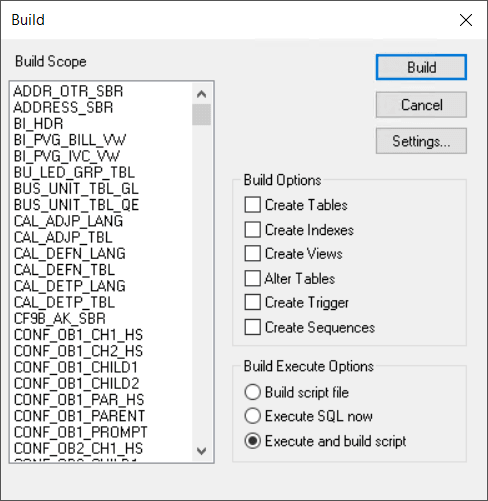
Access all of the commands and options that are associated with building tables, views, indexes, triggers, and altering tables from the Build menu. When you choose to build an item from the Build menu, the tasks for creating or running SQL scripts that define the underlying database components are included in the Build dialog box.
This example illustrates the fields and controls on the Build dialog box. You can find definitions for the fields and controls later on this page.
The settings for the Build process in the Build Settings dialog box enable you to configure various aspects of the process. Depending on which build option you are running, your settings vary. The Build Settings that you select are stored on your workstation so that they can be reused during future PeopleSoft Application Designer sessions. Access the Build settings by selecting Settings from the Build menu in PeopleSoft Application Designer or click theSettings button in the Build dialog box.
This example illustrates the fields and controls on the Build Settings dialog box. You can find definitions for the fields and controls later on this page.
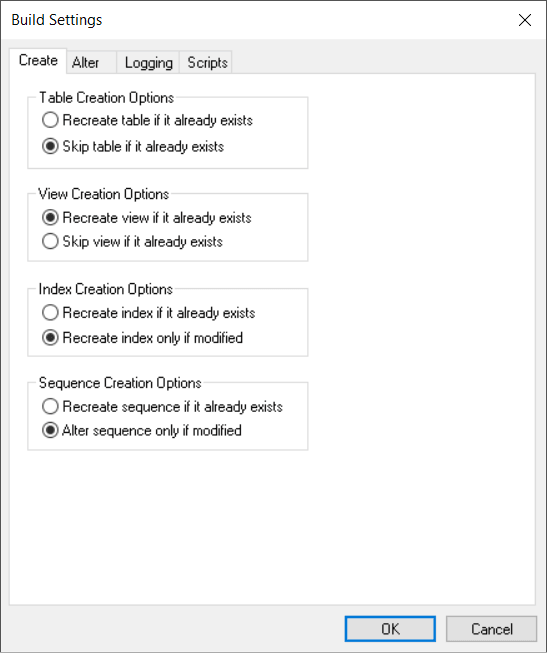
When you select the Create Tables, Create Indexes, Create Views, or Create Sequences options in the Build dialog box, specify the appropriate options on the Create tab of the Build Settings dialog box. For example, you might need to specify whether an existing table, view, index, or sequence is skipped or dropped and then recreated.
If you modify your record definitions, the tables in your production database should reflect those changes to maintain your data integrity. When you alter a table, select the appropriate options, such as the options in the Drop Column Options area on the Alter tab of the Build Settings dialog box.
You can monitor the Build process by reviewing the log files that it automatically generates. Keep in mind that the log file is entirely separate from the script file. The amount of information that the log file contains is up to you. You can set up logging so that all statuses (both good and bad) appear in the log, or you can specify that only errors or warnings appear in the log. Control the settings for the Build log file (such as the logging level and the location for the output log file) on the Logging tab of the Build Settings dialog box.
If you build a script file, then the Build process generates a script file that contains all of the CREATE and ALTER SQL statements so that you can review them before running the SQL through another SQL command processor. If the generated script file meets your requirements, a database administrator (DBA) can run the script later. The Build process can produce multiple scripts during a single run—one for each build option—depending on the script settings that you specify at runtime. For example, you can specify that the Build process generate a separate script for your tables, views, indexes, triggers, and alters, or you can have all of the SQL for each action contained in one script. Use the Scripts tab of the Build Settings dialog box to specify where the SQL script is written, whether you want multiple scripts generated for each definition type, and whether you want previous scripts overwritten.