Understanding the Component Definition Window
When you design component pages, the pages must share the same Level 0 key structure because they share the same search record.
Depending on the complexity of a component, the system may take longer to display the first page than to display other pages in the component (or even display the first page again) because it is loading records for the entire component.
The component definition window has two tabs, Definition and Structure, that provide different views of a component.
Definition Tab
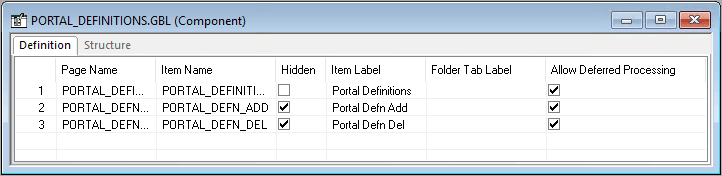
The default component definition view displays the page items and corresponding attributes of a component definition. You double-click the page name to open the page definition:
This example illustrates the fields and controls on the Component definition view. You can find definitions for the fields and controls later on this page.
Structure Tab
The structure view shows records and scrolls in a tree representation. It provides information about page levels and component records and their roles. You double-click the objects in this view to open their definitions:
This example illustrates the fields and controls on the Component structure view. You can find definitions for the fields and controls later on this page.
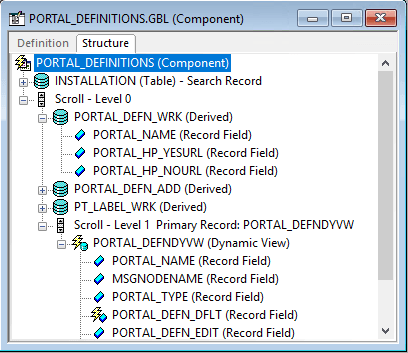
To view the PeopleCode that is attached to any of the components, right-click and select the View PeopleCode option from the pop-up menu. The PeopleCode Editor opens directly in the workspace, displaying the related PeopleCode.
Note:
The Structure tab only displays the runtime state of the PeopleCode. That is, it only displays record field PeopleCode. For example, PeopleCode programs that are orphaned as a result of a page definition change do not appear in the Structure tab. On the other hand, these orphaned PeopleCode programs do appear in the PeopleCode Editor, which displays the design-time view of PeopleCode.
| Field or Control | Description |
|---|---|
|
|
A key icon appears next to all key and alternative search key fields in the component structure view. |
|
|
An asterisk icon appears next to all fields that are required. |

