Understanding Grid Personalization
PeopleSoft Application Designer enables the user to personalize a grid at runtime. By default, grid personalization is enabled. To change the default settings for grid personalization, open the Grid Properties dialog box and click the Display Navigation Bar Properties button. Grid personalization settings appear on the Personalize tab in the Header Navigation Bar Properties dialog box.
Note:
If you do not display the grid header bar, the Personalize link is not available to the user unless you enable it for the footer area.
This example illustrates the fields and controls on the Personalize Column and Sort Order page. You can find definitions for the fields and controls later on this page.
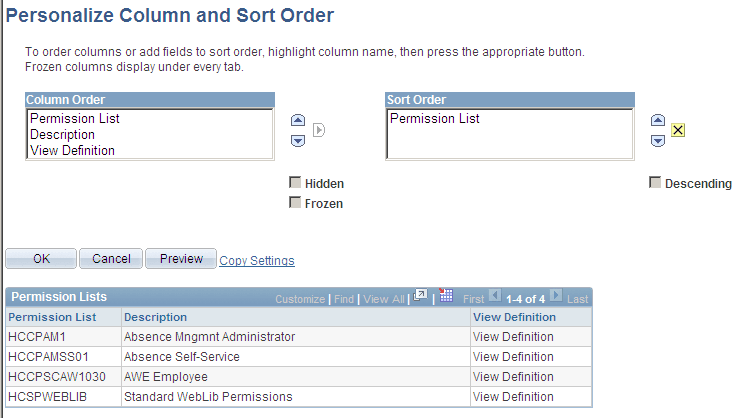
When the user clicks the Personalize link for a grid on a transaction page, the system opens the Personalize Column and Sort Order page, where custom parameters can be set for that grid. This page contains a sample grid that displays a few rows of real data from the buffer in display-only format. If there is no data in the buffer for that grid, only the column headings appear. Tabs in the grid are active so that the user can view all sample data.
From this personalization page, users can control the column and sort order, as well as copy other users' grid settings or choose to share their settings with other users once they save their changes.
The Column Order grid displays the columns in their current order, including tab separators. The list of fields is driven by the page definition but excludes columns that are hidden by PeopleCode. The user can hide columns and change their sort order. Users can also freeze grid columns. Columns that you freeze at design time automatically appear to the user as already frozen. However, the user has the option of overriding this setting.
The Sort Order grid enables the user to control the ascending and descending sort of each column, with the exception of tab separators, images, push buttons, links, and HTML areas. Users can sort hidden fields, however. The default setting is ascending for each column.
After making changes, the user can accept, preview, restore defaults, or cancel selections. If the user saves the new settings by selecting OK, the system stores the new settings as persistent values for that user based on a key structure. Therefore, each time the user accesses this grid, the system uses all personalization options that were set previously. The user can restore all default settings by selecting the Delete Settings link to remove all stored personalization settings from the database.
The user can override the persistent sort order directly on the transaction page by clicking the linked field label to affect the sort. Clicking the link repeatedly toggles between ascending and descending sort order for that column. This type of sorting directly in the transaction page is not persistent.
Note:
You can continue to use the Sort method of the Rowset class, but the user can override the defined sort with this feature.
After the user has applied personalization on the columns in a grid and saved the settings, if you insert a column in the grid, the system preserves the user personalization and adds the newly inserted column as the last column in the grid for that user. If the grid contains tabs, then the system preserves the column personalization in the grid and displays the newly inserted column as the last column in the tab, the same tab in which you inserted the new column.