Understanding Pop-up Pages
Pop-up pages are a type of PeopleSoft page that displays information that supplements, expands, or enhances the transaction page data. Pop-up pages are ideal for displaying additional, more detailed information that is pertinent to a subset of users. For example, you can create a Purchase Order Header Details pop-up page that displays customer details such as contact information and payment data. You can then associate the details pop-up page with the Purchase Order Line Items page so that an account representative who is reviewing line items can quickly access customer contact data without having to leave the transaction. Similarly, you can create an Employee Details pop-up page to display an employee's ID, name, department, current job assignment, phone number, and email address. You then associate the Employee Details pop-up page to a specific field on an employee-related transaction page. At runtime, when you move your mouse over this field, the pop-up page appears and displays information that is contextually relevant to the employee data on the transaction page.
Pop-up pages look and behave differently from standard PeopleSoft transaction pages. For example:
-
Pop-up pages are not standalone pages; they are linked to, dependent upon, and accessed from their primary transaction pages.
-
Pop-up pages do not appear unless you hover your mouse over the page control with which you associated the pop-up page.
-
Pop-up pages support only a subset of page controls.
-
Pop-up pages cannot contain scroll areas or grids.
-
Pop-up page fields are display-only.
-
You should place pop-up page PeopleCode either in the page Activate event or on the RowInit event of work records associated with the pop-up page.
-
If a value at level 0 on the pop-up page comes from one of the search key fields and if no non-search key value from that record appears at level 0 on the main page, then RowInit PeopleCode in that record does not run.
In addition, if a non-search key value from that record appears on the pop-up page only, then the system does not consider the field to be part of the main page. Because of this, no values for the non-search key fields are retrieved from the database. To populate non-search key fields on the pop-up page with data, you must place a non-search key value from that record on the main page. The field can be hidden on the main page, but it has to exist there.
Designing Context-Sensitive Pop-up Pages
To create pop-up pages that retrieve data that maintains the key field context of the main page, you must ensure that these conditions are met:
-
For each record definition that the pop-up page references, key field values must exist on the main page.
Note:
If the key field value is not found, use the Set Trace Flags option Related Displays, and search for more information in the log file.
-
The names of the main page fields in which these key values exist must be identical to the names of the key fields of the record definitions referenced on the pop-up page.
Note:
While the field names must be identical, they do not have to be key fields in the record definition referenced by the main page.
-
The fields in which the key values appear must appear in either the same scroll area as the field to which you associate the pop-up page or at a preceding level. The page field to which you link the pop-up page can be one of the fields that contains the key field values; frequently, it is the lowest order key.
Consider this scenario:
If PRec s the record that the pop-up page references and the key fields are PRec.K1 and PRec.K2, then, the K1 and K2 fields must exist on the main page as MRec.K1 and MRec.K2, where MRec is the record that the main page references.
If the field on the main page to which the pop-up page is attached is in ScrollA—a level one scroll area—then both MRec.K1 and MRec.K2 must either exist in ScrollA or at level zero.
Note:
On the main page, it is not necessary that the K1 and K2 fields appear in the same record, MRec in the previous case. The fields could be MRec.K1 and NRec.K2, where NRec.K2 is some other field on the main page in the correct context.
Context-Sensitive Pop-up Page Example
In this example, you see a User Details pop-up page. This page is associated with a view, which retrieves information so that the page displays the employee's name, photo, department, phone number, address, and web site URL.
This example illustrates the fields and controls on the User Details pop-up page. You can find definitions for the fields and controls later on this page.
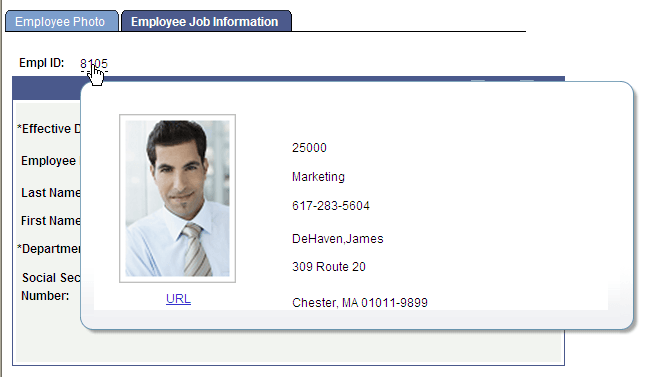
The fields on the pop-up page reference PS_EMPL_VW. The key field of PS_EMPL_VW is EMPLID, which requires that the EMPLID field exist on the main page.
The field to which the pop-up page is linked is at level 0, which requires that EMPLID be at level 0 also.
Note:
EMPLID is a key field on the PS_EMPL_VW record that the pop-up page references. While EMPLID also happens to be a key field on the PS_EMPL_JOB record that the transaction page references, it is not a requirement.
Identifying Valid Controls on Pop-up Pages
You may insert these controls only on a pop-up page:
-
Frames
-
Group boxes
-
Horizontal rules
-
Static text
-
Static images
-
Check boxes
-
Drop-down list boxes
-
Edit boxes
-
Images
-
Long edit boxes
-
Push Button/Hyperlinks
-
Radio buttons
-
Charts
Note:
Except for Push Button/Hyperlink page controls, these controls are automatically set as display-only at runtime even if you do not set the Display-Only property on the control.
Using Push Buttons and Links on Pop-up Pages
You may use only these destination type values on a pop-up page:
-
External link
-
Internal link
-
PeopleCode command
-
Process
-
Secondary page
Note:
Do not use other destination types for push button/hyperlink controls on pop-up pages because unexpected results will occur.