Understanding Search Records and Recent (Persistent) Search Results
Important:
Persistent search, the drop-down menu, and other forms of classic navigation are no longer supported. The default navigational interface for PeopleSoft applications in the current release is based on the fluid banner, which can be used for both classic and fluid applications.
When you perform a component search, the results of your most recent search are temporarily stored—they persist—in the portal drop-down menu structure. The system stores the most recent component search results for the currently active component in the navigation path (breadcrumbs). Here is an example of the search results icon in the navigation path:
This example illustrates the fields and controls on the Search icon at the far right in the navigation path. You can find definitions for the fields and controls later on this page.

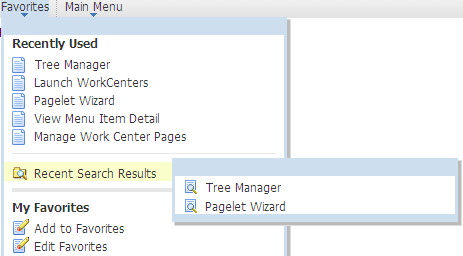
The most recent search for each of the five most recently visited components appear in the Recent Search Results menu:
This example illustrates the fields and controls on the Recent Search Results menu showing two recent component searches. You can find definitions for the fields and controls later on this page.
Note:
Components that do not generate search pages do not generate search results and, therefore, do not appear in the Recent Search Results menu or the navigation path.
When you access a recent search either from the navigation path or the recent search menu, the system displays the results in a grid on a modal pop-up page, which hovers over the currently active page.
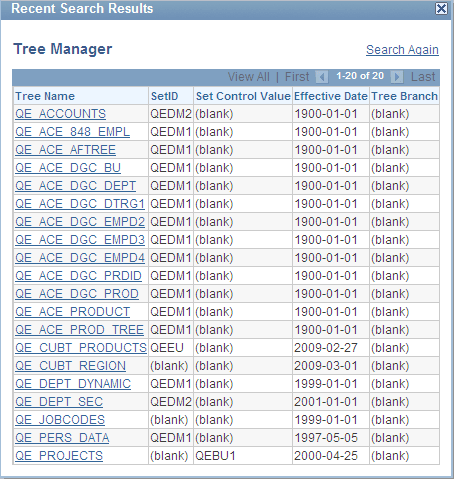
Here you see the Recent Search Results pop-up page for the Tree Manager component:
This example illustrates the fields and controls on the Tree Manager Recent Search Results pop-up page showing results grid. You can find definitions for the fields and controls later on this page.
Important:
You must enable recent search results caching at the system level. The default setting for recent search results caching is disabled.
Recent Search Results Process
A persistent search enables you to circumvent the first part of the component search process by temporarily storing all search keys, which the system uses in the WHERE clause of the second part of the search process, in the menu structure. When you access a recent search and select an item from the list, the second query is generated and populates the component buffer.
Although the search process remains the same, the appearance of the search results page differs from component search pages.
Note these points about the search results page:
-
It is modal; it hovers over the transaction page, which is inactive until you dismiss the modal page or select a list item.
-
It is compact; it displays a maximum of five of the temporarily stored fields in the results grid.
-
It is moveable, which enables you to view the current transaction and see the search results simultaneously.
-
It displays an active link, a link that you can click to retrieve a specific row of data, in only the first column; all other columns are inactive.
-
It is configurable.
See Configuring Search Results Grid Columns in Persistent Searches.
Note these points about the accessibility and availability of persistent search results:
-
The most recent transaction search results for the currently active component appear in the navigation path next to the content reference name; a search icon is the visual indicator.
-
The one most recent search for each of the five most recently viewed components appears in the Favorites, Recent Search Results menu. The results appear by component name, for example, User Profiles.
-
The navigation path retains the most recent transaction search results until another search is performed.
Note:
If you leave a component and return to it without having performed another search, the most recent search results reappear.
-
Any persistent search remains in the portal menu structures only until your PeopleSoft session expires, you sign out, or you close the browser.
Recent Search Results Page Construction
The standard, default Recent Search Results page uses these criteria to determine the fields that appear on the page:
-
Fields marked as search key fields appear in the results grid in the order in which they are listed in the record definition.
-
If the search record contains more than five search key fields, the other search key fields, while stored in the menu structure and accessible by the search process, are hidden from view.
-
If the search record contains fewer than five search keys, the fields marked as list box items appear in the grid in the order that they are listed in the record definition until the column limit of five is reached.
You can override which columns appear on the recent results search page by using the Persist in Menu property of the search record.
Related Topics