Understanding Tabs
To provide a greater degree of and simpler user-level configuration, PeopleSoft applications use the sliding door technique for tabs. Cascading style sheets (CSS) have the advantage of layering background images, which enables them to slide over each other to create visually interesting effects.
The default style sheet and the SWAN style sheet contain CSS tabs. You can, however, change the background colors of these CSS folder and grid tabs. To change the background colors of tabs, you should have a basic understanding of how tab definitions are constructed and stored in the database.
Sliding Doors Technique
Sliding door tabs expand and contract based on the size of the text by using two separate background images: one image to render the left side of a tab and the other image to render the right. Think of these two images as the sliding doors that complete one opening. The doors slide together and overlap more to fill a narrower space, or slide apart and overlap less to fill a wider space. The background images only show in the available doorway of the element to which they are applied (content area plus padding). The two images are anchored to the outside corners of their respective elements. The visible portions of these background images fit together inside the doorway to form a tab-like shape.
Sliding Door Tab Images
You need to know the following image names to modify the style sheets that ship with PeopleSoft applications.
For the dark blue look and feel, folder tabs and grid tabs use these images:
-
PSTAB_LEFT.gif
-
PSTAB_RIGHT.gif
For the SWAN look and feel, the folder tabs and the grid tabs use these images:
-
PSTAB_LEFT_SWAN.gif
-
PSTAB_RIGHT_SWAN.gif
The CSS code behind the rendering of the tab image is:
 #PSTAB a { background:transparent
url(%IMAGE(PSTAB_LEFT)) no-repeat left top; padding:0 2px 0 5px; }
#PSTAB a span { font-size:9pt; background:transparent url(%IMAGE(PSTAB_RIGHT))
no-repeat right top; padding:4px 14px 2px 5px; }
When working with sliding door tabs, the images load faster, are simpler to maintain, and the text within them can be scaled up or down significantly in size without breaking the page. Along with these new images, applications take advantage of the CSS background-position property to move into view the appropriate portion of the combined-state background image when the user hovers over a tab.
The following image is an example of a Style sheet sliding door tab preload technique
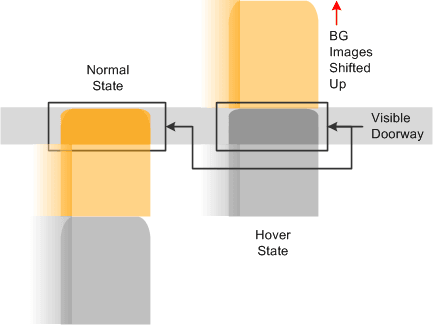
Applications use the shifted background positions from the active, inactive, and hover states.