Using Display Control and Related Fields
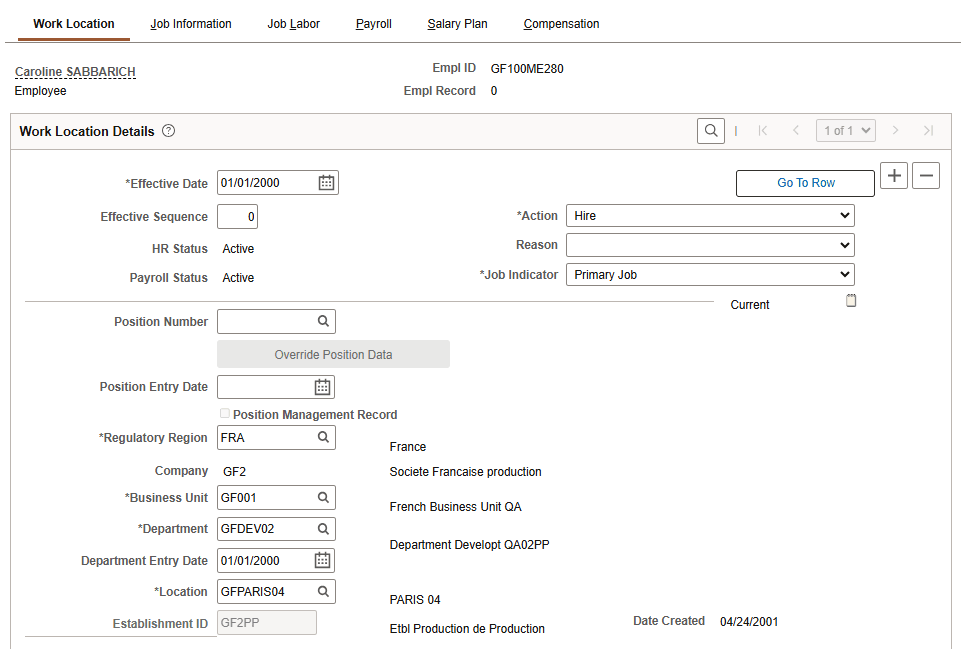
A related display field is for display purposes only—it always references a row that’s not being updated from the current page. The display control and related display fields must both be at the same level. In the Work Location page, the Regulatory Region, Company, Business Unit, Department, and Location fields all show related display fields to their right. Search level fields, such as those shown above the Work Location group box, are display-only fields.
This example illustrates the fields and controls on the Work Location page.
Because of the nature of control fields and related fields, PeopleSoft recommends that you:
-
Place them side-by-side on a page to indicate their relationship.
-
Provide adequate space between the fields.
-
Do not overlap them; otherwise, they appear skewed when viewed through the browser.
-
Change the label type for the related field to None so that it doesn't appear on the page.
-
Enter a text description to document the purpose of the field.
Note:
The display control and related fields must be in the correct order on the order page. The display control field must be positioned before the associated related field; otherwise, a warning dialog box appears when you save the page.
Note:
Fetching the related field after the control field is entered requires a transmission to the server at runtime.
Note:
If you copy fields that have display control/related field associations configured from one page to another, the mappings between the related field and the control field will be lost. After copying these fields, you need to reset the control field/related field associations on the target page.
When the value in a display control field is modified, the value in the related field is also modified. In this scenario, if you want to obtain the original value using PeopleCode, you can use the OriginalValue property of the Field class. You can use this property with the display control field and the related field or related edit field to obtain the original value. To obtain the current value in the display control field and the related field or related edit field, you can use the Value property of the Field class.