Using the Page Layout Grid
When you open a page definition, evenly spaced dots appear in the workspace. This is the page layout grid that you use to align controls. When you run applications, the grid does not appear on pages. It appears only as a design aid in the page definition. This example shows the Layout Grid dialog box:
This example illustrates the fields and controls on the Example of Layout Grid dialog box with default values.
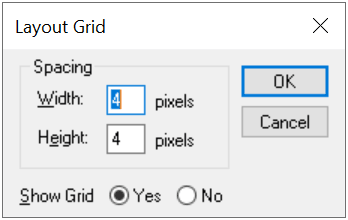
The default grid spacing is 4 × 4, which means that each row has one dot per 4 pixels and that the rows are 4 pixels apart on the vertical axis. Most pages in PeopleSoft applications are built using this grid. To change the spacing, open the Layout Grid dialog box by selecting Grid Settings from the Layout menu.
You can turn off the grid view of your page by clicking the Toggle Grid button in the page definition toolbar.
Changing Page Layout Grid Settings
To change grid spacing:
-
Select
-
Enter values for the width and the height, which is the spacing of the dots in pixels.
The smaller the value, the finer the grid. The finer the grid, the more difficult it is to align fields precisely without using the align functionality. Note that if either the width or height is set to one, then the grid will be slightly off.
Select a Show Grid option to activate or deactivate the page grid.
If you copy an existing page and save it by another name, you also copy the grid settings that were used to create the original page. For example, if the original page was built with a 5 × 5 grid, then your new page also will have a 5 × 5 grid, by default. You can change the grid settings anytime while working on a page. Doing so has no effect on the position of a field.
The snap-to-grid functionality is only available when the layout grid is showing.