Entering and Saving Search Criteria
This section discusses how to:
-
Enter search criteria.
-
Use operators.
-
Save search criteria.
Entering Search Criteria
When specifying search criteria, you can enter a full or partial value for any key field. Based on what you enter, the system queries the search record, presents a list of possible matches or, if only one match exists, displays the page that you requested. Often, however, you do not have all of the information that you need. For example, you may want to find all administrator user profiles. If you enter the word Administrator in the Description field and the search criterion for that field is set to contains, then the system narrows the search by displaying all profiles that contain Administrator in the description. With this information, you might be able to determine which user profiles you want based on the results in the Search Results grid. Click any link in the row of the profile to access that profile in the Search Results grid.
This example illustrates specifying search criteria on an advanced search page.
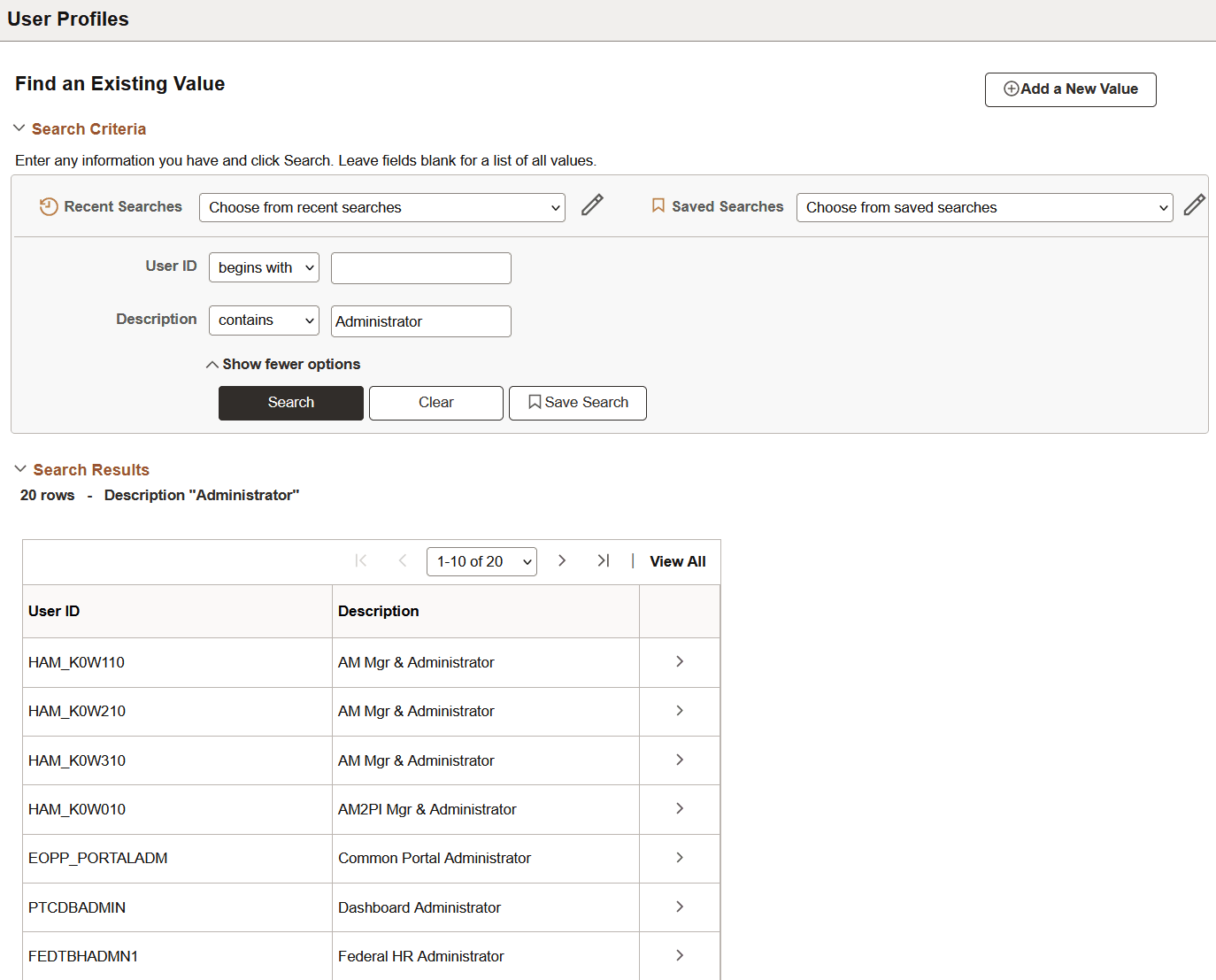
When browsing through a large number of search results, use the browser scroll bar to view all listings on the current page. If not all results appear at one time, you can click the Show Next Rows button (the right arrow) in the grid header to view the next set of rows, and you can click the Show Previous Rows button (the left arrow) to see previous sets of rows. You can also click the First and Last links to display the first and last sets of rows of search results. In addition, you might be able to click a View All or View n button to view all records at one time or to view a designated number of records. (The application developer configures the value of n.)
When you select a value and access a page, notice that the key fields from the row that you selected on the search page appear as the display-only fields in the upper section of the page, usually just below the page tab.
Using Operators
When performing an advanced search, you can use a variety of operators to narrow your searches. For example, you can hunt for customers by a particular first letter, by values that are less than or greater than a specified amount, and so on. You can use the following operators:
| Operator | Field Use |
|---|---|
|
begins with |
Character fields. |
|
contains |
Character fields. |
|
= |
All field types. |
|
not= |
All field types. |
|
< |
All field types. |
|
<= |
All field types. |
|
> |
All field types. |
|
>= |
All field types. |
|
between |
All field types. |
|
in |
All field types. |
Note:
If you use the in operator to search for multiple items, separated by commas, and you enter a space after the comma, the search automatically strips out that space. (For example, if you search for 1000, 1001, the search assumes that you are searching for 1000,1001. If you actually do want to search for a character string that contains a space, include that string within double quotes, like this: 1000," 1001".
You can use an operator for more than one field to make your search even more specific. For example, you could narrow your search for courses with the word orientation in the name by selecting the "=" operator for the Internal/External field and selecting Internal from the drop-down list box, as shown in the previous example. This search will find only courses that meet both criteria: internal courses that include the word orientation.
Saving Search Criteria
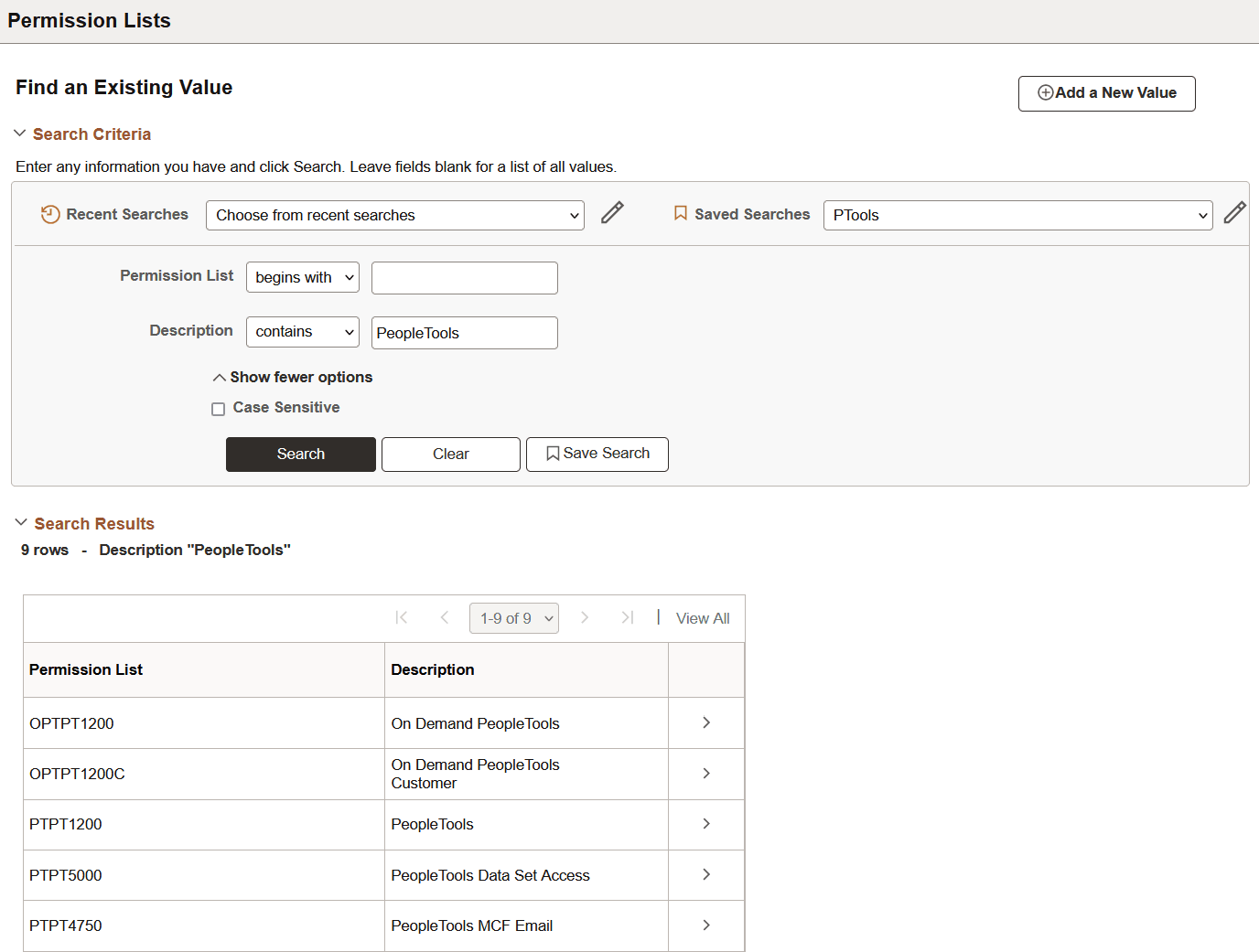
If you are conducting an advanced search, you can click the Save Search button to name and save the specifics of your search. If you have saved one or more searches, you can use the Choose from saved searches drop-down list box to select a saved search. When you select a saved search, it populates the field values with the saved search criteria. Select the Search button to view search results matching the search criteria.
After you save a search, you can use that saved search in other search pages that use the same search record. You can use the pencil icon to display the Manage Saved Searches dialog box where you can rename or delete your saved searches.
This example illustrates the Permission Lists Advanced Search page showing the PTools saved search.
Note:
The applications stores saved searches by user ID.