Inserting and Modifying Images
To insert an image into the text, click the Image button. The maximum image size is database dependent. Some database platforms support large image sizes while others limit the size to 32000 bytes. Consult your database documentation for more information. Use the Image Upload dialog box to upload an image file.
Uploading an Image
Access the Image Upload dialog box (click the Image button).
The following image types are supported: JPG, BMP, GIF, PNG, and SVG.
This example illustrates the fields and controls on the Image Upload dialog box.
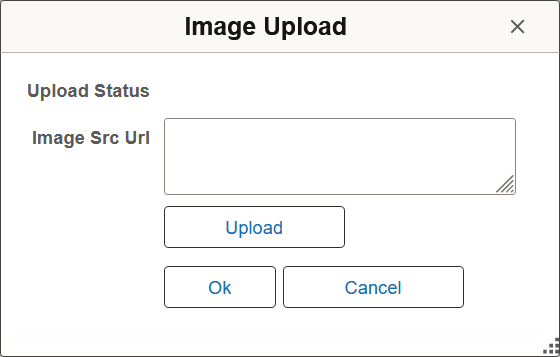
When you select the Upload button, the File Attachment dialog box appears.
Select the Browse button to locate the file that you want to insert into the text.
Select the Upload button to send the image to the database.
On successful completion of the upload process, the Image Src Url field is automatically populated with the URL ID for the image.
Modifying an Image
After inserting an image, you can modify the placement and size of the image and enter alternative text. Select the image to display the editing options.
Note:
After upgrading to CKEditor v5, images that were uploaded through CKEditor v4 may display alignment and formatting issues. Therefore, after upgrading to CKEditor v5, you should reformat and readjust the images using CKEditor v5.
Related Topics