Personalizing Content
Access the Personalize Content page (on your classic homepage or dashboard, click the Personalize Content link).
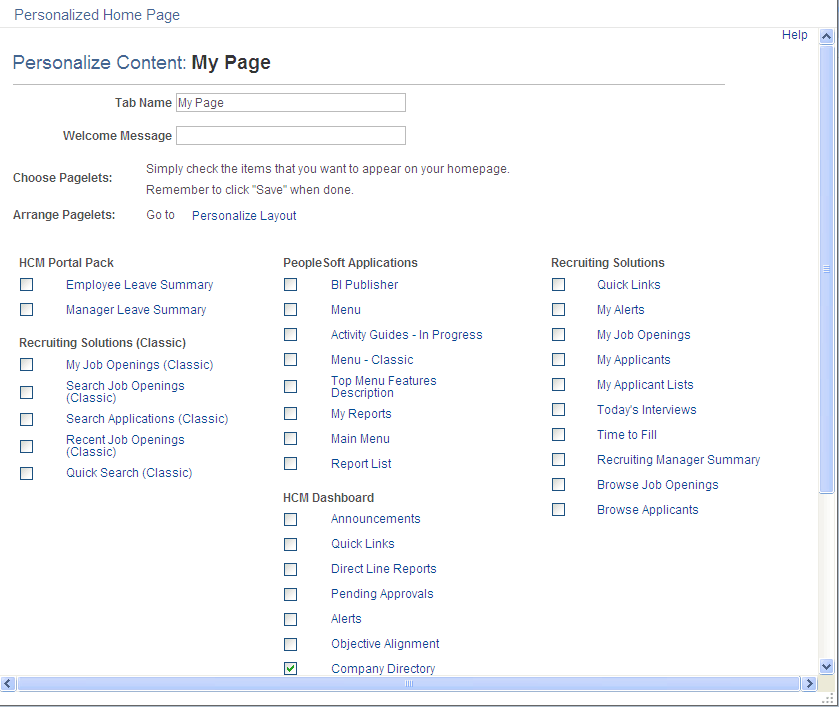
This example illustrates the fields and controls of the Personalize Content page for an example homepage.
-
(Optional). Enter a tab name and welcome message.
This message appears in the header of your homepage or dashboard when you navigate to it.
-
Select the check boxes associated with the pagelets that you want to appear on your personalized homepage or dashboard.
The portal administrator presets the available selection of pagelets. You can preview each pagelet by clicking the pagelet name, which opens a pagelet preview in a smaller window. If a pagelet is not available to you, you will receive a message in the pagelet. Any links in the pagelet are disabled.
-
Click the Save button.
Note:
You can click Personalize Layout from here to immediately begin laying out how the pagelets will appear on your homepage or dashboard.