Setting Up Your System Profile
Access the General Profile Information page (from Home, select My System Profile).
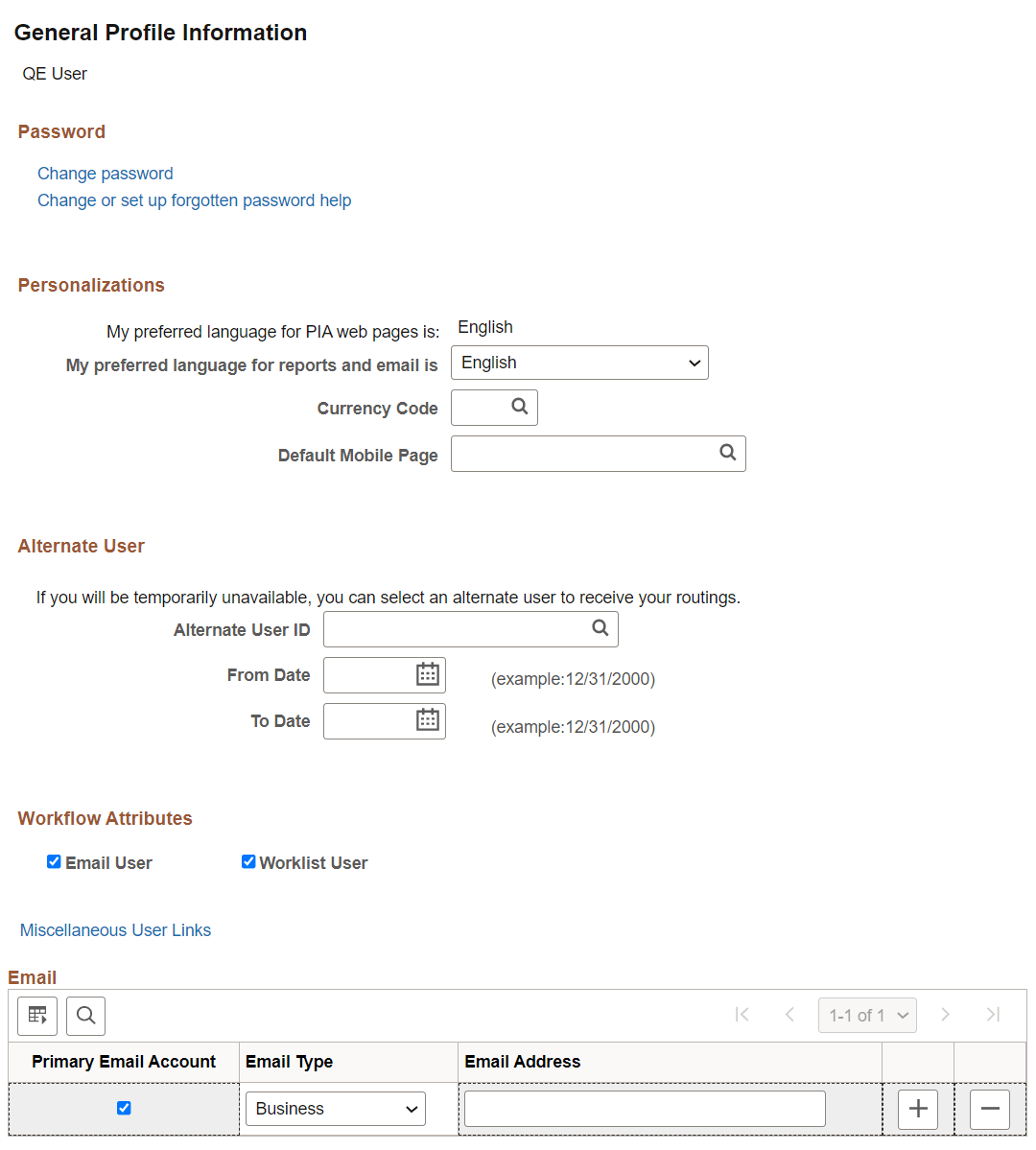
This example illustrates the fields and controls on the General Profile Information page.
| Field or Control | Description |
|---|---|
|
Password |
Click one of the following links, which are self-service options related to passwords:
|
|
Personalizations |
This region lists your current language preference for web pages and your preferred language for reports and email. You can change the language setting for your reports and email on this page. You can also select the currency code for the currency symbol that will appear on pages when you enter currency values. Note: The decimal placement is a property of the currency code; two decimal places is standard. Select the mobile homepage that should appear after you sign on to a mobile device. PeopleSoft Mobile Agent is a desupported product. These features exist for backward compatibility only. Note: For more personalizations options, open the My Personalizations page. |
|
Alternate User |
If you are going to be on vacation or some other type of temporary leave, you can add the user ID of a colleague who is looking after your tasks in your absence. Select the alternate user ID and enter the dates during which you want the alternate ID to be active. After that time has passed, your tasks are automatically routed back to you. Note: When applying an alternate user ID in your workflow settings, note that the system only sends workflow routings to the immediate alternate user ID. The system does not send routings down multiple levels of alternate user IDs. For example, assume user A specifies user B as the alternate user ID while user A is out of the office. Also assume that user B is out of the office at some time during user A’s absence, and user B specifies user C as an alternate user ID. In this case, the system does not send workflow routings originally intended for user A to user C. |
|
Workflow Attributes |
Select one or more check boxes. The available options are determined by the workflow setup at your site. These settings affect how you receive ad hoc workflow routings through your workflow system. An email user receives notifications through email, while a worklist user receives notifications through worklists. |
|
Miscellaneous User Links |
Follow this link to view other security links. These links are controlled by the security configuration of your system. Contact your system administrator for more information. |
|
|
Use the Email grid to edit your current email address or enter additional email types, such as home or Blackberry. You can enter one address of each Email Type. |