Understanding Grid Personalization
For most grids, including some analytic grids, you can use the Personalize link to change the order of the columns, the sort order, which columns are frozen, and which columns are hidden. You can also share your grid personalization with other users or copy another user's settings. You control these settings on the Personalize Column and Sort Order page, which you open by clicking the Personalize link in the navigation header of the grid. Any personalizations that you make to a grid remain in place until you change them.
Note:
Sorting is disabled on columns consisting of radio button fields.
After you've personalized the columns in a grid and saved your settings, if your system administrator inserts a new column in that grid, the system preserves the column personalization in the grid and displays the newly inserted column as the last column in the grid.
If the grid contains tabs, then the system preserves the column personalization in the grid and displays the newly inserted column as the last column in the tab, the same tab in which the system administrator inserted the new column.
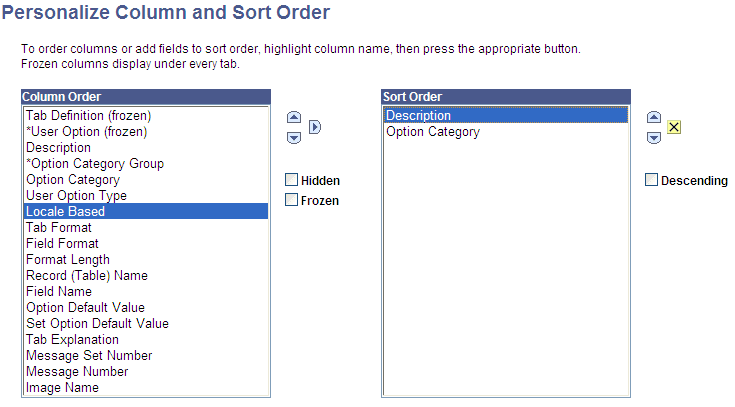
Access the Personalize Column and Sort Order page (click the Personalize link on a grid).
This example illustrates the fields and controls on the Personalize Column and Sort Order page.
Note:
If a page has grid tabs, they remain active so that you can view all sample data.
Use the following toolbar buttons to personalize a grid:
| Term | Definition |
|---|---|
|
OK |
Click to save your personalization settings and return to the transaction page with the changes in effect. |
|
Cancel |
Click to cancel any personalization settings that you made and return to the transaction page. |
|
Preview |
Click to preview any personalization settings that you made. |
|
Copy Settings |
Opens the Copy Settings secondary page, enabling you to copy the public profiles from other users. You can use the Lookup button to search all available public profiles for that grid. Selecting the OK button on the Copy Settings page copies the settings for the selected profile and returns you to the Personalize Column and Sort Order page. |
|
Share Settings |
Available if you have created and saved grid personalizations. Opens the Share Settings secondary page, which you can use to enable public sharing of the grid personalization settings that you created by making your profile Public. (The default setting is Private.) If you make the personalization settings of your grid public, all of your personalization settings for all components will be public. The Name field is only required if you make your personalization settings public. Each user who shares personalization settings must have a unique profile name. The profile name you enter is the same for all pages and shared grid personalizations across all components. If you modify a profile name, it is modified for all pages and grid personalization settings across all components. After you save the first profile name, the Name field is pre-populated when you open the Share Settings page for other pages or grids. The Name field can be any string of up to 30 characters long, for example, OSC_16AR. The system automatically converts alphabetical characters to uppercase. |
|
Delete Settings |
Available if you created and saved grid personalizations. Opens the Delete Settings secondary page, where you can delete all grid personalization settings for the current grid. Select the Delete button to delete the settings for the current grid only and to restore the default grid settings. Select the Cancel button to retain your settings and return to the grid personalization page. |
|
Hidden |
Select a column and select this check box to hide the column in question. Note: It is recommended not to hide the columns in a grid that are used for sorting. |
|
Frozen |
Select a column and select this check box to freeze the column in question. When you freeze a column, the column appears in all tabs within the grid. |
|
Descending |
Select a row from the Sort Order list and select this check box to sort the row in descending order rather than in ascending order, which is the default. |