Using SmartNavigation
Important:
SmartNavigation has been desupported.
Most drop-down menus are comprised of menu items that are static and completely independent of your application data and any relationships that exist among your data. You navigate through menu items to access a link that you click to open a search page. You then enter a search value that the system uses to retrieve data, which populates the transaction page
SmartNavigation extends and enhances drop-down menus by incorporating your data into the menu structure itself. Menu items are dynamic and appear in the menu hierarchy based on parent-child relationships. When you use SmartNavigation menus, rather than navigating to your data you navigate the data itself.
SmartNavigation menus and menu items represent hierarchically related entities, such as:
-
Employees in a department.
-
Accounts in a region.
-
Students in a class.
This example illustrates SmartNavigation drop-down menus.
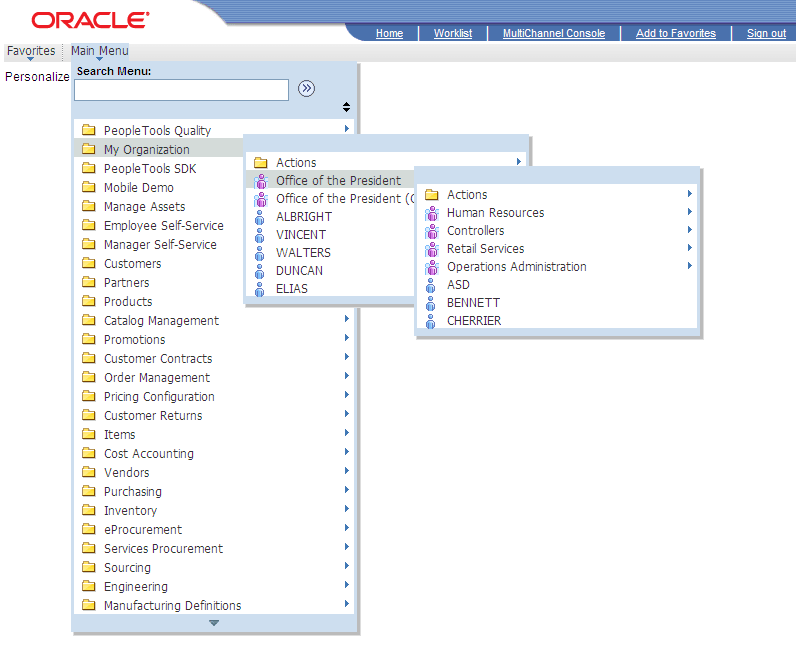
Each menu item is a unique row of data. The menu items are organized based on parent-child relationships. The key field values of the row determine the labels of the menu items. The key field structure of the underlying table determines the position of the menu items in the menu hierarchy.
Similar to standard menu items, SmartNavigation menu items expand when you click the label of a parent menu item. When you click the icon of a child menu item, the transaction or detail page appears.
In addition to your data, SmartNavigation menus also display an Actions folder. The Actions folder contains links to the details component and related actions components.
Note:
Left navigation from the Menu pagelet does not support SmartNavigation menus.
Note:
In addition, in certain scenarios, when navigating through a SmartNavigation menu to content contained in an Actions folder, the breadcrumb list is painted with an "Actions" element. This Actions element is non-operable—that is, you cannot select the drop-down menu beneath this Actions element like a normal folder. Rather, it is only there to suggest your navigation through the menu. If you attempt to select the drop-down menu beneath this Actions element, the following message will be displayed:
Updating DOM Unsuccessful:
Error - TypeError: flyout is null
SmartNavigation Icons
SmartNavigation menu items do not use the standard folder and content reference icons. SmartNavigation menu items icons are graphically stylized representations of entities. A multi-entity icon appears next to menu items that are parent rows with one or more subordinate menu items that are child rows. A single-entity icon appears next to menu items that are child rows with no subordinate menu items or child rows.