Working with Grid Tabs
If the number of columns in a grid precludes you from viewing all of the grid data simultaneously without the page being cluttered, developers might design the grid so as to group and separate columns with tabs. This section discusses:
-
Grid tabs
-
Cell navigation
Grid Tabs
Grid tabs enable you to view groups of data columns simultaneously with little or no scrolling of the entire page to the right.
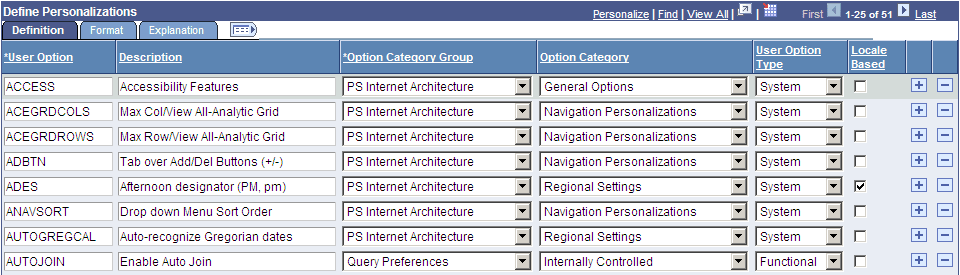
In this example, you see the Define Personalizations grid and the Definition, Format, and Explanation tabs. Notice the Show All Columns button to the right of the Explanation tab.
This example illustrates the Define Personalizations grid showing three tabs.
To view all columns without tabs:
-
Click the Show All Columns button just below the navigation header of the grid.
Showing all columns can expand the width of the web page so that a browser scroll bar appears at the bottom of the browser window.
Alternatively, some grids may have an Expand All button to the right of the tabs, which enables you to expand the grid columns to the right so that no tabs appear.
-
You use the browser scroll bar to scroll left and right to view the data columns.
Note:
When in the expanded view, you cannot freeze columns because the entire grid moves with the page.
To restore the grid to its original state, click the Show Tabs button.
Cell Navigation
In original grids, you can navigate through cells in these ways:
-
Press Tab to move one field or page element to the right.
Movement continues from row to row and outside the grid.
-
Press Shift + Tab to move one field or page element to the left.
Movement continues from row to row, into the column headers, and outside the grid.