Working with Search Results
The following example illustrates a typical set of search results generated by PeopleSoft Search.
This example illustrates the fields and controls on the Search Results page.
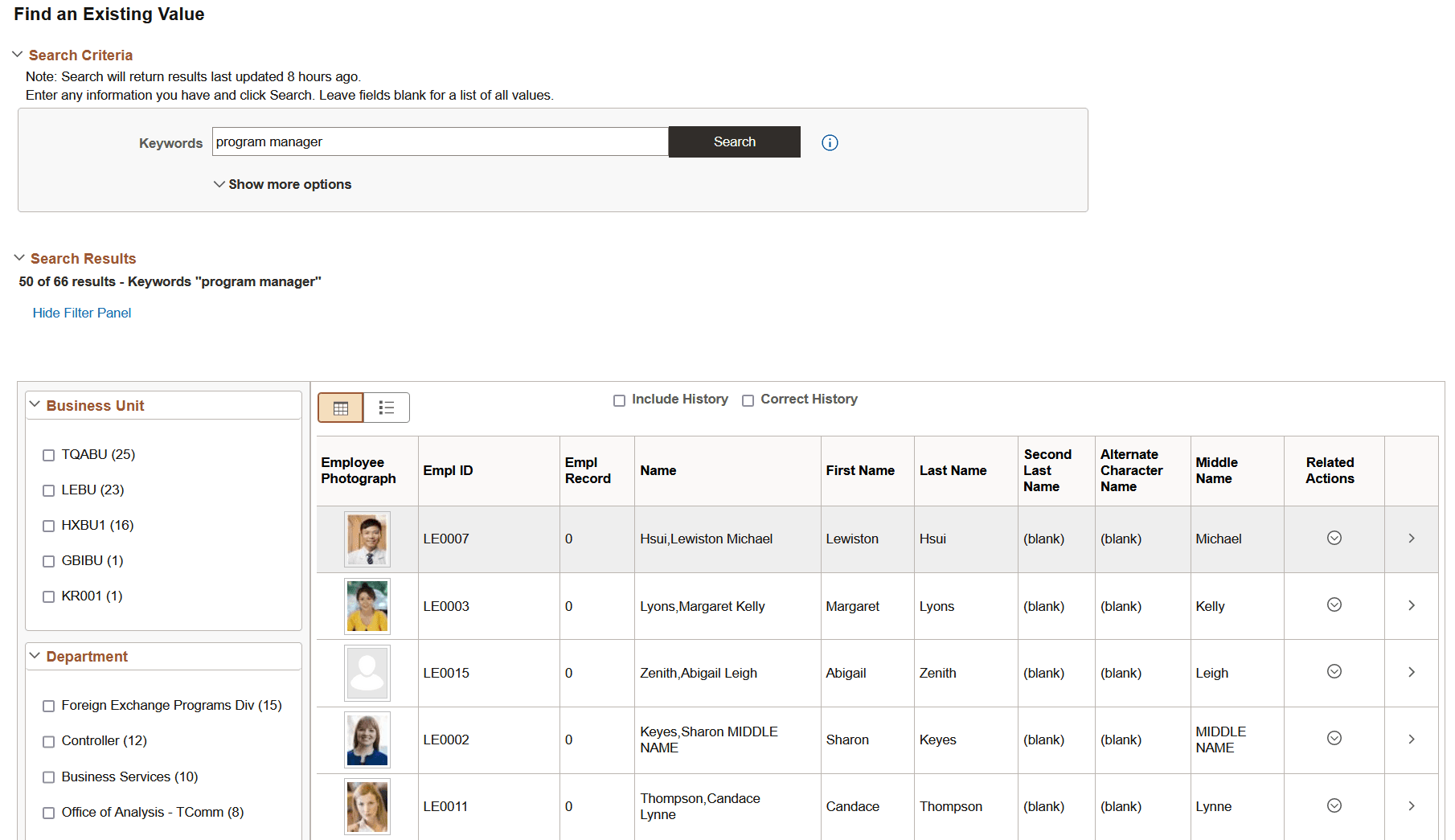
| Field or Control | Description |
|---|---|
|
Hide Filter Panel or Show Filter Panel |
Use the Hide Filter Panel link and the Show Filter Panel link to toggle between hiding the facets panel and displaying the facets panel. |
|
Facets |
The area to the left of the search results, displays various filters and categories that you can use to drill into the results and reduce the result set. |
|
Title |
The title enables you to identify the search result and navigate to the associated component. Select or tap the row to display the page you use to view or modify the underlying data for the search result. |
|
Summary |
Displays a general overview of the target data to help you determine if this is the data you need. |
|
Related Actions |
If the component for this data has related actions associated with it, and you have security access to those related actions, you can navigate to those related actions from a search result. To navigate to a related action, click the related actions indicator, and click the desired link in the related action popup list. If you use configurable search to configure search for a component, you can choose whether to display related actions or not on the search results page. Administrators set this option on the Search Configuration page. See Search Technology: Working with Configurable Search. |
Working with Filters
A filter (also called a facet) is a search attribute (field) that provides an alternate representation of the list of values for a given attribute. Filters are attributes used to filter and narrow down a set of search results. In many cases, the filter for search results will be hierarchical, meaning that as you drill into the results you navigate through various levels of results. For example, you can narrow searches by applying filters such as Country, State, Province, City, and so on, with each filter reducing the result set.
This example illustrates a filter.
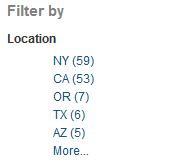
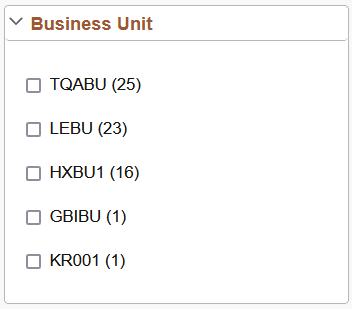
For a given filter, the system displays the values of that filter in a descending order determined by the number of each value. Five values display by default, but to see the remaining values, click More. By clicking a value, the system displays only the number of search results for that value. For example, if you clicked LEBU in the example above, only 23 results for LEBU would be displayed.
As you drill into a set of facets, your path is expressed in the form of a filtering navigation path.
This example illustrates a filtering navigation path.
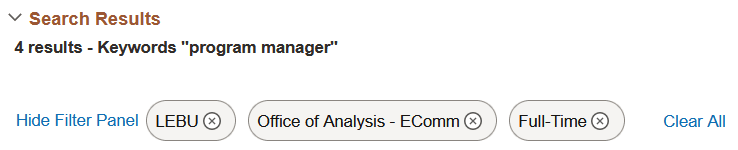
You can deselect the check box for a filter to remove its effect on the search results, or to reverse the direction of your filtering and expand the results.
Click Clear All to remove all applied filters, returning the search results to the state prior to filtering.
Viewing Search Results With Grid Format and List Format
Use the grid and list buttons to toggle between the grid format and the list format for viewing search results.
| Field or Control | Description |
|---|---|
|
|
Enables you to switch the view of the search results between list format and grid format. The icon representing the current view is greyed out. |

This example shows search results in a grid format.
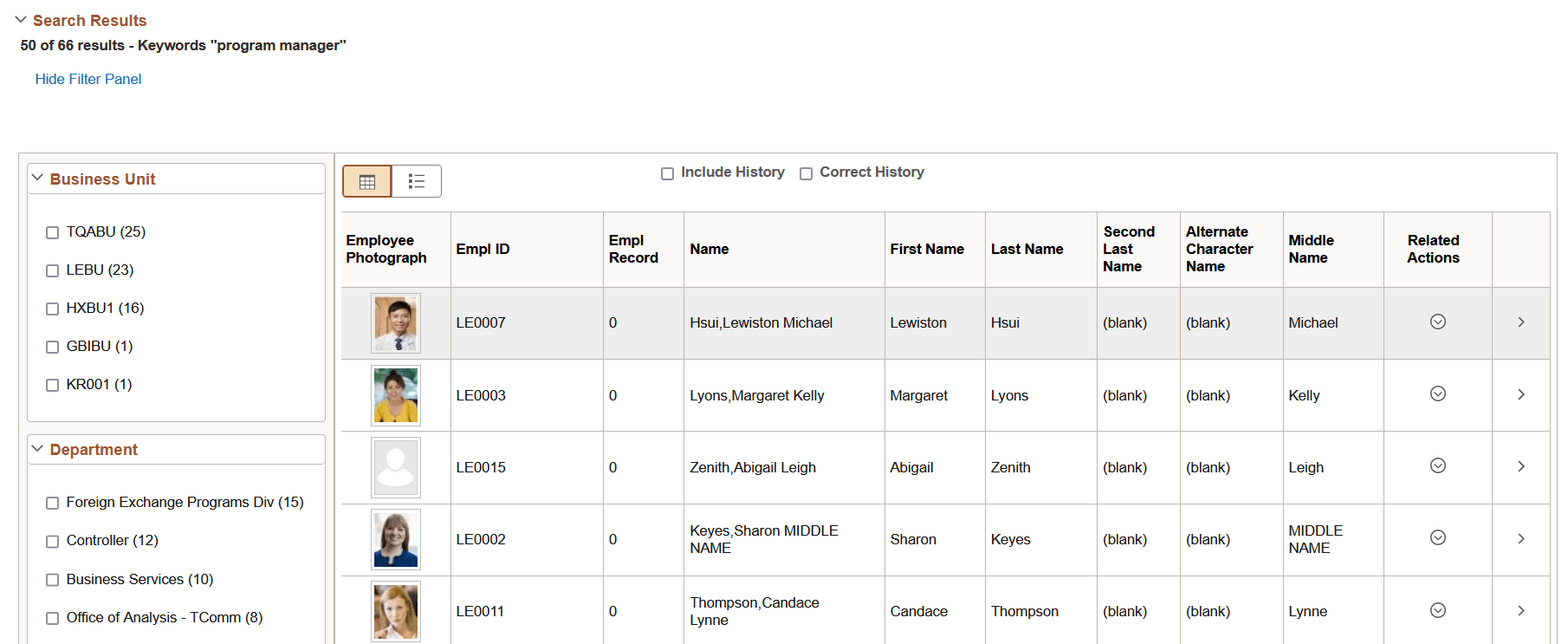
To navigate to the page loading the desired data, select the row.
The related actions indicator does not appear for search results in the grid format.
Note:
The default search result display format for Keyword Search is the grid format.
The following example displays the list format:
This example shows search results in a list format.
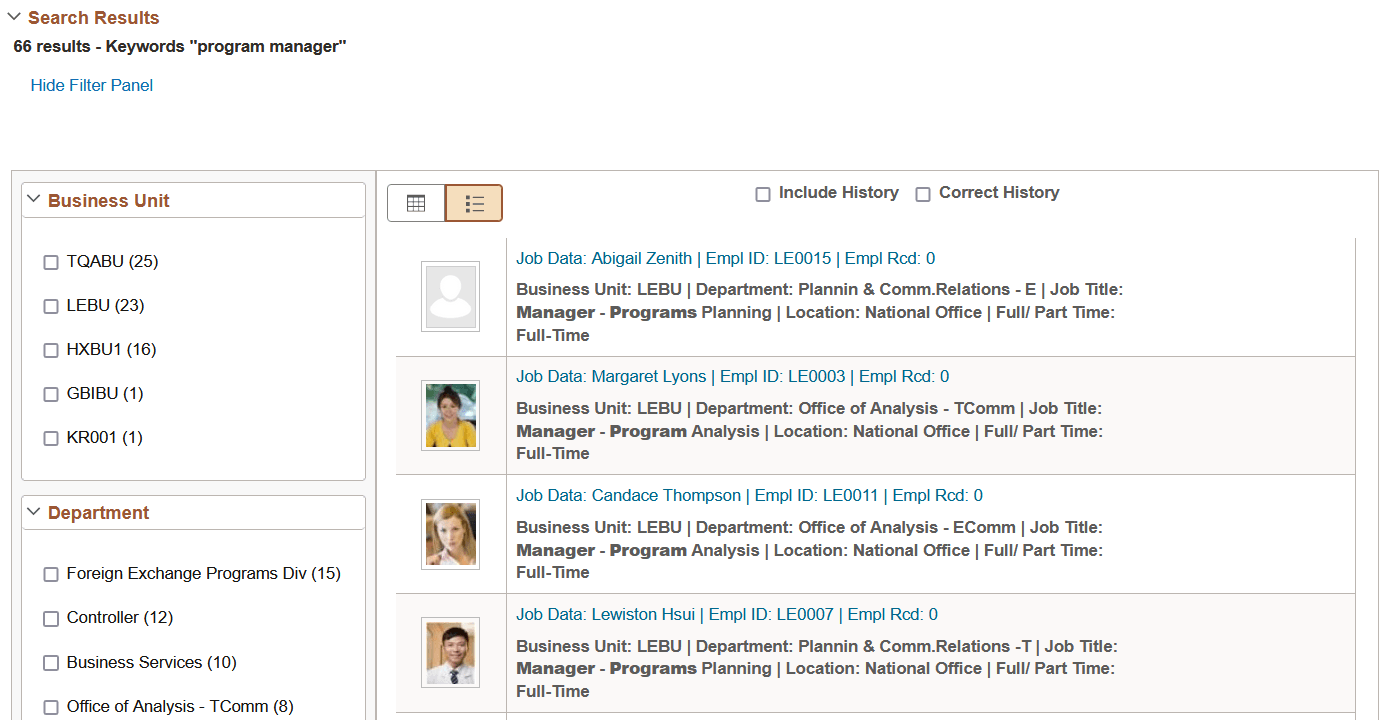
To navigate to the page loading the desired data, select the row.
The related actions indicator appears only for search results in the list format.
Note:
The default search result display format for Global Search is the list format.